
Workspaces and teams: who sees your freight, and who hears about it
Do you need more than one workspace? How workspaces organize freight, how teams decide who gets bid alerts, and how to set both up.
Where to find it in the app
The short version
Workspaces hold freight
Every load and lane sits in exactly one workspace, like a file in a folder.
Teams hold people
A load's coverage team and coverage owner get its bid and chat alerts.
Need more than one workspace?
Only if offices, branches or agent groups keep their freight apart. Every account starts with one workspace and a General team.
Who sees a workspace's freight?
Anyone at your company, unless it's private. Who sees what
Who gets bid and chat alerts?
The coverage owner, plus the coverage team: everyone or just managers, per the team's setting. How alerts work
Who can change all this?
Owners and Admins. Members can see teams and workspaces but can't change them. Make one private
Who sees which freight?
The workspace menu on the Freight page picks the freight you see.

- My workspaces: yours, by name or through a team. Checked for you.
- Other workspaces: the rest of your company's. Check one to see its freight.
- Show archived workspaces: brings archived ones back into the list.
Important: A private workspace doesn't appear in the menu for people who aren't members. Admins and Owners always see it.
How does freight get into a workspace?
![Top: the whole app, dimmed, with the Workspace section of the Post freight form highlighted. Bottom, zoomed in: the Workspace section, Assign this freight to a workspace, with the required question Which workspace will own this freight? set to Laredo Agent Office (LAR-02) [Member]. Badge 1 marks Workspace. Badge 2 marks the workspace list.](https://cdn.prod.website-files.com/68f895ca2108f2e6774261f7/6ad6677efe67b3666e810e4c_6ad6675cb4793a156b4df323_help-broker-workspaces-teams-posting_US-EN_4x.png)
- Workspace: pick it when you post. It shows only if you have more than one workspace.
- Which workspace will own this freight?: [Member] marks the ones you belong to.
- From your TMS: the workspace whose TMS Workspace ID matches the one your TMS sends.
- In a freight group: the group's workspace.
- Anything else: your default workspace.
Tip: To move freight, edit it and choose another workspace. It's locked if your TMS controls the workspace, and freight in a freight group has to leave the group first.
Who hears about bids and chats?
The load's Coverage Owner and Coverage Team. You set both on the last step of Post freight.
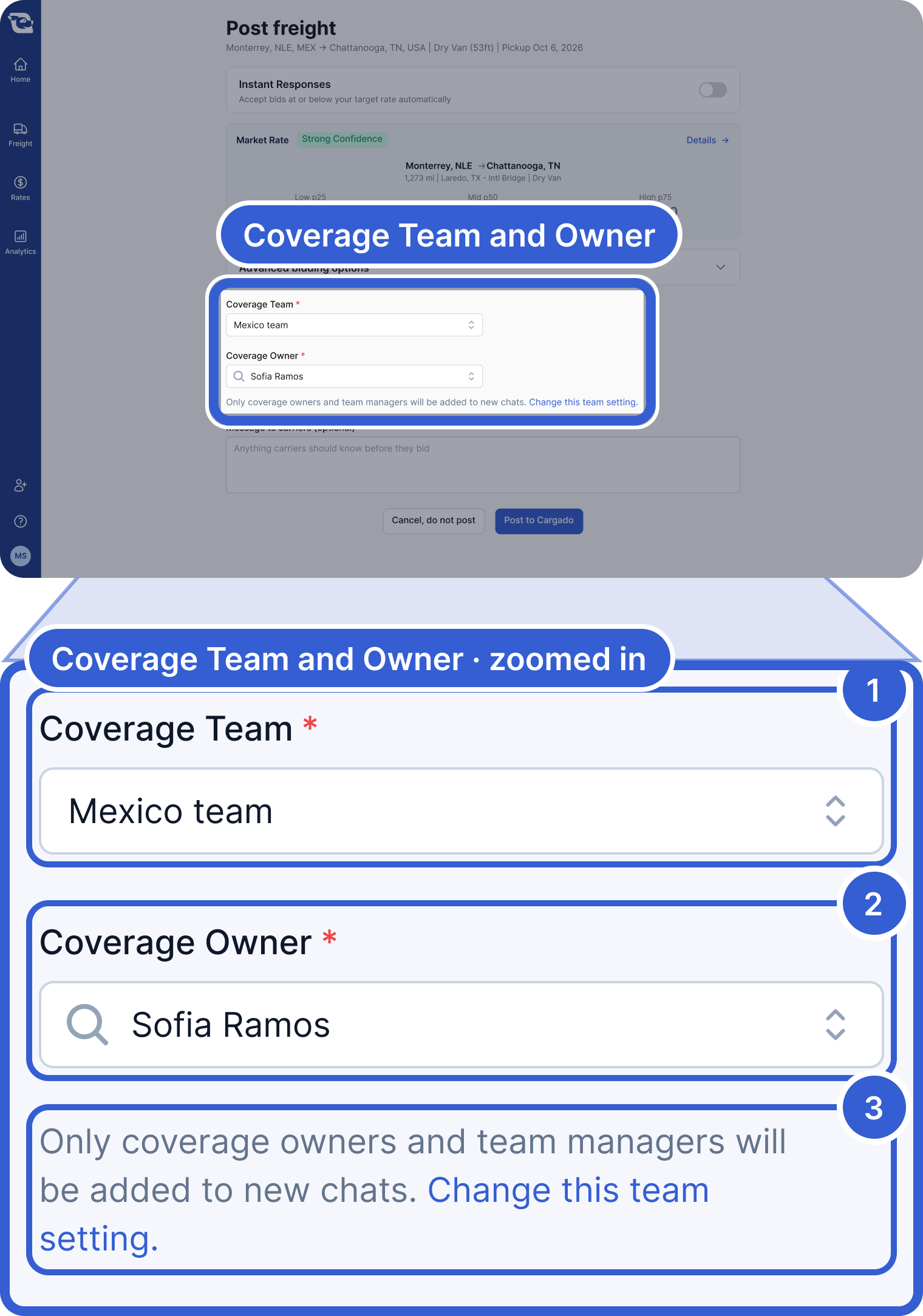
- Coverage Team: only teams in the load's workspace are listed. Add the team to the workspace first.
- Coverage Owner: always gets the load's bid and match alerts and joins its new chats.
- Change this team setting: who from the team joins new chats, with a link to the team.
How much of the team hears depends on one team setting:

- Who should receive notifications?: Entire team, or Freight owner and managers only. New teams start on managers only.
- Manager: a role you set on the team, not a reporting line.
Important: If a team is set to managers only, has no managers, and the load has no coverage owner, the whole team is notified.
Try it with an example company
Pied Piper Logistics
An example company with three workspaces and three teams. Pick a person to see which loads they see and which ones they get alerts for.
Make a workspace private or rename it
Owners and Admins only.
Step 1: Open Workspaces from your profile menu
Open your profile menu at the bottom-left. Under Organization, choose Workspaces, then the workspace.
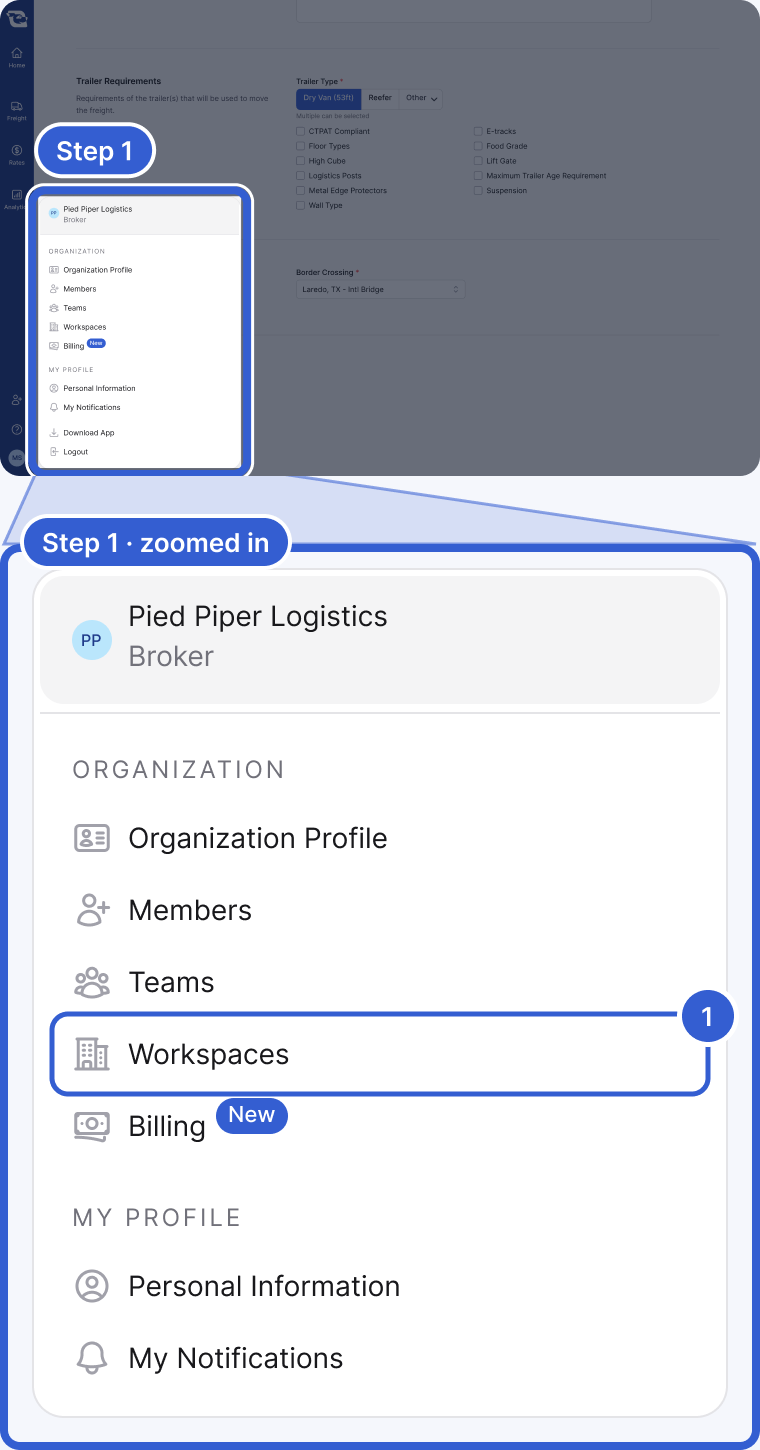
- Workspaces: the list of workspaces you can access.
Step 2: Change the Workspace Name and save
Change Workspace Name, then choose Save.
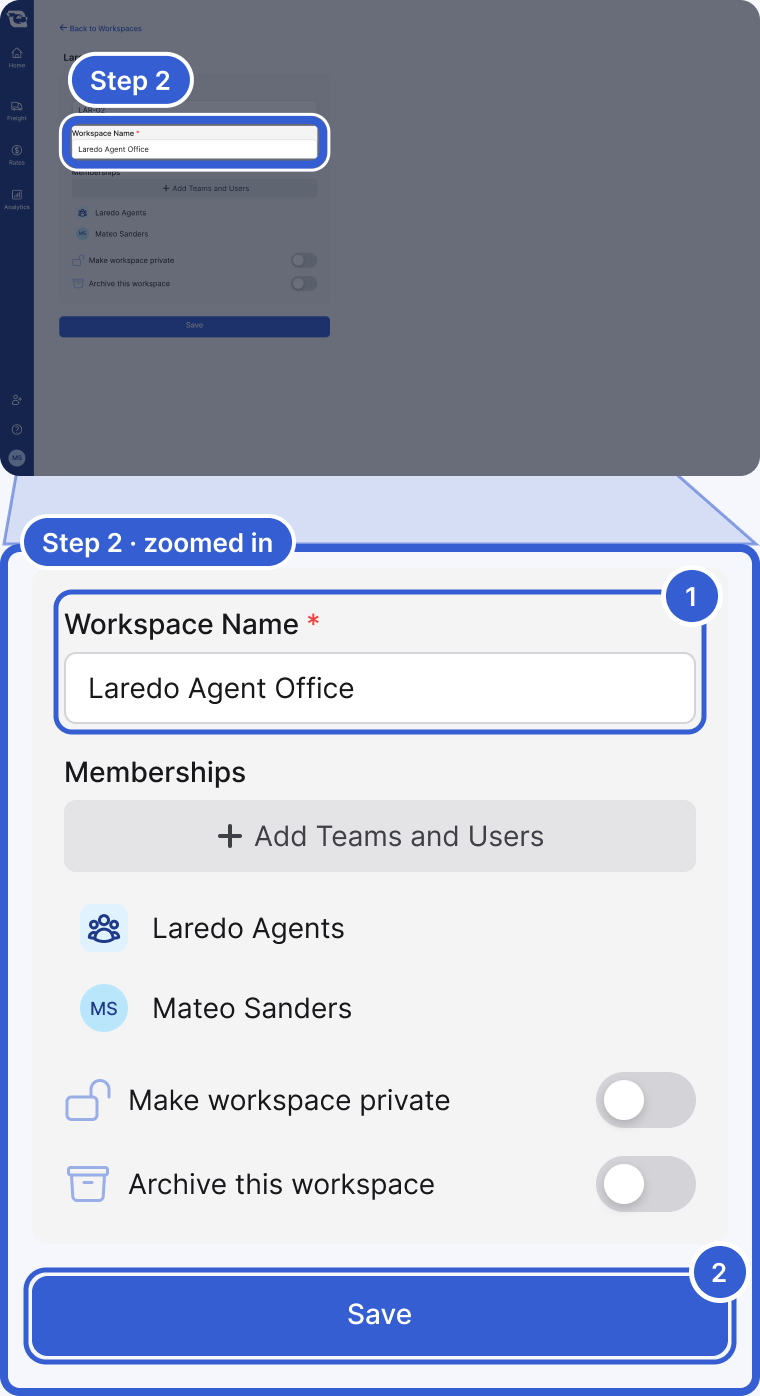
- Workspace Name: what everyone sees.
- Save: nothing changes until you save.
Step 3: Turn on Make workspace private
Turn on Make workspace private, then choose Save.
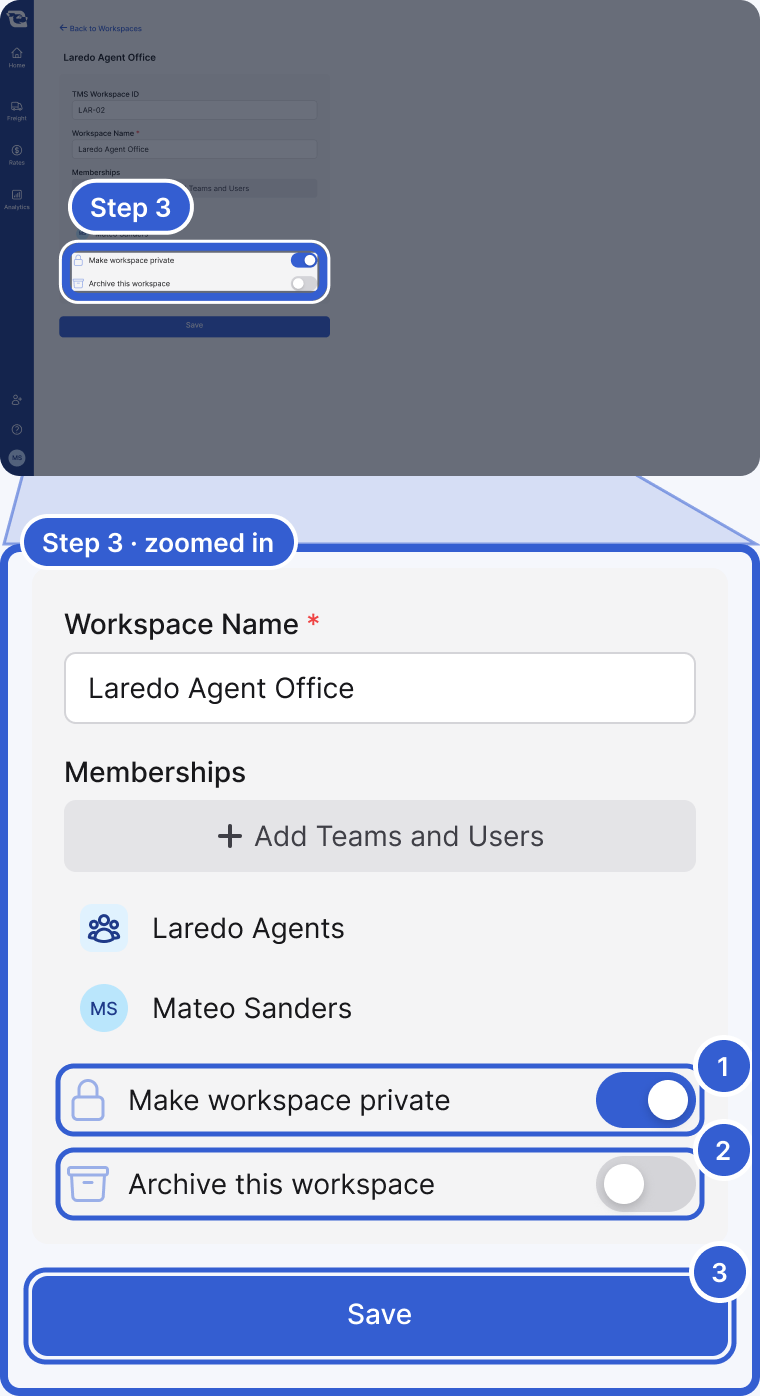
- Make workspace private: only its members (under Memberships), Admins and Owners see it.
- Archive this workspace: for one you no longer use.
- Save: applies it.
Important: Your default workspace can't be made private or archived.
If your TMS sends the coverage team
This works only for loads a lane rule auto posts.

- Use Teams and Users from TMS: in the lane rule's Auto Posting Configuration.
- Fallbacks: used when the TMS user or team doesn't map.
Then, in your integration settings, open Mappings and match each TMS team (Teams tab) and person (Users tab).
Important: A mapped TMS team gets the load's alerts and chats even if it isn't in the load's workspace, including a private one. Check your mappings when you make a workspace private.
Tip: For one team on every load a rule posts, choose Use Specific Team and User.
Good to know
- Fewer questions: with one workspace, the posting form skips the workspace question. With one active team in a workspace, it skips the coverage team.
- Find your loads: filter the Freight page by Covered By Your Teams or Covered By You.
- Who can change what: Owners and Admins manage workspaces, teams, members and notification settings. Members can look but not change. Billing admin alone adds none of this.
- Archiving: it doesn't move or close freight, and the app can't post to an archived workspace. If your TMS sends workspace IDs, clear its TMS Workspace ID before archiving, or synced loads can still land in it.
- Teams: deactivated, never deleted. A deactivated team can't cover freight. Names must be unique.
- More: Manage your team covers inviting people. To change your default workspace, email success@cargado.com. Carrier accounts don't have teams or workspaces.
Still stuck?
Email us and a person on our team will answer. Send the posting link or a screenshot if you have one.