
Market Rates for carriers
See a lane's market rate on the Rates tab and in the bid form. Market Rates is in beta and free for carriers while in beta.
https://cdn.prod.website-files.com/68f656dee991ae15a5cbb747/6adbeda91ae9f18200d131d9_carrier-rates-en-v1-720p.mp4
https://cdn.prod.website-files.com/68f656dee991ae15a5cbb747/6adbedaab9aec9938ed09fe2_carrier-rates-en-v1-poster.jpg
https://cdn.prod.website-files.com/68f656dee991ae15a5cbb747/6adbedabfe1d1760279fcbd5_carrier-rates-en-v1-720p.en.vtt
Market Rates shows what a lane is going for in two places: on the Rates tab, where you look up a lane, and in the bid form when you bid on a load. Market Rates is in beta, and it is free for carriers while in beta.
- On the Rates tab: turns on by itself for carriers based in the United States or Mexico whose service area crosses the Mexico border. If you don't have it, email carriers@cargado.com and ask us to turn it on.
- In the bid form: every carrier sees it on standard loads. It doesn't show on hazmat, oversized, overweight, partial, tanker, power-only, team, round-trip or security-escort loads.
Step 1: Find the Rates tab
When the Rates tab is on for your company, it shows in the menu on the left with a New badge (at the bottom of the screen on a phone).

- The Rates tab with its New badge.
- The welcome banner.
Step 2: Enter the lane
Pick a trailer from Select trailer type, then choose the Origin and Destination from the suggestions. Places in the United States, Mexico and Canada work. On a lane between Mexico and the United States or Canada, choose a crossing from Select border crossing. When Cargado has recommendations for the lane, they are at the top and the first one is already selected.

- Select trailer type.
- Origin and Destination, chosen from the suggestions.
- Select border crossing, on a lane between Mexico and the United States or Canada.
Step 3: Pick a currency and get rates
Choose USD, MXN or CAD, then click Get rates.
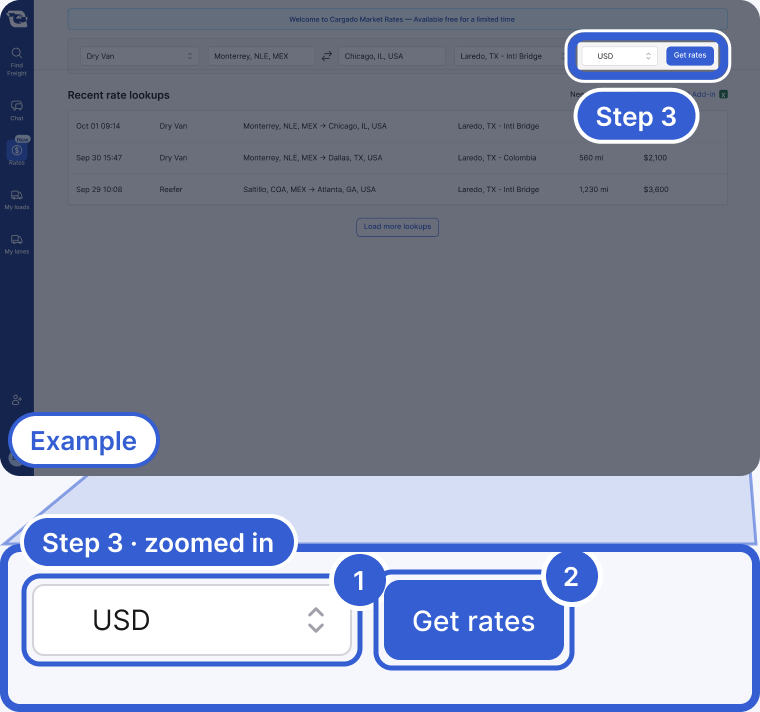
- The currency: USD, MXN or CAD.
- Get rates.
Step 4: Read the range
A lookup gives three numbers for the latest period:
- Low (p25): a quarter of the data behind the lookup sits at or below this.
- Mid (p50): the median.
- High (p75): a quarter sits at or above this.
The amounts are a total per load and include fuel. The confidence label (Strong Confidence, Medium Confidence or Lower Confidence) tells you how much uncertainty there is around the median. When there is enough history, History: Trailing 12 weeks shows how the lane has moved. See How to read a market rate.

- Low, Mid and High: per load, fuel included.
- The confidence label.
- History: Trailing 12 weeks: how the lane has moved.
Step 5: Check the market rate when you bid
Open a load and go to Submit a Bid. When there is a rate for the lane, the Market Rate card sits at the top: the lane, the border crossing and the trailer, then Low p25, Mid p50 and High p75 with a confidence label. Details opens the same lane on the Rates tab, if your company has it.
If the broker set a starting rate, it shows under the card. Click Bid with that amount to bid it, or Use my own rate to enter yours. A bid below the broker's starting rate can't be sent.

- Low p25, Mid p50 and High p75, with the confidence label above them.
- Details: opens the lane on the Rates tab.
- The broker's starting rate and the Bid button.
A bid near Mid p50 is near the median. A bid well above High p75 is above most of the data behind the range. Your own costs still come first: the range is a reference, not what your truck needs to earn.
Good to know
- No rate on a lane: the Rates tab shows We don't have enough data on this lane, and in the bid form the Market Rate card doesn't appear.
- Past lookups: everyone at your company sees the same list under the form, so a dispatcher can reuse a lookup a teammate already ran.
- Many lanes at once: the Rates tab links to the Excel add-in for bulk lookups (Use the Excel Add-in).
Still stuck?
Email us and a person on our team will answer. Send the posting link or a screenshot if you have one.