
Multi-factor authentication (MFA): set it up, and what to do if you are locked out
Find your code, set up an authenticator app or a text message, and what to do if you are locked out.
Find your fix
- It asks for a code and I don't know where it is
- I'm setting it up for the first time
- The text message never arrives
- I lost my phone or deleted the app
Multi-factor authentication (MFA) means one more check after your password: a 6-digit code from your phone. Some people call it two-factor authentication, or 2FA. You type the code on the Verify Your Identity screen when you sign in.
To sign in, go to cargado.com and choose Log in at the top right. On a phone, open the menu (☰) first. You can also go straight to app.cargado.com. Both take you to the Cargado sign-in page at account.cargado.com.

- Log in: at the top right of cargado.com.
- account.cargado.com: the sign-in page. Type your email address and choose Continue, then enter your password.
Right after your password, you see one of these three screens. Match yours:

- Keep Your Account Safe: no method is set up yet, either your first time or after we cleared it. Go to Set it up.
- Verify Your Identity, asking for an authenticator code: you set it up before. Go to Find your code.
- Verify Your Identity, showing a phone number with most digits hidden: we sent you a text. No text? Go to The text never arrives.
It asks for a code and I don't know where it is
Most people who see this did set it up once, often months ago, and forgot. The code lives in the app you used to scan the QR code. Check these four first.
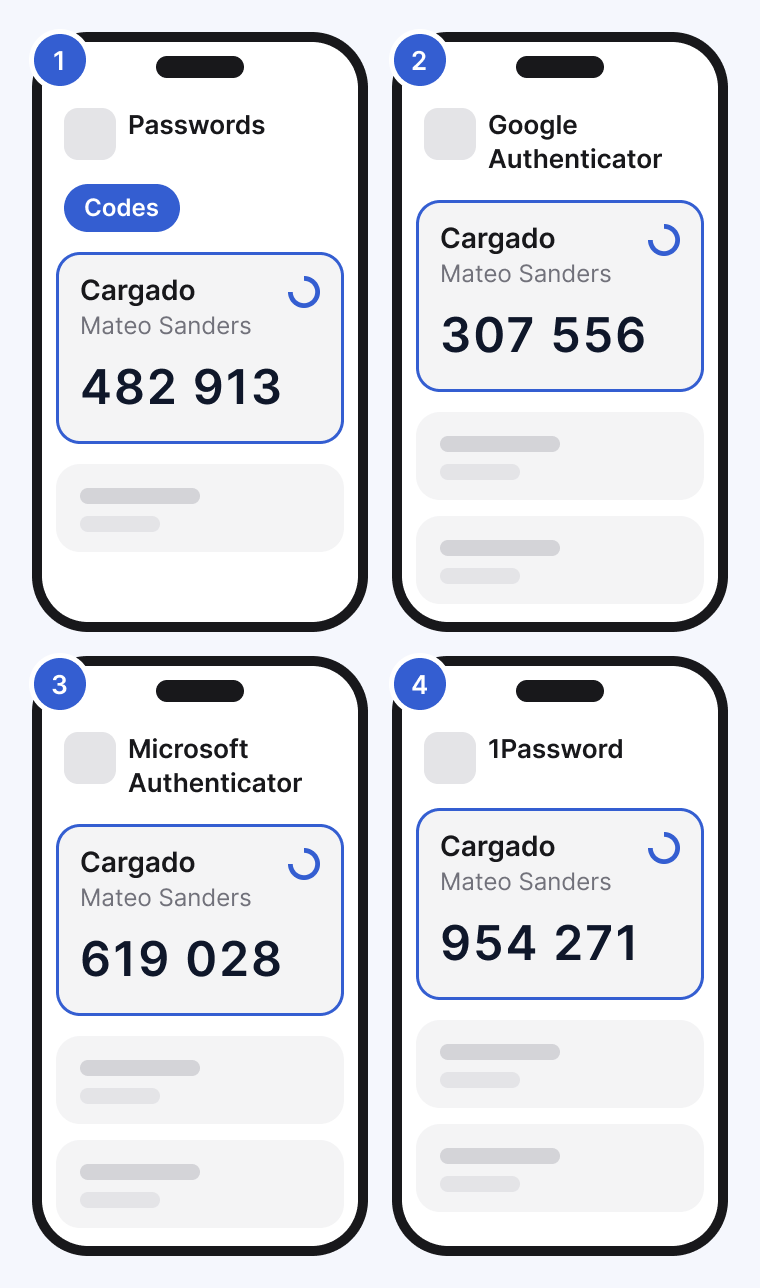
- iPhone Passwords app: if you scanned the QR code with your iPhone camera, open Passwords and tap Codes. Look for Cargado.
- Google Authenticator: the most common app on Android phones.
- Microsoft Authenticator: common if your company uses Microsoft.
- 1Password: if you or your company use it for passwords, look in the Cargado login item.
Type the 6-digit code on the Verify Your Identity screen and choose Continue. The code changes every 30 seconds, so use the one on screen now.
Tip: Your company's own sign-in app, like Okta Verify, has no Cargado code unless you added Cargado to it yourself.
Not in any of them? See I lost my phone or deleted the app.
Set it up for the first time
New accounts set this up at their first sign-in. You can also set it up any time from Settings (see Set it up from Settings).
Step 1: Choose Authenticator App
On the Keep Your Account Safe screen, choose Authenticator App (Google Authenticator or similar). It works even when text messages do not arrive.

- Authenticator App (Google Authenticator or similar): an app on your phone that shows a new code every 30 seconds. We recommend it.
- Text Message: we text a code to your phone each time. Use this if you do not want an app.
Step 2: Scan the QR code with your app
Open your authenticator app on your phone, add a new account, and point the camera at the QR code. On an iPhone, the camera works too: it saves the code in the Passwords app.
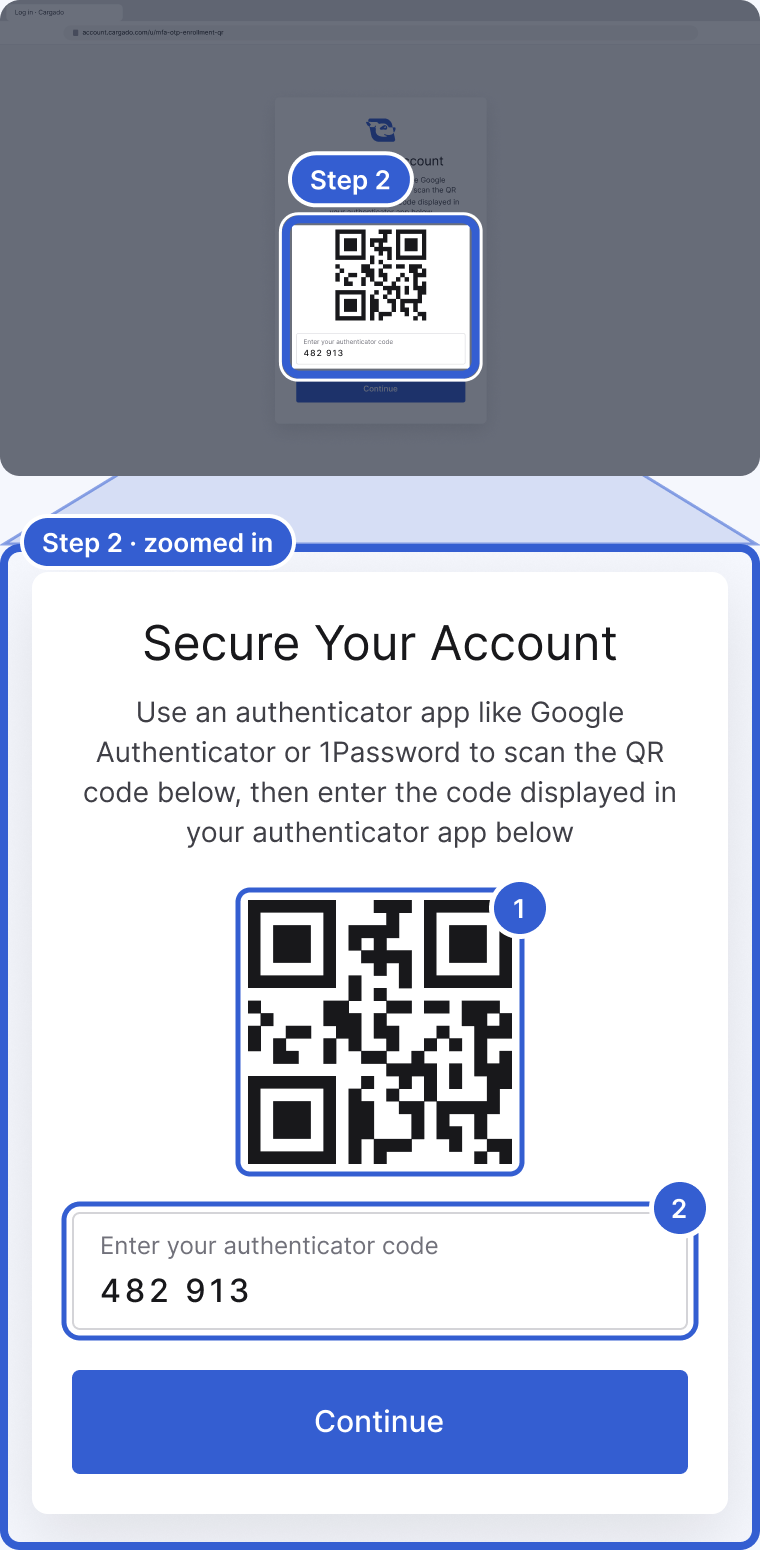
- QR code: scan it with your authenticator app. Cargado now appears in the app with a 6-digit code.
- Enter your authenticator code: type that code here, then choose Continue.
Step 3: Next time, open the app for your code
From now on, after your password you see Verify Your Identity. Open the same app, type the Cargado code and choose Continue.

- Enter your authenticator app code: the 6-digit code showing in your app right now.
- Remember this device for 30 days: check it on your own computer so you are not asked every time.
Important: Write down which app you used. That is where your code will be next time.
Set it up from Settings
Already signed in? Choose your picture or initials at the bottom left of the app to open your profile menu, then choose Authentication and MFA.
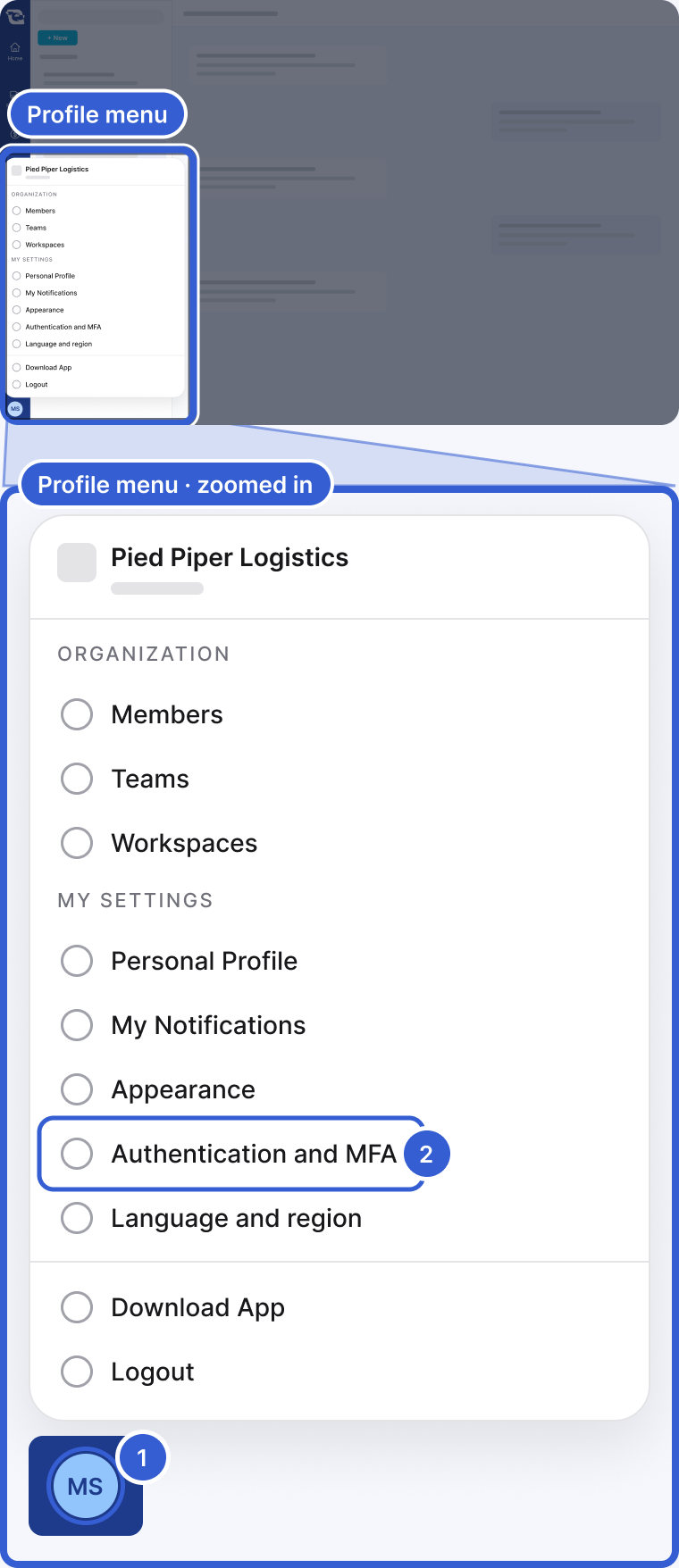
- Your picture or initials: at the bottom left of the app. Choose it to open the menu.
- Authentication and MFA: under My settings.
Under Multi-factor authentication, choose Connect next to the method you want, then Continue. You sign in again and go straight to that method's setup screen. If you see the dark Action Needed banner at the top of the app, its Enable now button takes you to the same page.

- Connect: starts setup for that method.
- Enabled on: a method you already have. This is how you check which one you set up.
The text message never arrives
- Wait one minute and check that your phone has signal. Then ask for a new code once.
- Asking many times in a row can hit the limit on texts per hour. Wait an hour before you try again.
- Texts to some phone carriers, mostly in Mexico, can be slow or blocked. The authenticator app does not need a text at all, so it is the most reliable choice.
- Can you still sign in? Connect the authenticator app yourself from Settings. No reset needed.
- Can't sign in at all? Email us (see below). We clear your setup and you set it up again at your next sign-in.
I lost my phone or deleted the app
You cannot reset MFA yourself, and neither can an admin at your company. Cargado support can.
- Email us from the email you sign in with, and include your company name: brokers at success@cargado.com, carriers at carriers@cargado.com.
- We confirm it is really you, for example with a call to your company's phone number on file.
- We clear your setup. At your next sign-in you set it up again on your new phone.
Important: Only ask for a reset on your own account.
Good to know
- Changing phones: set up the new phone from Settings before you remove the old method, so you always have one that works.
- One phone number, one account: a phone number can be used for text codes on only one Cargado login. If yours is taken, use the authenticator app.
- Who has to use it: accounts created since August 19, 2025, set it up at first sign-in. Older accounts can turn it on from Settings, and we recommend it.
- Forgot your password instead? See Reset your password.
Still stuck?
Email us and a person on our team will answer. Send the posting link or a screenshot if you have one.