
Desktop app, mobile app or browser
They are the same Cargado. Where to get the apps, and the one real difference: notifications.
In 3 steps
- Open Download App from your profile menu
- Get the desktop or mobile app
- Allow notifications where you work
The desktop app, the mobile app and the browser are the same Cargado: the same account, the same freight and the same chats. Sign in to any of them with the same email.
Step 1: Open Download App from your profile menu
Go to app.cargado.com/download. You can also open your profile menu in the browser and choose Download App.
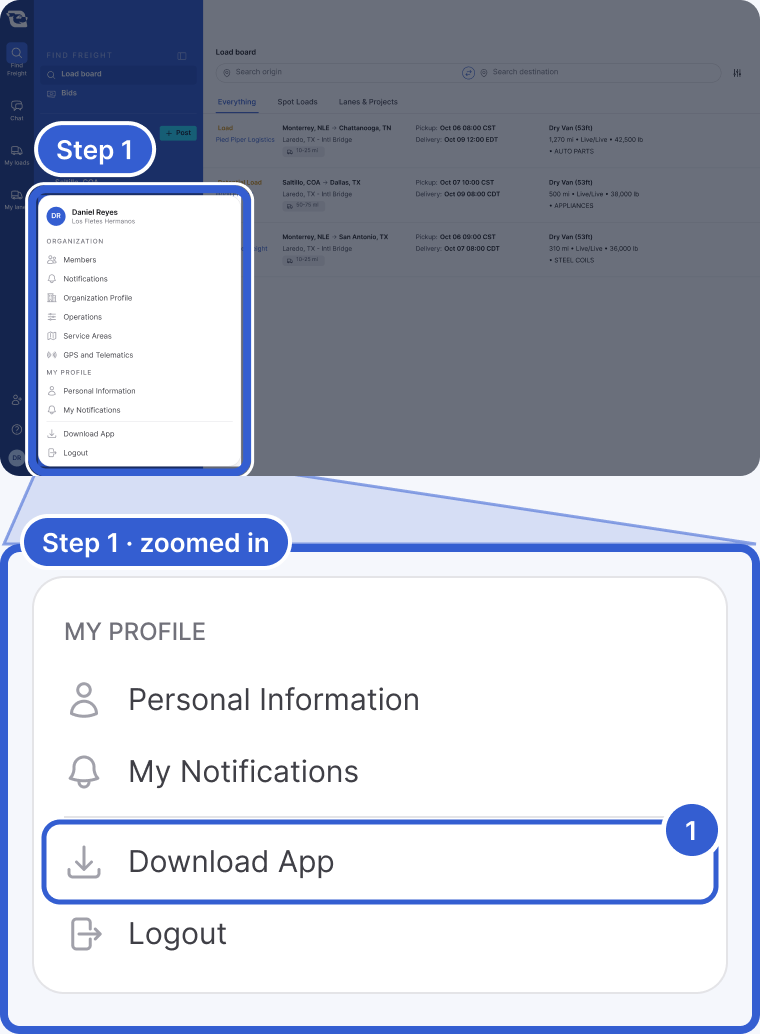
- Download App: opens the download page, just above Logout.
Step 2: Get the desktop or mobile app
- Desktop app. Pick your computer: Mac (Apple silicon), Mac (Intel) or Windows. The download page may recommend a download for your computer, and Supported Versions lists all three. Download the version for your computer, then install it and sign in with your usual email.
- Mobile app. Scan the QR code with your phone, or search for Cargado on the App Store or Google Play.
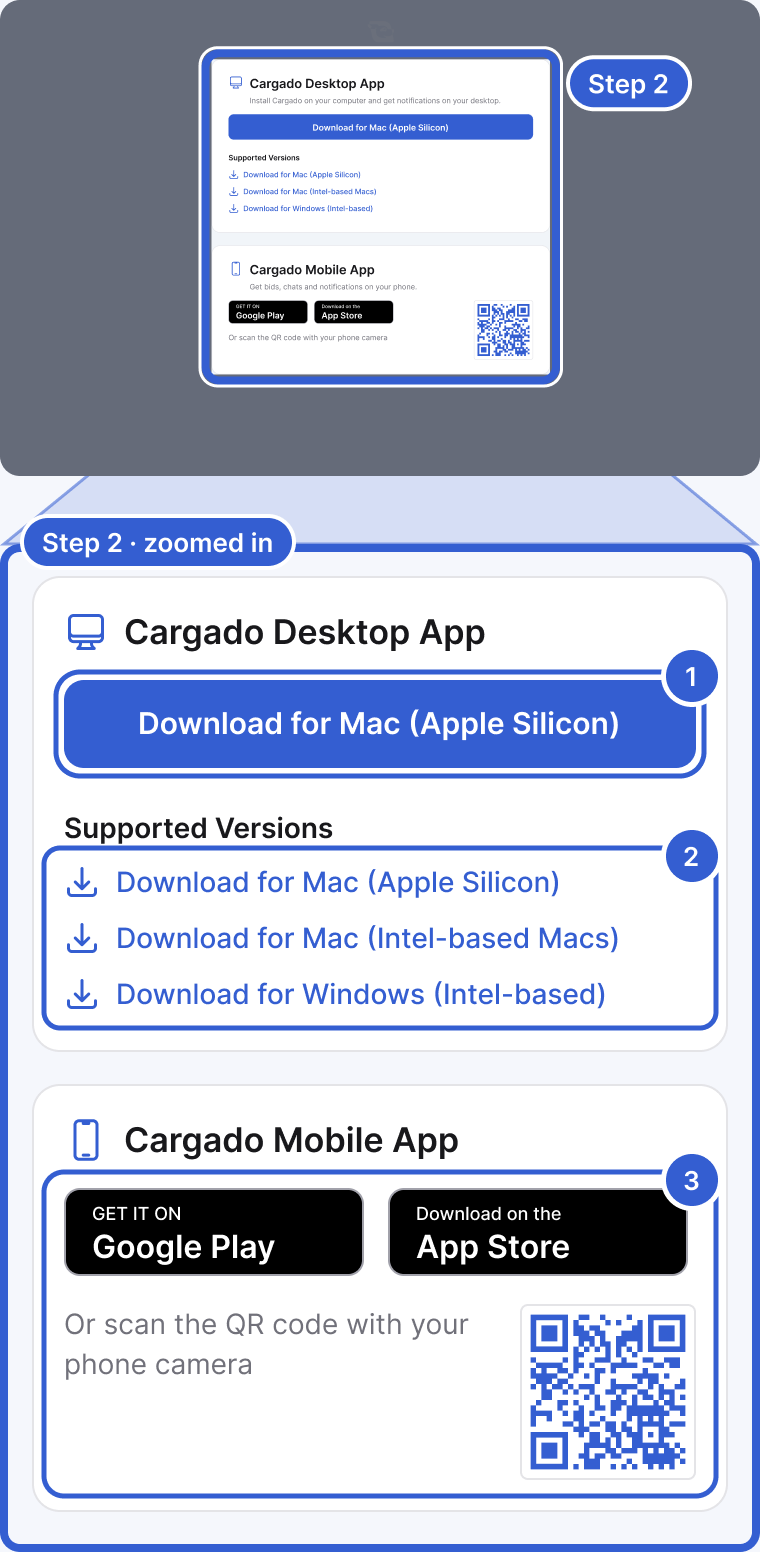
- Download for Mac (Apple Silicon): the download the page recommended for this computer.
- Supported Versions: all three desktop downloads, if the recommended one is not the one you need.
- Google Play, App Store and the QR code: the mobile app.
Step 3: Allow notifications where you work
This is where they differ. The desktop and mobile apps send notifications through your computer or phone. In the browser, you get push notifications only if you allow them when your browser asks. WhatsApp and email alerts work the same whichever you use.
Good to know
- If something looks different: what you see depends on the organization you are in, the view you have open and your filters. Compare the same account, organization, view and filters on both before treating it as a problem.
Still stuck?
Email us and a person on our team will answer. Send the posting link or a screenshot if you have one.