
Rename a workspace, or make it private
Where workspace settings live, who can change them, and exactly what private does.
In 3 steps
- Open Workspaces from your profile menu
- Change the Workspace Name and save
- Turn on Make workspace private
A workspace holds freight. You can use one per office, or one per agent. Only an admin or owner on your account can change a workspace. Other members see the settings only for the workspaces they can access, and cannot edit them.
Step 1: Open Workspaces from your profile menu
On desktop, open your profile menu at the bottom-left of the app. Under Organization, choose Workspaces. Then open the workspace you want to change.
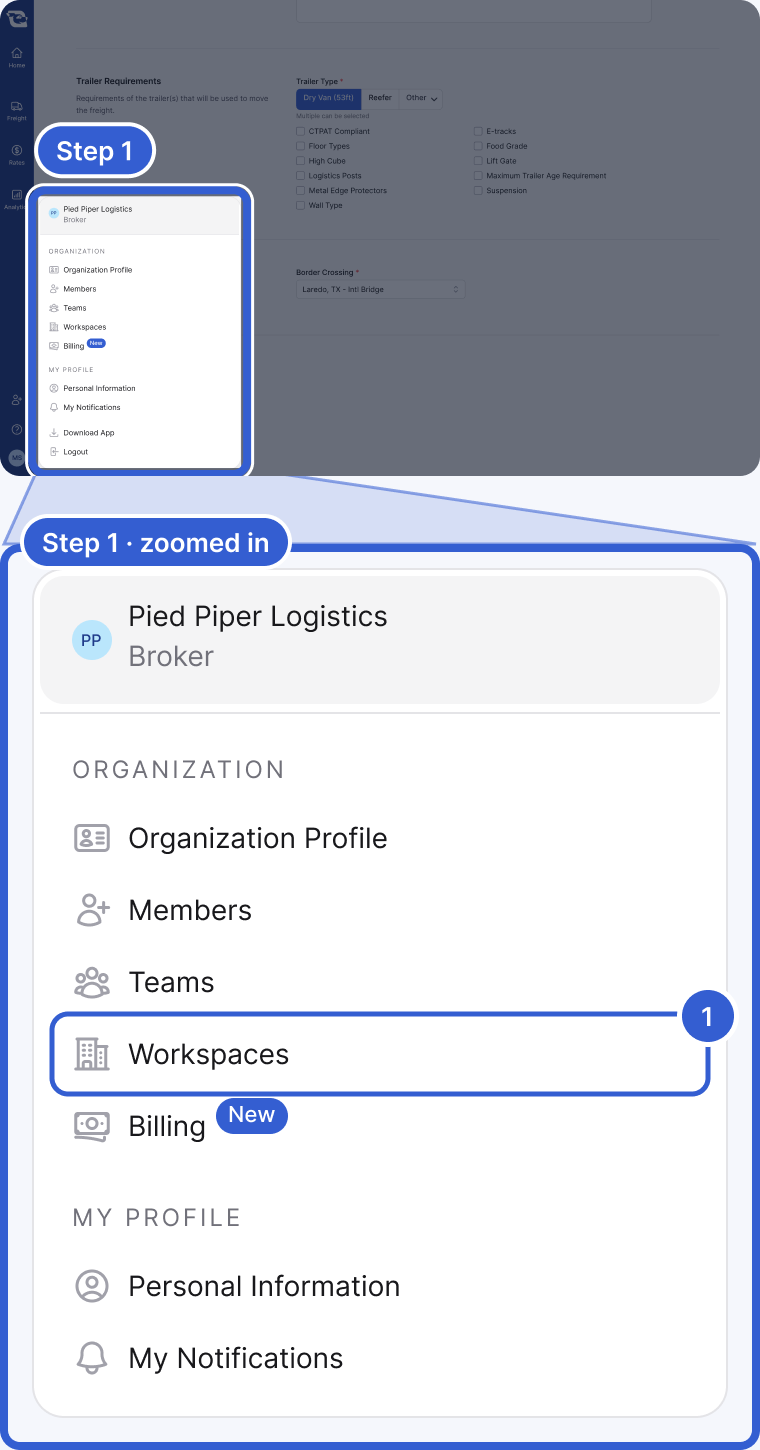
- Workspaces: opens the list of workspaces you can access. Open the one you want to change. The rows in your menu depend on your account; it continues below with Logout, and in a browser also with Download App.
Step 2: Change the Workspace Name and save
In the workspace settings, change Workspace Name. Then choose Save.
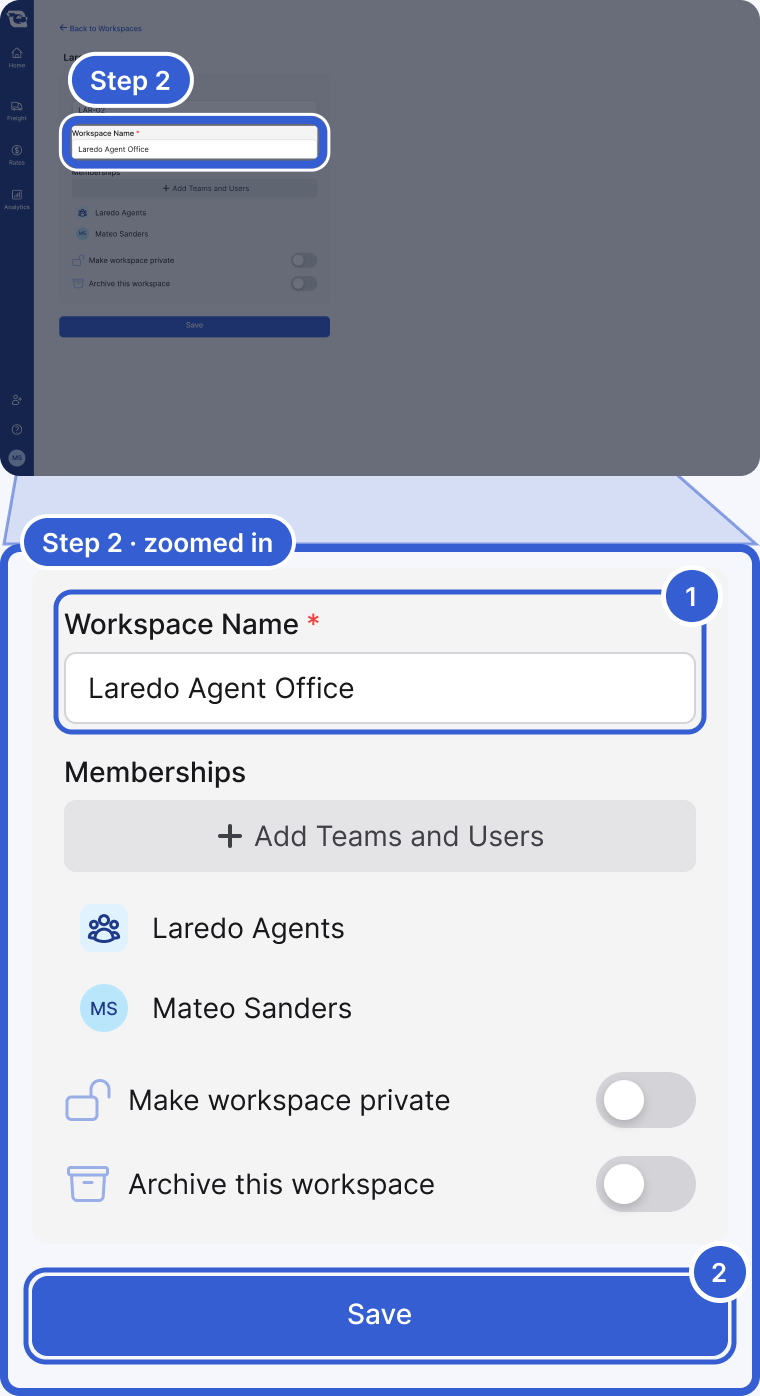
- Workspace Name: the name your team sees everywhere in the app.
- Save: nothing changes until you save.
Step 3: Turn on Make workspace private
On the same screen, turn on Make workspace private. Then choose Save.
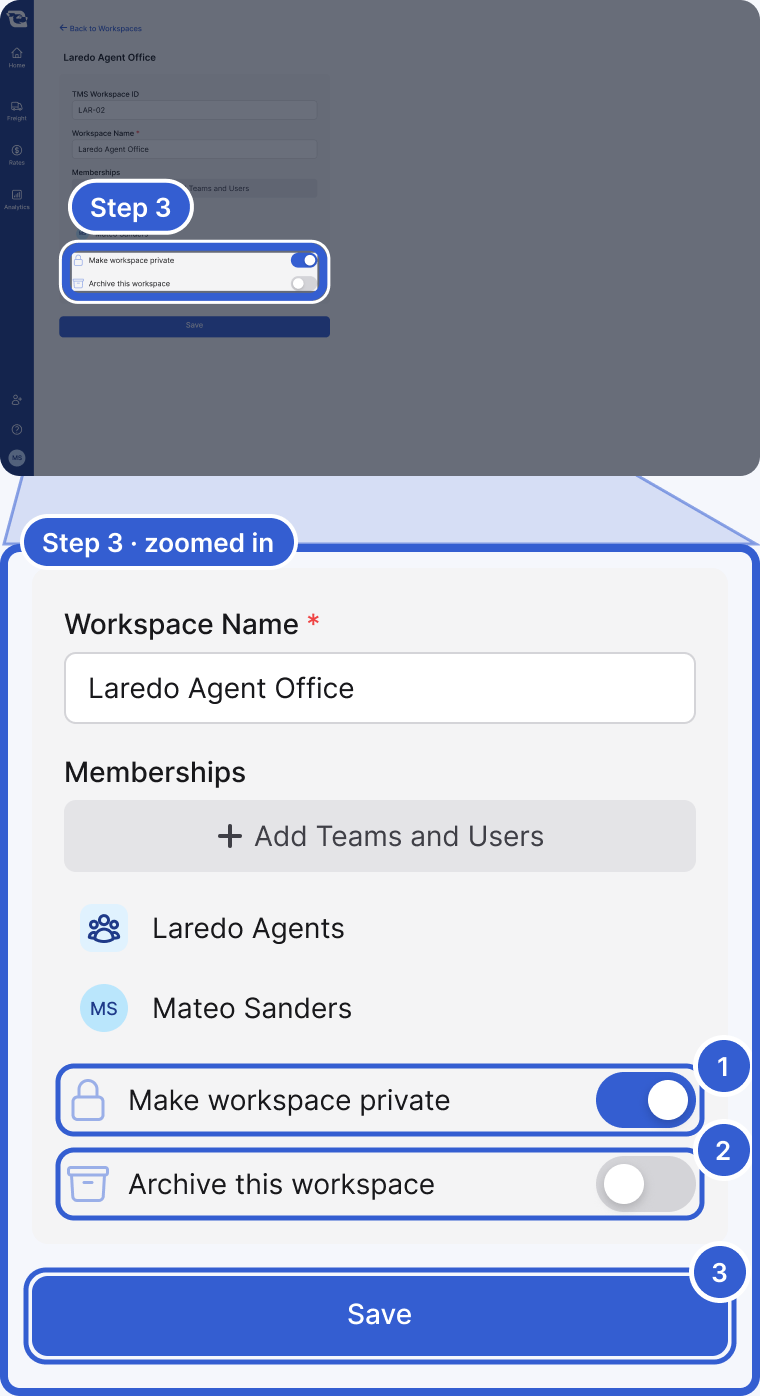
- Make workspace private: a private workspace is visible only to its members (the users and teams added under Memberships) and to your account's admins and owners. Everyone else at your company stops seeing it in their list of workspaces.
- Archive this workspace: turn it on for a workspace you no longer use.
- Save: applies the change.
Important: Your default workspace cannot be made private or archived.
Tip: Make a workspace private when an office's or an agent's freight should stay separate from the rest of the company.
Good to know
- Who can edit: only an admin or owner on your account. Other members see the settings only for the workspaces they can access, and cannot change them.
- Default workspace: there is no setting for changing it. Email success@cargado.com with the name of the workspace you want as the default.
Still stuck?
Email us and a person on our team will answer. Send the posting link or a screenshot if you have one.