
Why is there no market rate for my lane?
What each no-rate message means, in the app, Excel and the API, and what to do next, including posting the lane as a potential.
In 3 steps
- Read the no-data message and post the lane
- Read an extended-market rate with care
- Clear the lookup limit
A lane with no market rate means Cargado could not return usable rate history for it. It does not mean no carrier runs it. Here is what each message means and what to do about it.
Step 1: Read the no-data message and post the lane
Cargado prices a lane from the rate history it holds for it, shown on the result page as a trailing 12 weeks. When no usable rate history comes back, you get We don't have enough data on this lane instead of a guess. Before you post, check the trailer: rates are priced by trailer category, so try the closest standard trailer you would accept. On a cross-border lane, check the crossing too; a different crossing is a different lane. If the lane still has no rate, click Post as a potential under the message (brokers only) to open a new Potential Load with the lane filled in. The bids that come in tell you what carriers are quoting for the lane now.
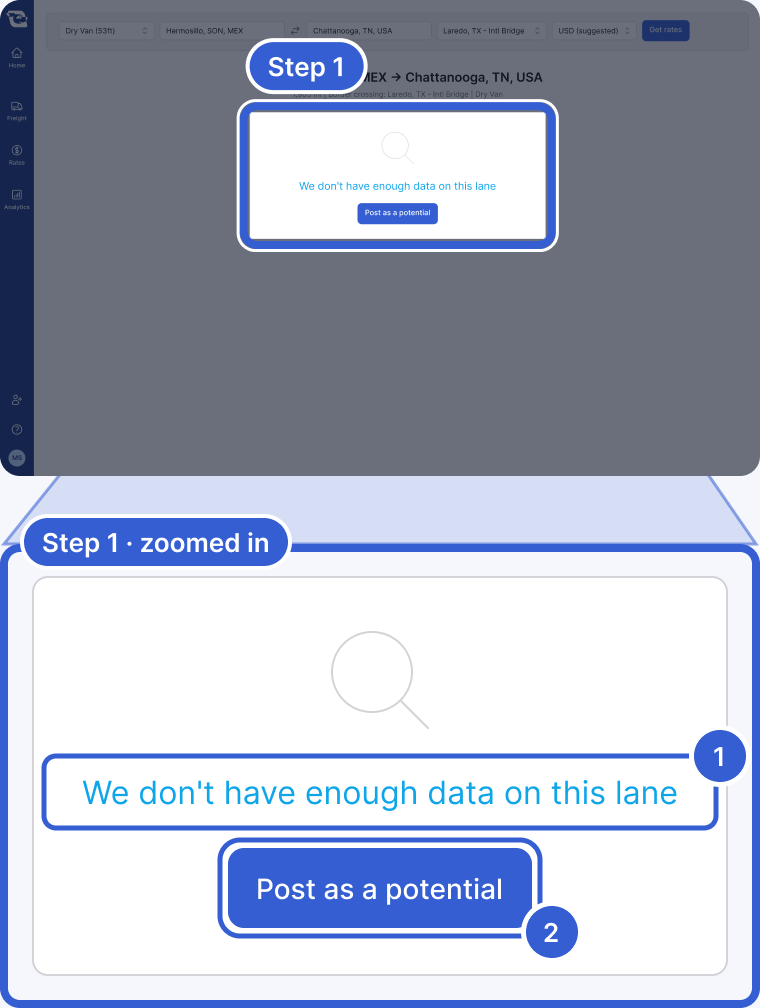
- We don't have enough data on this lane: no usable rate history came back for this lane. For the same case the API returns No rates found for the given input, the Excel add-in shows an error message in the cell instead of a rate, and the Market Rate card on a posting shows No data available for this lane.
- Post as a potential: brokers only. Opens a new Potential Load with this lane filled in.
Tip: A live market rate is built from carrier bids on the marketplace; when a result shows the notice that simulated data is being used, it is not. Bids on a posted lane tell you what carriers are quoting for it now.
Step 2: Read an extended-market rate with care
(extended market) after a market name in the header is a rate, not an error. It means that market had too little rate history on its own, so Cargado priced that end of the lane from its extended market: the market plus the markets around it. The header shows the main market of that wider area. Example: you look up Chihuahua, CHH to Toledo, OH. Toledo has too little rate history on its own, so the destination is priced from the Detroit extended market (Detroit, Lansing, Port Huron, Saginaw and Toledo) and the header reads Detroit, MI (extended market). Click View market boundaries to see the areas on a map. The confidence label is a separate reading: it describes the uncertainty around the Mid for this lane. Read both before you quote.
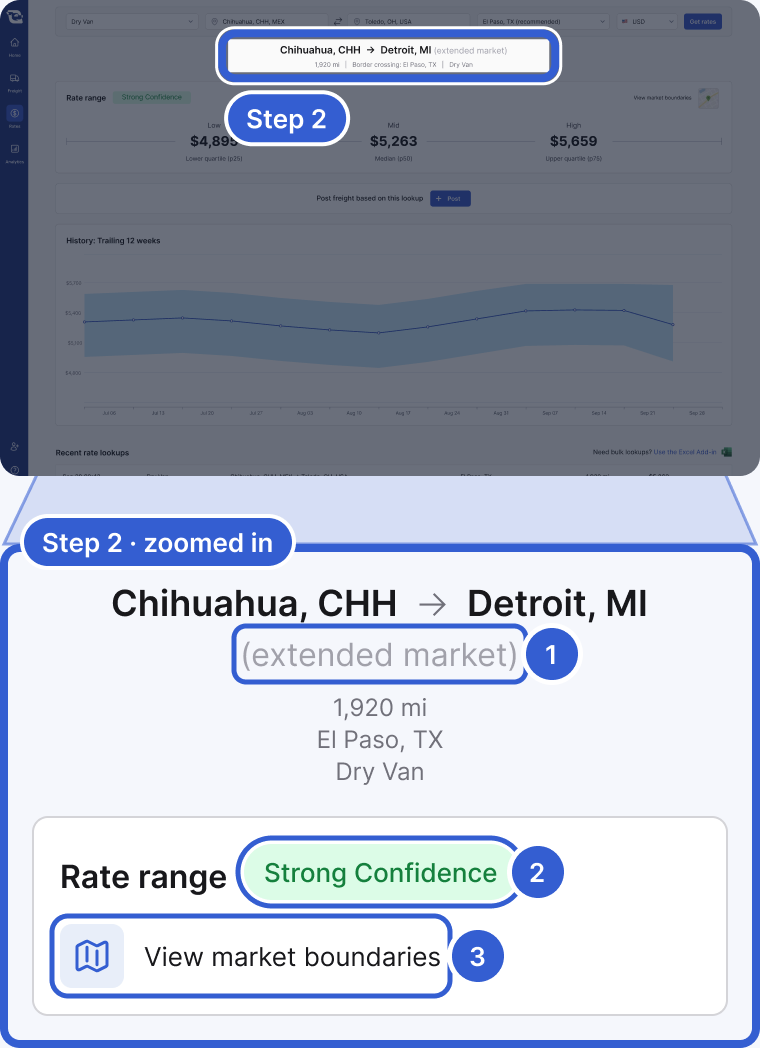
- (extended market): this end of the lane was priced from a wider area, the market plus the markets around it. The name shown is the main market of that area.
- Strong Confidence: the uncertainty around the Mid for this lane. It is separate from the market area; read it before you quote.
- View market boundaries: opens a map of the areas used for this rate.
Tip: See How to read a market rate for the confidence labels, the band and the boundary map.
Step 3: Clear the lookup limit
Market rate lookups limit reached means your company has used the lookups included in its plan for the period. The message shows when the limit resets. If you can manage your company's usage settings, as owners and billing admins can, you see Enable on-demand. Everyone else sees Request on-demand, which sends the request to your company's owners and billing admins.
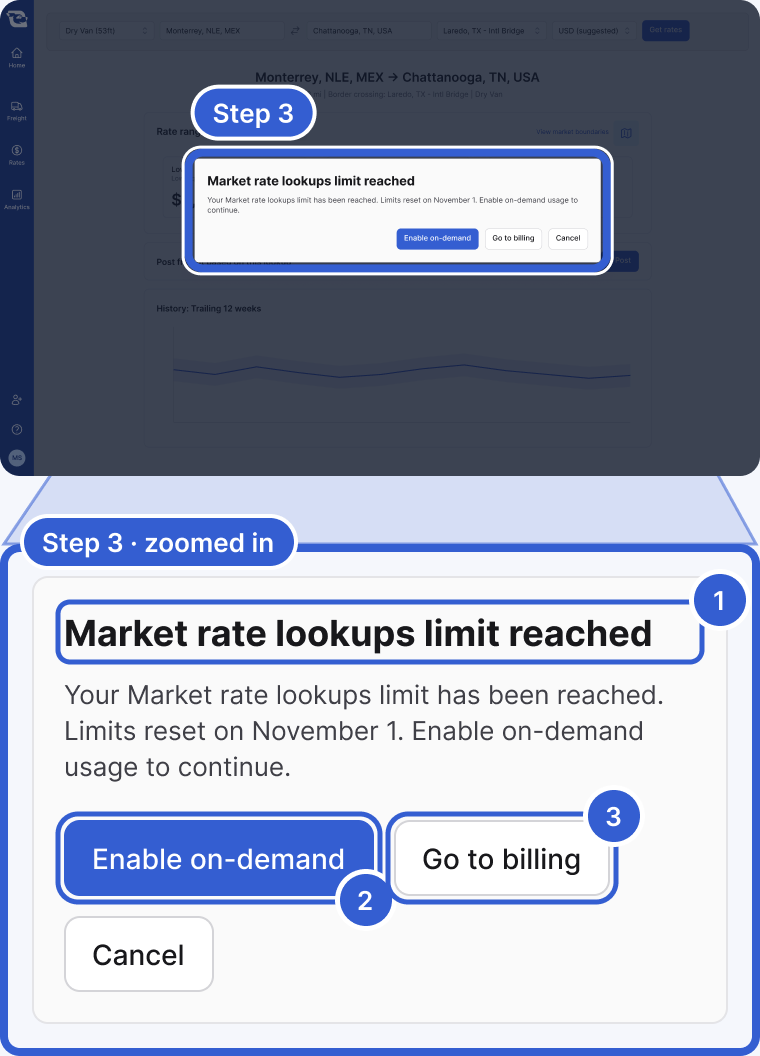
- Market rate lookups limit reached: your company used its plan's lookups; they restart on the date shown.
- Enable on-demand: shown to people who can manage usage settings, such as owners and billing admins. Everyone else sees Request on-demand.
- Go to billing: opens the Billing page in your profile.
Tip: See Plan limits, and what the usage warning emails mean.
Good to know
- A place Cargado could not find: In the app you pick a suggestion from the Origin and Destination lists. In Excel and the API, places are typed as text and Cargado looks them up. If it cannot match a place to a market, the API returns Could not geocode stop and the Excel cell shows the error message. Add the state or province and the country, for example "Monterrey, NLE, MX", or use a postal code.
- Moves Market Rates does not price: There is no input for hazmat, team drivers, oversize or overweight, partial truckload or round trips. The posting form skips the lookup for those moves, so the Market Rate card shows no data. Post them and let carriers price them.
- Something else went wrong: Other errors show as a red banner at the top of the Rates page for a few seconds. Try again.
Still stuck?
Email us and a person on our team will answer. Send the posting link or a screenshot if you have one.