
What does a TMS integration do?
A TMS integration syncs your loads into Cargado and posts them under your rules. When set up for it, Cargado also sends bid events to your TMS.
In 5 steps
- Save the load in your TMS
- Let your posting rules decide what posts
- Watch carriers bid on the posting
- Follow the bids
- Confirm the truck in Cargado Chat
A TMS integration connects your transportation management system to Cargado. Loads sync from your TMS into Cargado, your posting rules decide which ones reach carriers, and, when your integration is set up for it, Cargado sends bid events back toward your TMS. What your TMS records from those events depends on the TMS and on your setup.
Step 1: Save the load in your TMS
The load comes into Cargado through the integration, with its details carried over. Depending on your TMS, that happens when you save the load or on the next scheduled sync. Syncing itself does not publish the load; carriers see it once it is posted.
Step 2: Let your posting rules decide what posts
Nothing reaches carriers until you or your rules post it. Rules can match loads by lane and equipment type, so dry van and flatbed on the same lane can follow different rules, and a rule can post a load as soon as it syncs. Loads that are available, eligible to post, not expired and not yet posted or matched wait in Review to Post.
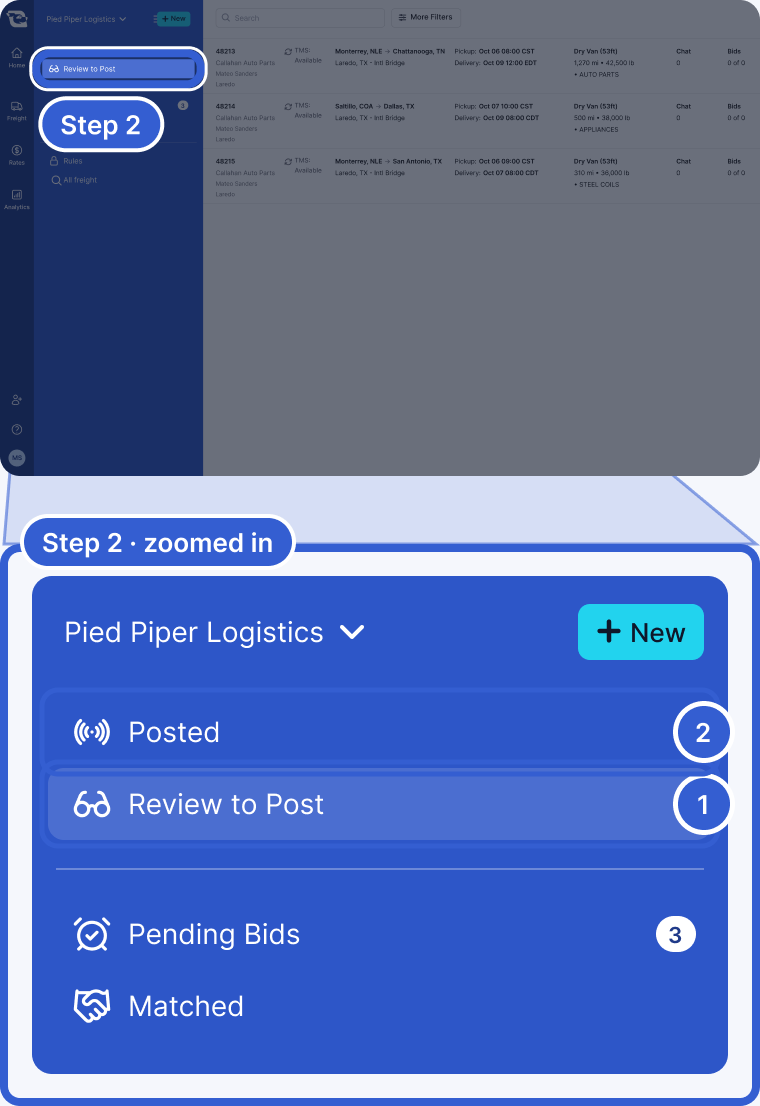
Example: the company, loads and counts are fictional.
- Review to Post: available, posting-eligible, unexpired loads that are not posted or matched yet.
- Posted: the loads you have posted.
Step 3: Watch carriers bid on the posting
A posting that came in through your integration shows a TMS synced tag, and carriers see your company name on it. On a load that crosses the border, a bid can be itemized into the Mexico portion, the border crossing and the U.S. portion, or given all-in.
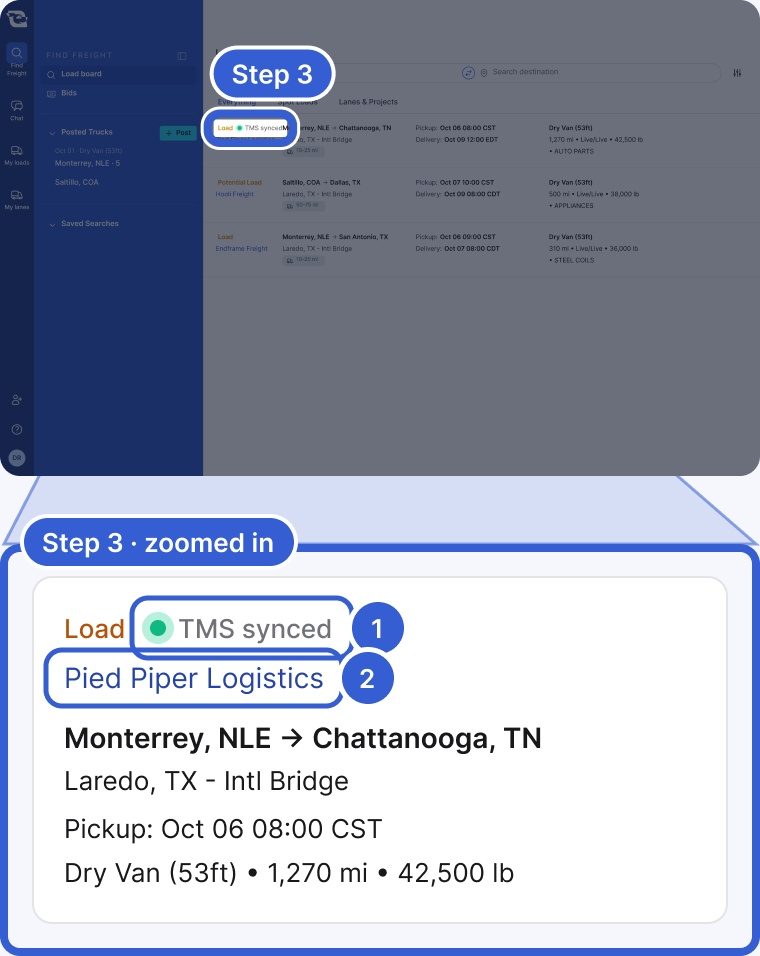
Example: Pied Piper Logistics and the posting are fictional.
- TMS synced: the load came in through your integration.
- Your company name, as carriers see the posting.
Step 4: Follow the bids
Bids arrive in Cargado under Pending Bids. When your integration is set up for outbound events, Cargado also sends bid events toward your TMS; ask your Cargado contact what your TMS records from them. If Instant Responses are turned on for your account, Cargado can answer bids automatically according to your thresholds and the carrier's eligibility.
Step 5: Confirm the truck in Cargado Chat
Once the load is matched, you and the carrier can talk in the freight chat about the truck, trailer, crossing partner and pickup time. Carriers are notified by email, and by WhatsApp where that is set up, and Chat can show messages translated between English and Spanish. If booking controls are turned on for your account, the chat shows the actions bar below; on a load that came in through the integration, Mark TMS assigned is turned off.
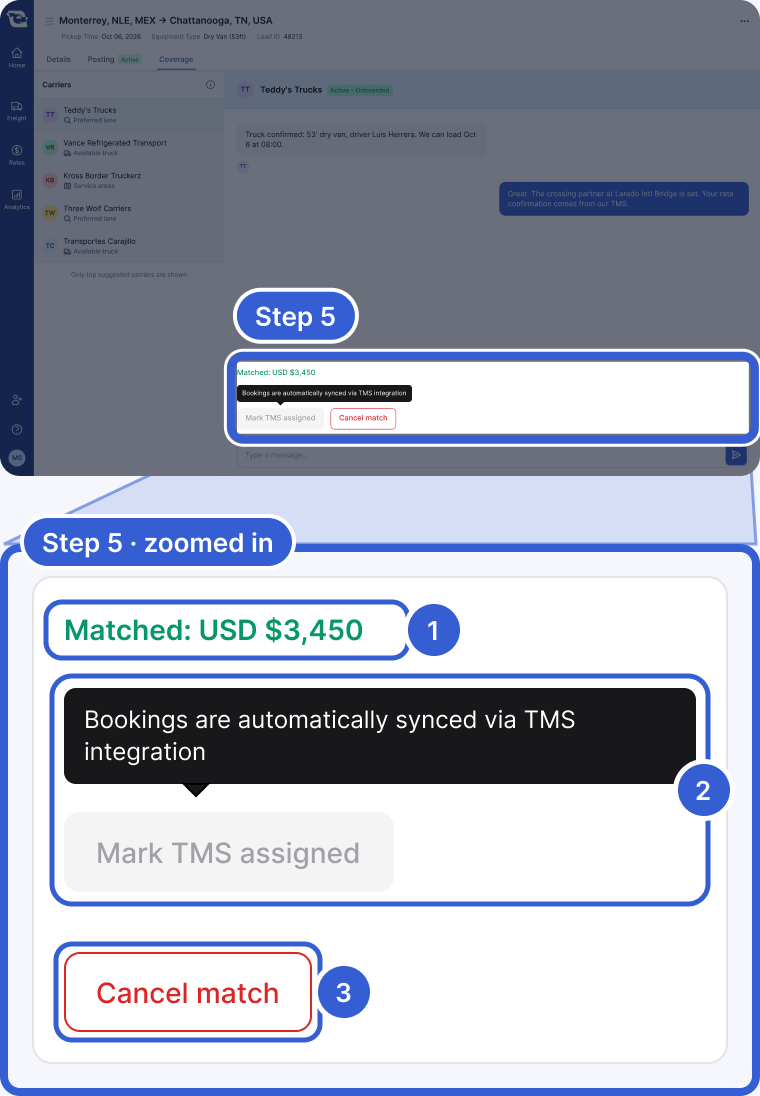
Example: the carrier, the rate and the messages are fictional.
- Matched and the rate the carrier accepted.
- Mark TMS assigned, turned off on a load that came in through the integration.
- Cancel match, if the truck falls through.
When your TMS reports the load as no longer available (booked elsewhere, held or canceled), Cargado takes the posting down, so carriers stop chasing freight that is already gone.
Tip: The rate confirmation to the carrier still comes from your team. The integration brings loads in and lets your rules post them; it does not replace your confirmation.
Good to know
- Which TMSs connect: Cargado has integrations for Tai (Tai + Descartes), McLeod, Turvo and Revenova. Ask your Cargado contact which one is available for your account. If your team is on another system, you can connect through the Cargado API.
- What setup takes: access that your team supplies:
- Tai: a Tai staff user you create for Cargado, with the permissions we list, and its API key; the Cargado webhook registered under Integration Sources so shipment events reach Cargado; and two Tai reports that match your shipments and carriers across both systems. The Cargado for Tai page walks through each step.
- McLeod: the URL of your McLeod instance and either a McLeod authentication token or a McLeod username and password. You need McLeod API access; if you only have the DFM module, tell us before setup.
- Turvo: an API user in Turvo set up for Cargado, with its username and password, API key, client ID, client secret and default group ID, plus a webhook so Turvo tells Cargado about shipment, carrier and user changes.
- Carrier Sync, your compliance statuses in Cargado: Carrier Sync brings each carrier's compliance status from your TMS into Cargado. On your freight a carrier shows as Onboarded, Needs to onboard or Do not dispatch. A carrier who needs to onboard is shown your onboarding requirements and, if you provide one, your onboarding link. A carrier you've marked Do not dispatch never sees your freight in the marketplace.
- Postings and your plan: each shipment posted from your TMS counts as a posting on your plan, the same as one you post by hand. See Plan limits, and what the usage warning emails mean.
- To start an integration, ask your Cargado contact or email success@cargado.com. For more, see Cargado integrations and Cargado for Tai.
Still stuck?
Email us and a person on our team will answer. Send the posting link or a screenshot if you have one.