
Filter the freight you see: hazmat, trailer, crossing and more
Every filter in freight search, including how to hide hazmat, overweight and oversized loads.
In 2 steps
Freight search has more filters than the ones on the first screen.
Step 1: Open More filters
Open More filters, the icon button near the search controls, to see all of them. The number on the button is how many sections of More filters are narrowing your search.
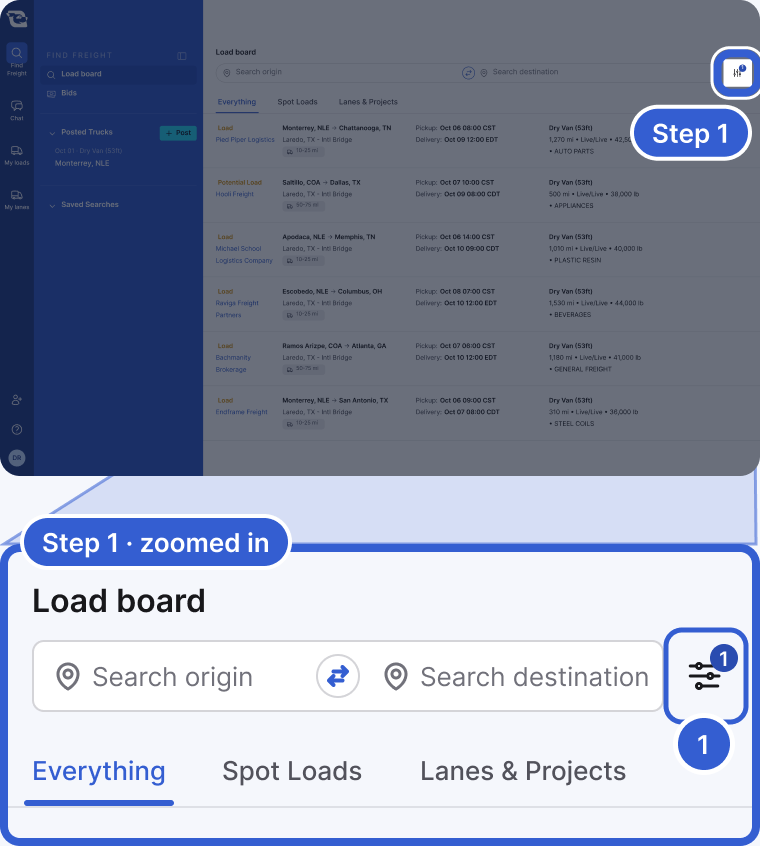
- More filters: the icon button near the search controls (at the end of the search bar on a wide screen). The number on it is how many sections of More filters are narrowing your search, not how many pills are on. In the example it is 1: Power only is off under Mode.
Step 2: Turn Hazmat off, or on only
Under Load requirements, click Hazmat to turn it off. Hazmat postings are then left out of your results. To see only hazmat postings, leave Hazmat on, open its menu and choose Hazmat only instead. Overweight and oversized work the same way.
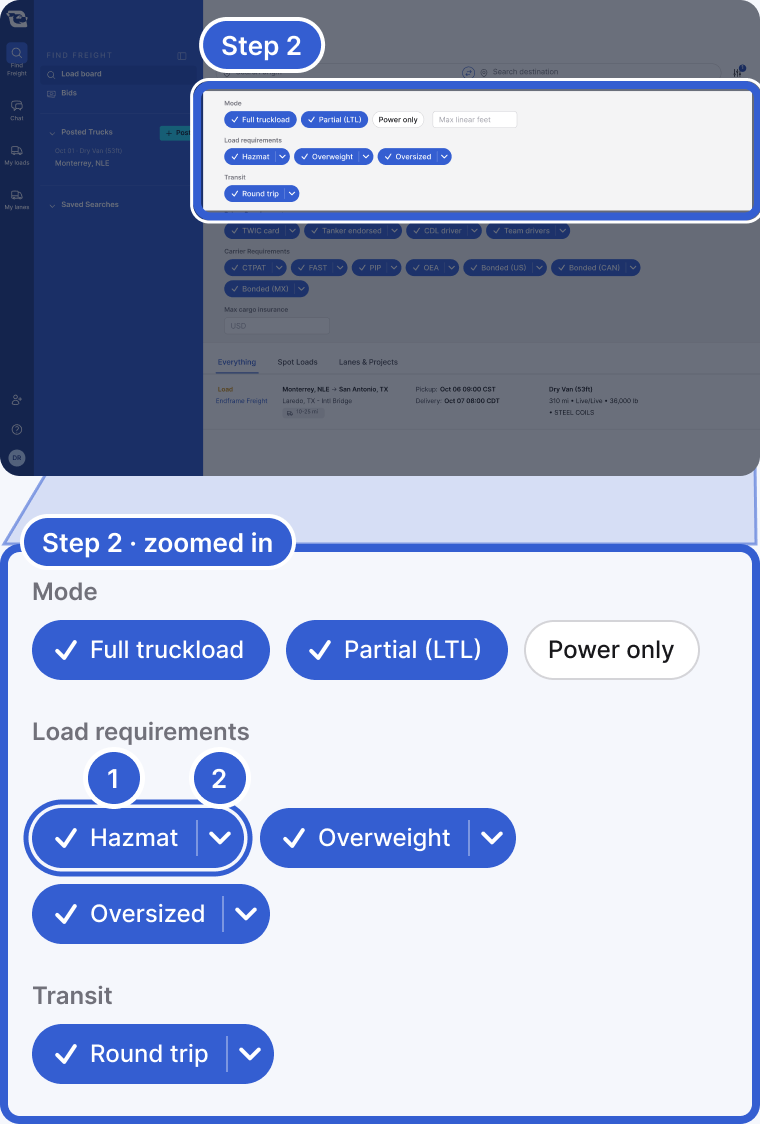
- Hazmat: click it to turn it off and hide hazmat postings.
- The arrow next to it opens a menu with Hazmat only, while Hazmat is on.
Important: A filter only changes what you see. It does not change what you are allowed to bid on. See Why you cannot bid on a posting for that.
The filters
- Origin or truck location, and destination. Origin and destination take one or more cities, neighborhoods or countries, and destination can also be a whole state. Truck location is a single city.
- Border crossings. The crossings you run, when the search offers them. Leaving it empty does not exclude any crossing.
- Trailer type.
- Pickup date.
- Mode. Full truckload, partial (LTL) or power only. For partials you can set the most linear feet you have free.
- Load requirements. Hazmat, overweight and oversized.
- Transit. Round trip.
- Driver requirements. TWIC card, tanker endorsement, CDL driver and team drivers.
- Carrier requirements. CTPAT, FAST, PIP and OEA certifications, bonded, and a maximum cargo insurance amount. Carriers based in the US do not see CTPAT, FAST or OEA.
Good to know
- Filters that start turned on: when you open freight search, your trailer types and border crossings are applied by default from your own freight preferences, or from your company's settings if you have not set your own. If you run several trailer types, none of them shows as selected: the search applies all of them and the field lists them as placeholder text, so you can narrow it without undoing a selection first. A single trailer type shows as selected. To change them for one search, change the filter. To change what they start as, update your freight preferences.
Still stuck?
Email us and a person on our team will answer. Send the posting link or a screenshot if you have one.