
How do I post an empty truck?
Click Post under Posted Trucks, enter where the truck is, its trailer and the day it is free, and see loads that fit one truck or all of them.
In 3 steps
Step 1: Click Post
In Find Freight, find Posted Trucks in the blue sidebar and click Post.
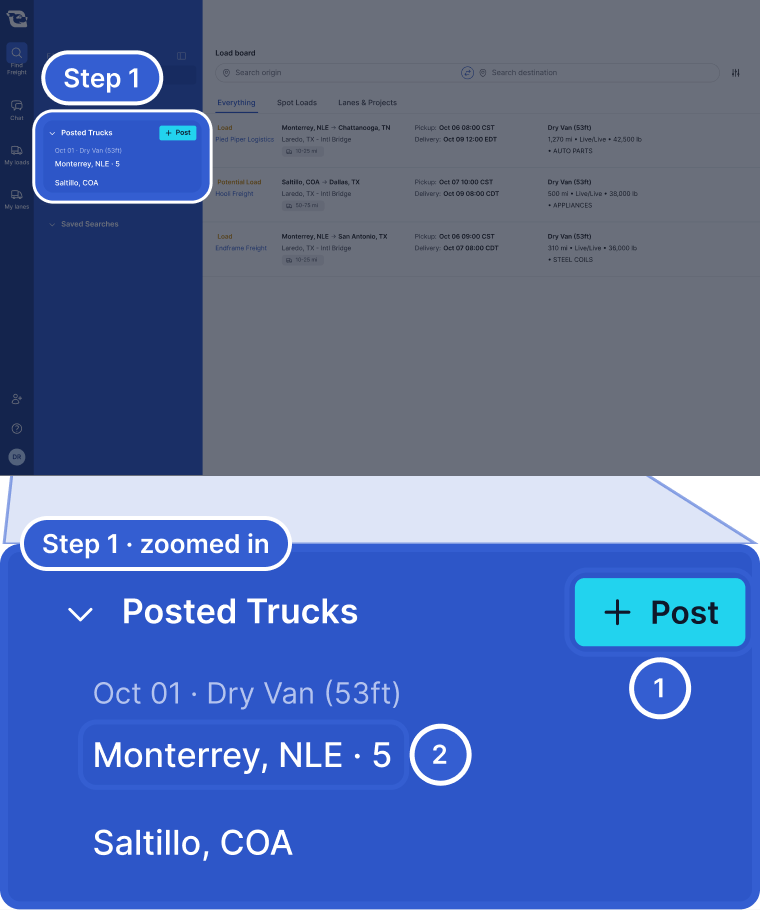
- Post opens the form for a new truck.
- A posted truck. The number is how many trucks you posted there.
Step 2: Fill in the truck and post it
Type the city in Truck location. Choose the Trailer type and the day the truck is free. If you have more than one truck there, click + to raise the count. Then click Post and Search.
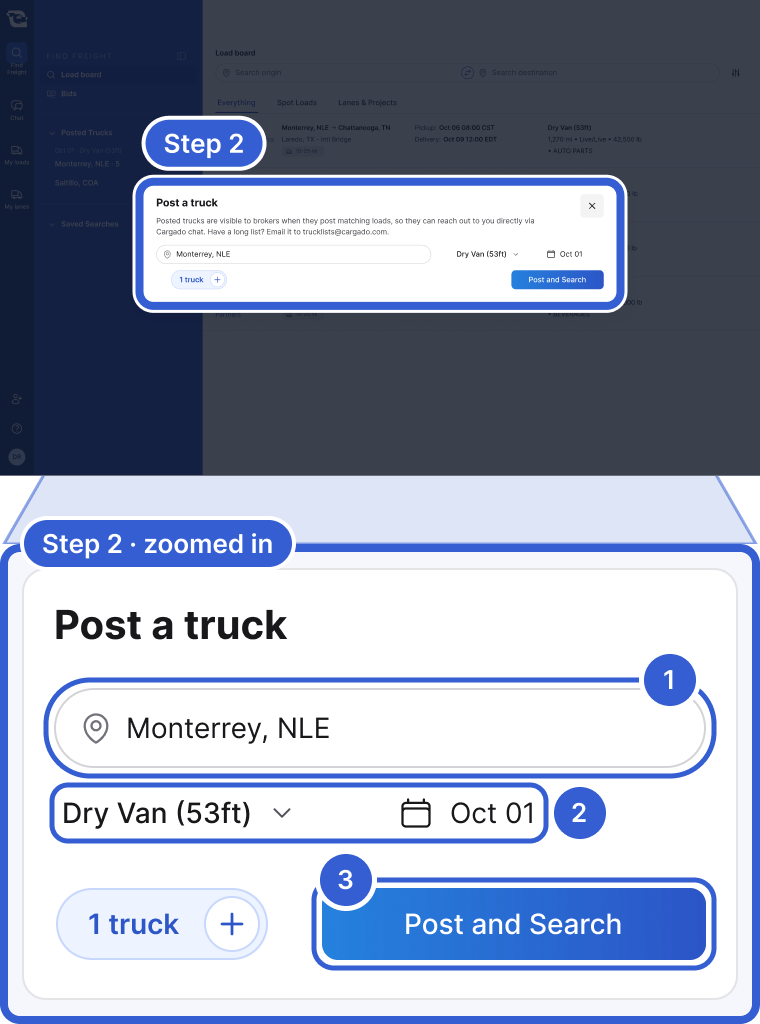
- The city where the truck is now.
- The trailer type and the day the truck is free.
- Post and Search posts the truck and shows loads near it.
Step 3: Open the truck to see its loads
The truck now shows under Posted Trucks, grouped by date and trailer type. Click it. The list shows loads near that truck.
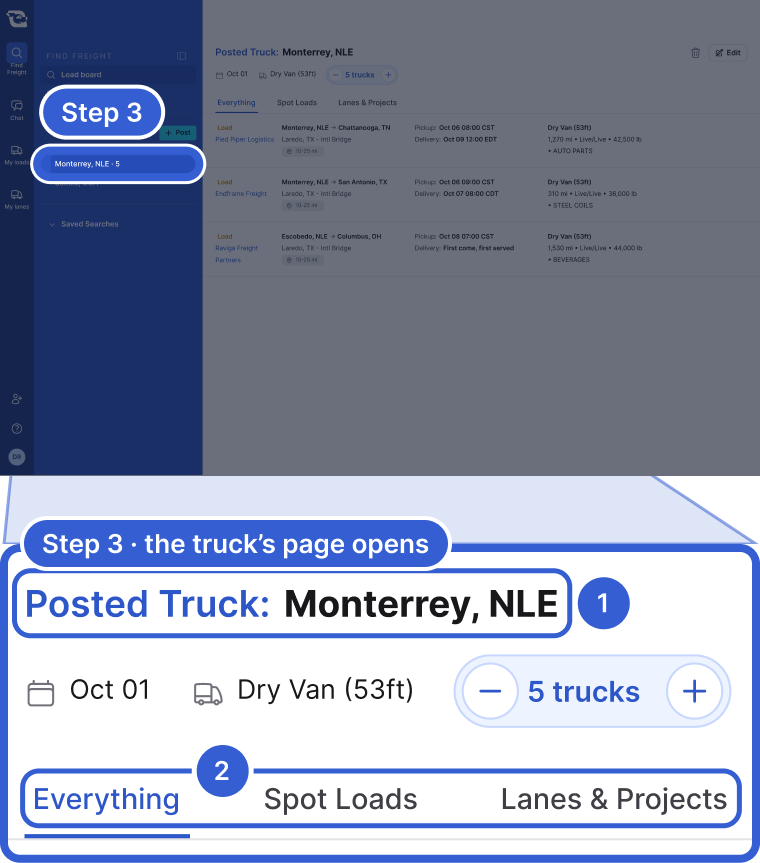
- Posted Truck: and the city where the truck is.
- Everything, Spot Loads and Lanes & Projects narrow the list.
Tip: Logistics companies see your posted trucks when they post loads that match. They can reach you through Cargado chat.
The truck tag on the Load board
On the Load board, a gray tag with a truck icon under the route means the pickup is near one of your posted trucks.

- How far the pickup is from your truck, as a range.
- Point at the tag to see your nearest truck's city.
Edit or remove a truck
Click the truck under Posted Trucks to open its page.
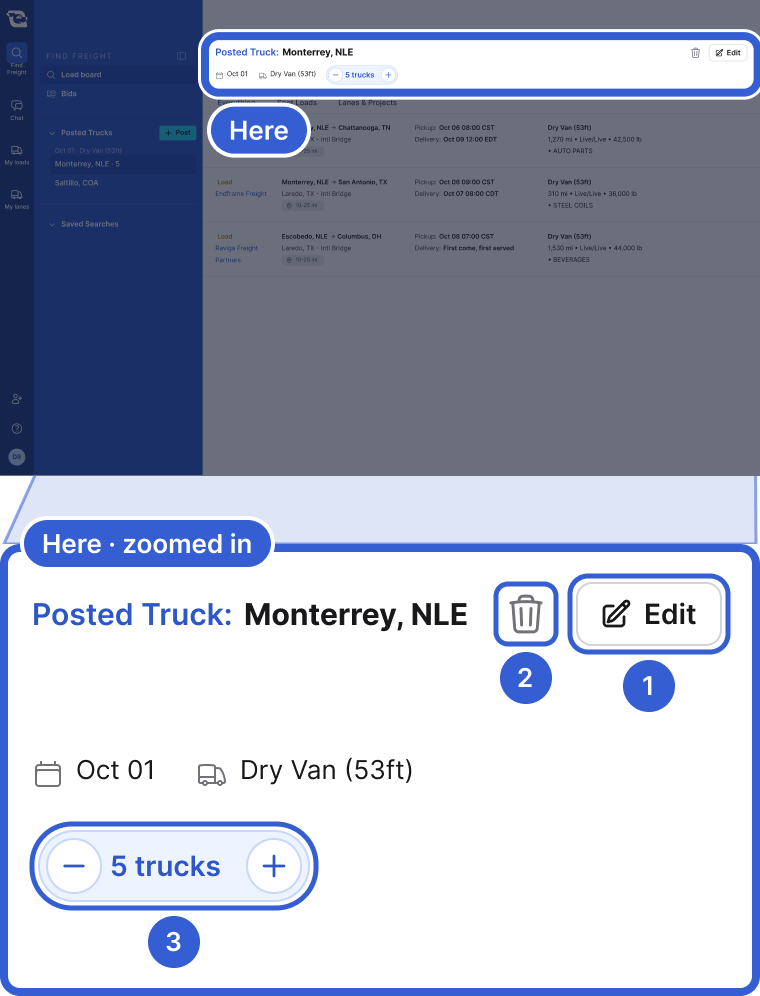
- Edit, make the change, then click Update truck twice.
- The trash icon, then Remove truck, takes the truck down.
- - and + change how many trucks.
Good to know
- All your trucks at once: point at Posted Trucks, click ... and choose View all trucks.
- From the Post a truck page: click View matching loads to see loads for every truck.
- Long list: click Show all at the bottom of Posted Trucks.
- Removed trucks: they leave your list, stop matching loads, and logistics companies no longer see them.
- A pin instead of a truck: when you search from a city you typed, or open one truck's page, the distance is from that place.
- Alerts: for a lane you run often, save the search and turn on alerts.
Still stuck?
Email us and a person on our team will answer. Send the posting link or a screenshot if you have one.