
How do I control my Cargado notifications?
Choose email, WhatsApp or push for your bid, chat and posting updates. These switches are for your account only, and one must stay on.
In 3 steps
Cargado notifies you about bids, counters, chat messages, matches and posting updates. You choose which channels carry them from My Notifications, and those switches are yours alone; organization and team settings separately decide who gets notified.
Step 1: Open My Notifications
Click your avatar at the bottom of the left rail, then choose My Notifications under My Profile.
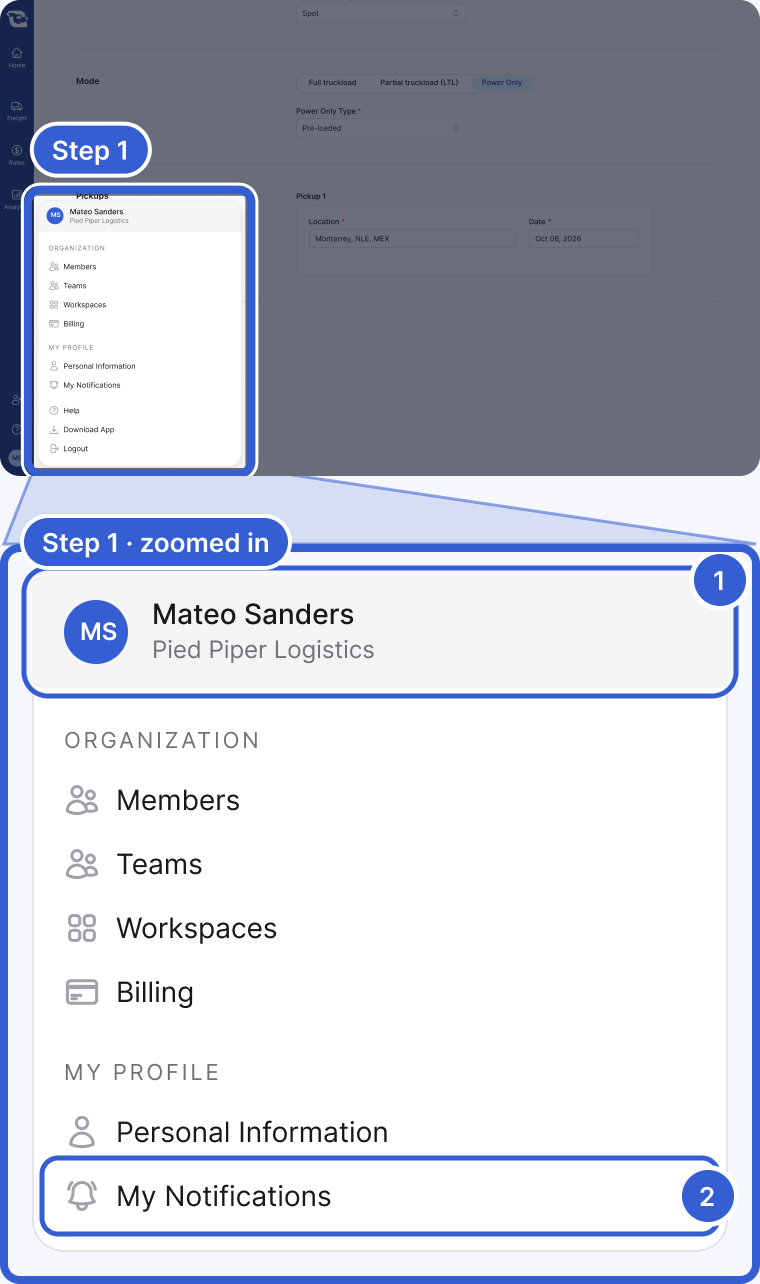
- Your account menu. It opens from your avatar at the bottom of the left rail. The items under Organization depend on your role and your organization.
- My Notifications, under My Profile.
Step 2: Turn channels on or off
Under Bids, chats & posting updates, switch Email, WhatsApp and Push notification on or off. At least one channel has to stay on.
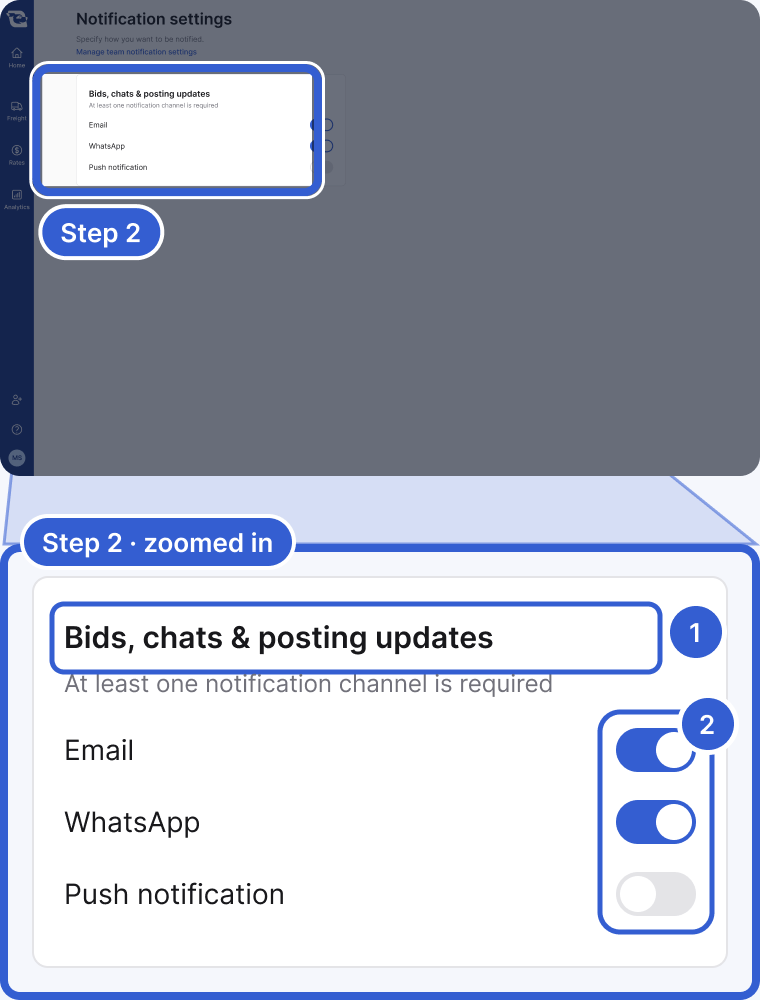
- Bids, chats & posting updates: the one setting that covers all of them.
- The Email, WhatsApp and Push notification switches. Keep at least one on.
Step 3: Add your number when you turn on WhatsApp
If WhatsApp is not yet enabled for your account, switching it on opens a dialog that asks for your phone number. Enter it and choose Continue to opt in to these notifications on WhatsApp.
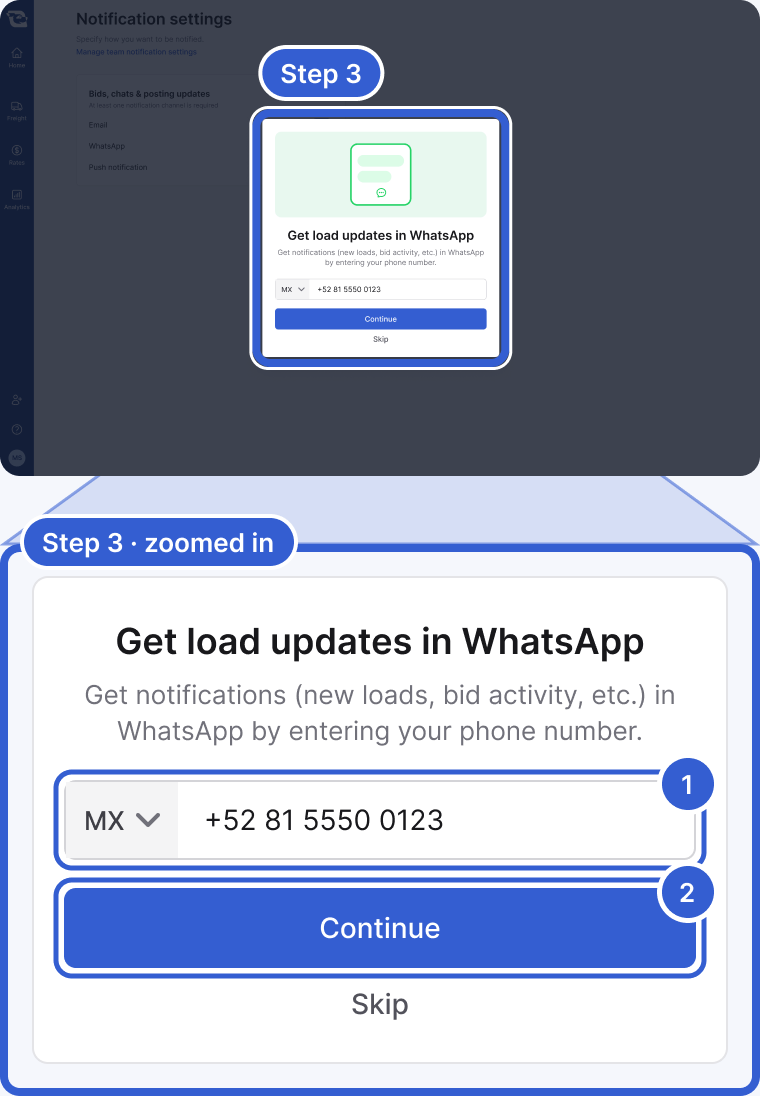
- The phone number WhatsApp updates go to.
- Continue saves it and turns WhatsApp on.
Tip: Cargado also translates chat messages between languages. See Change your language for how that works and how to stop automatic translation for a language you know.
Good to know
- What you get notified about: new bids, counterbids, matches and chat messages on your postings, plus posting lifecycle updates like a posting being removed, all live under one setting: Bids, chats & posting updates.
- Your switches are personal: these switches control your personal channels. Organization and team settings separately control who receives notifications. If you have the Admin role, you decide who on each team is notified: open Teams under Organization in your profile menu, open a team, and set Who should receive notifications? to Entire team or Freight owner and managers only. If a teammate is not getting notifications on freight they work, the team's recipient setting, their own channels and their device's push permission are all worth checking.
Still stuck?
Email us and a person on our team will answer. Send the posting link or a screenshot if you have one.