
How do I get alerts for the lanes I want?
Search the Load board for a lane, save it with a name, and choose email, WhatsApp or push alerts for new spot loads and lanes on it.
In 4 steps
Step 1: Search for the lane
On the Load board, fill in the search bar at the top.
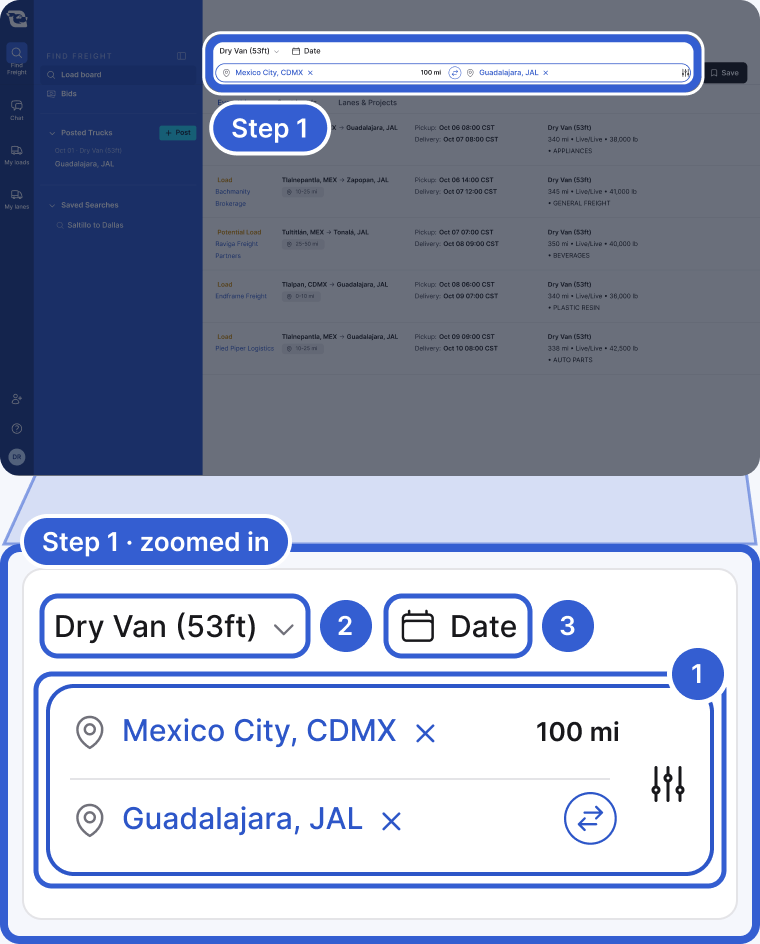
- Search origin and Search destination: the origin can be a city or a country. The destination can also be a state. You can add more than one of each.
- Trailer type: starts with your own trailer preferences, or with the trailers in your company's Operations profile if you have not set any. Pick one if you only want that trailer.
- Date: leave it empty. A date you pick is saved with the search and limits it to that pickup date.
Use More filters for hazmat, overweight, round trip, team drivers and more. See all the search filters. Then click Search. It is fine if nothing matches today. You can still save the search.
Step 2: Save it with a name
Click Save at the right end of the search bar. The Save Search window opens.

- Name of search: type a name you will recognize.
- Save: the search now appears under Saved Searches in the blue sidebar on the left.
Step 3: Turn on notifications
In Notifications for this search, choose how Cargado tells you about new postings on this lane.
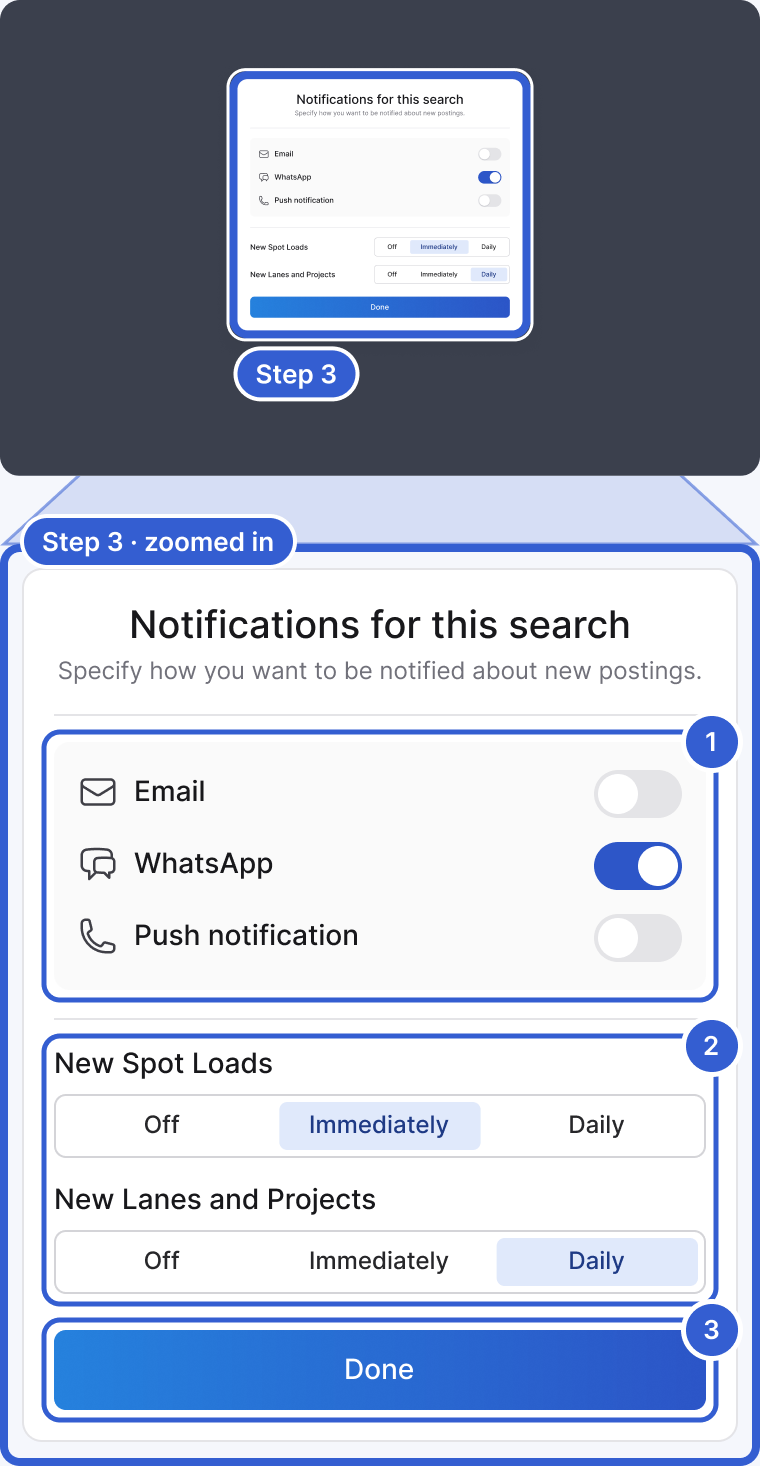
- Turn on one or more channels: Email, WhatsApp or Push notification. Push notifications go to the Cargado app.
- Choose how often for each kind of posting: Off, Immediately or Daily. Daily groups new postings into a summary instead of one alert per posting.
- Click Done.
Tip: Set New Spot Loads to Immediately, since spot loads cover fast. Daily works well for New Lanes and Projects.
Step 4: Change, rename or delete it later
Click the search under Saved Searches, then click the ... menu next to it.
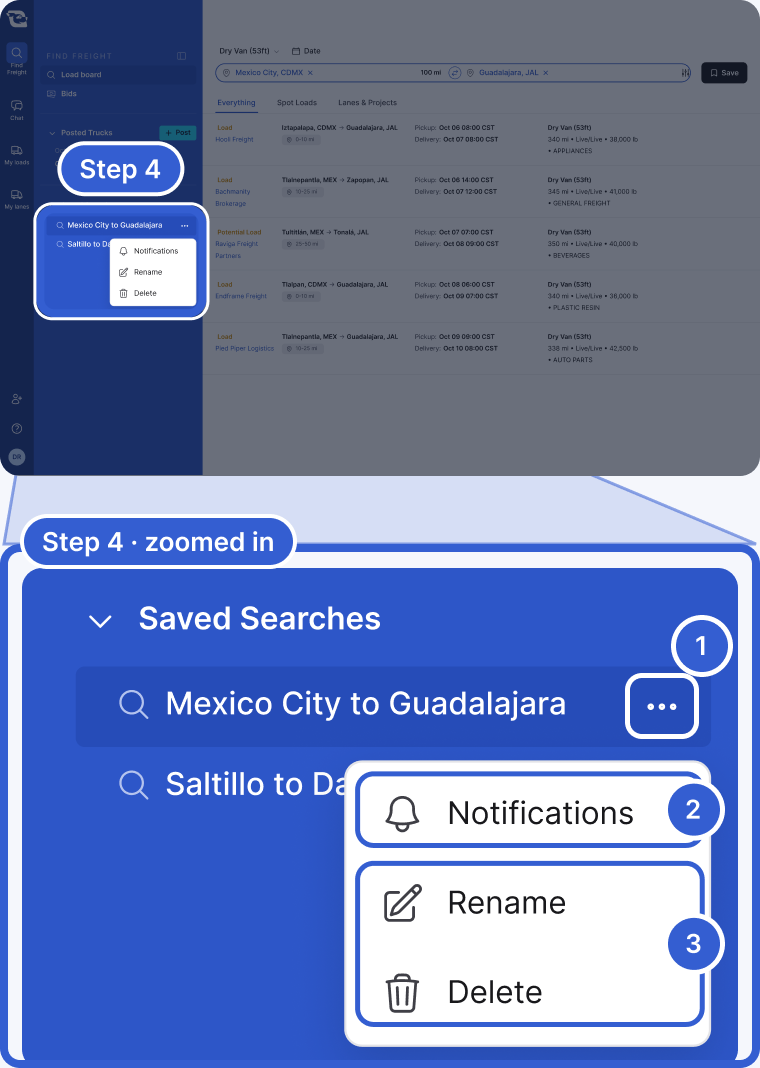
- The ... menu for that search.
- Notifications: change the channels and how often.
- Rename gives the search a new name. Delete removes it, and its notifications stop.
Good to know
- Alerts on from the start: if every origin in your search is a city, the notifications window opens as soon as you save. Spot loads start on Immediately and lanes on Daily. They go to WhatsApp if you turned on WhatsApp updates for your account, and to email if you did not.
- Country or empty origin: the search saves with every alert Off. Turn them on from the ... menu.
- Change the lane or filters: open the saved search, edit the fields and click Search. Choose the option that starts with Update and click Update.
- Search once: to run a change without touching the saved search, choose New search and click Search.
- A load back home: say your base is in Guadalajara and you deliver a project into Mexico City. Save a search from Mexico City to Guadalajara with your trailer type and turn on alerts. Add destinations near home, such as León or Aguascalientes, to catch loads that get you most of the way.
- Be found too: to let logistics companies find you for that trip, post your empty truck.
Still stuck?
Email us and a person on our team will answer. Send the posting link or a screenshot if you have one.