
Reset your password
The reset link on the sign-in page, and what to check when the email does not arrive.
In 3 steps
- Choose Can't log in to your account?
- Enter your email and choose Continue
- Open the email and follow the instructions
You reset your password from the sign-in page at account.cargado.com.
Step 1: Choose Can't log in to your account?
Go to the sign-in page. Under the email field, choose Can't log in to your account?.
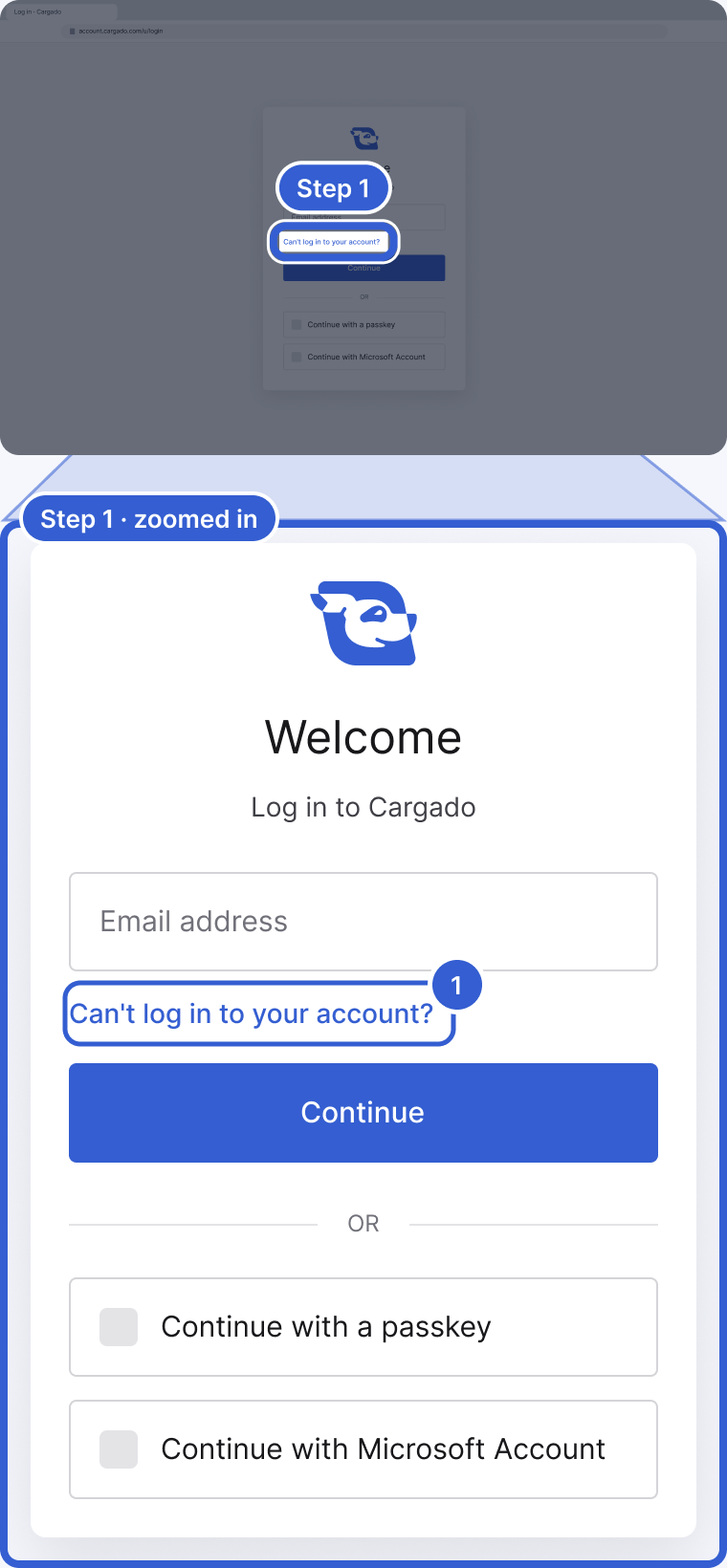
- Can't log in to your account?: opens the Forgot Your Password? screen.
Step 2: Enter your email and choose Continue
On the Forgot Your Password? screen, enter your email and choose Continue.
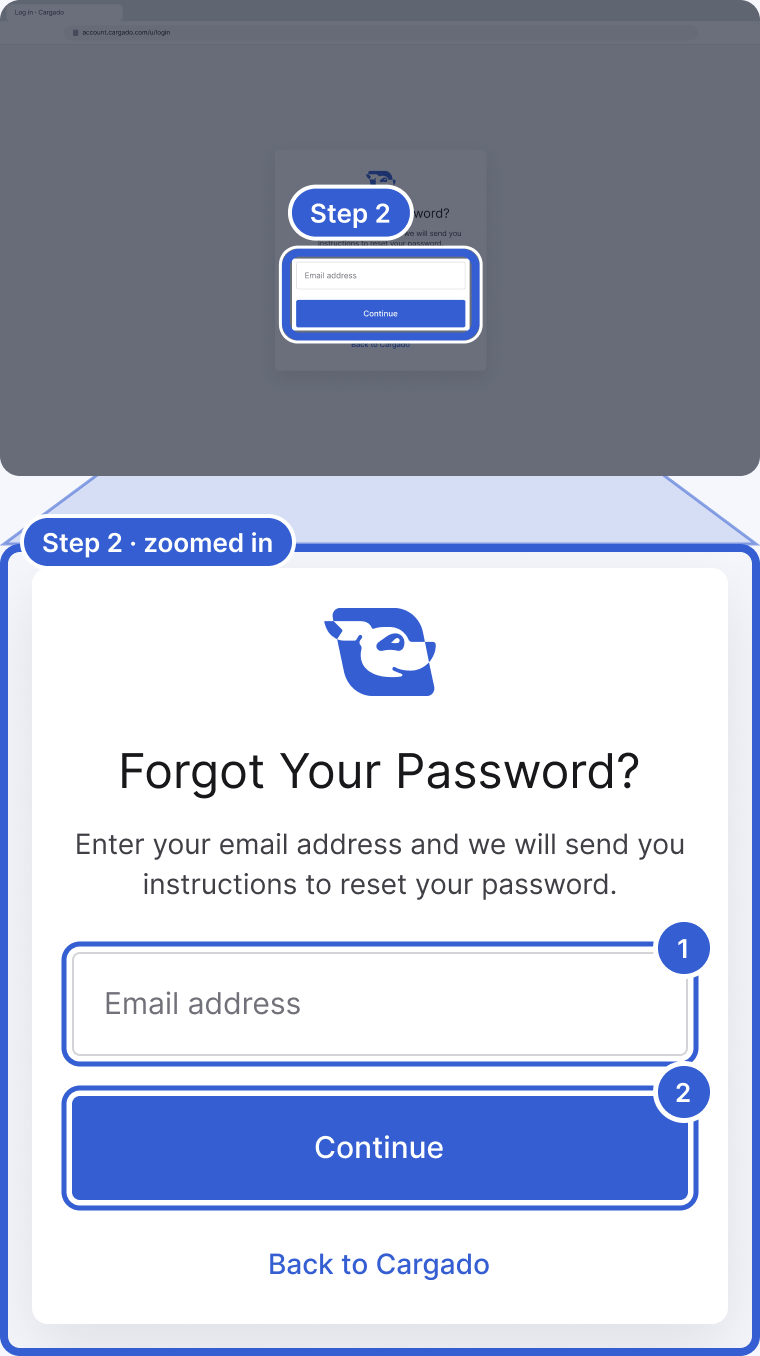
- Email address: the email you use to sign in to Cargado.
- Continue: sends you an email with instructions to reset your password.
Step 3: Open the email and follow the instructions
Open the email and follow the instructions it gives to reset your password.
Important: Before you type your Cargado password, check that the domain in your browser's address bar is exactly account.cargado.com. If a page asking for your Cargado password is on any other domain, do not enter it.
Tip: If the email does not arrive, give it a few minutes, then check your spam or junk folder.
Good to know
- If the email still does not arrive: make sure you typed the email you use to sign in. A company email filter can also hold it; ask your IT team to check.
- If the sign-in page keeps failing: open it in a private or incognito window and try again.
- After the reset: if your account uses two-factor authentication, you may still be asked for your second step after you sign in with the new password. Lost that too? See Two-factor authentication.
Still stuck?
Email us and a person on our team will answer. Send the posting link or a screenshot if you have one.