
Part 2 · Price it first
A rate on the lane before you quote it: in the app, in Excel for a whole RFP, or through the API.
https://cdn.prod.website-files.com/68f656dee991ae15a5cbb747/6ab12598c56e3a165ac406cd_success-webinar-ch2-price-it-first-1080p.mp4
https://cdn.prod.website-files.com/68f656dee991ae15a5cbb747/6ab1259808c3ed57fe8dd132_success-webinar-ch2-price-it-first-hero.jpg
In 4 steps
- Pick the way that fits how you work
- Read the band, not the number
- Price a whole RFP in Excel
- Post a lane that has no rate
Get a rate on the lane before you quote it: in the app, in Excel for a whole RFP at once, or through the API inside your own system.
Step 1: Pick the way that fits how you work
In the app, look up a lane on the Rates tab, or read the Market Rate card on the posting form once the lane is filled in. For a supported move, the card prices the posting's own pickup, delivery, crossing and trailer, so you can see the band before you set a target rate; some moves skip that lookup (see Good to know in Why is there no market rate for my lane?), and a lane with no data shows no band. In Excel, the add-in prices many lanes at once. Through the API, rates come back inside your own TMS or quoting tool.
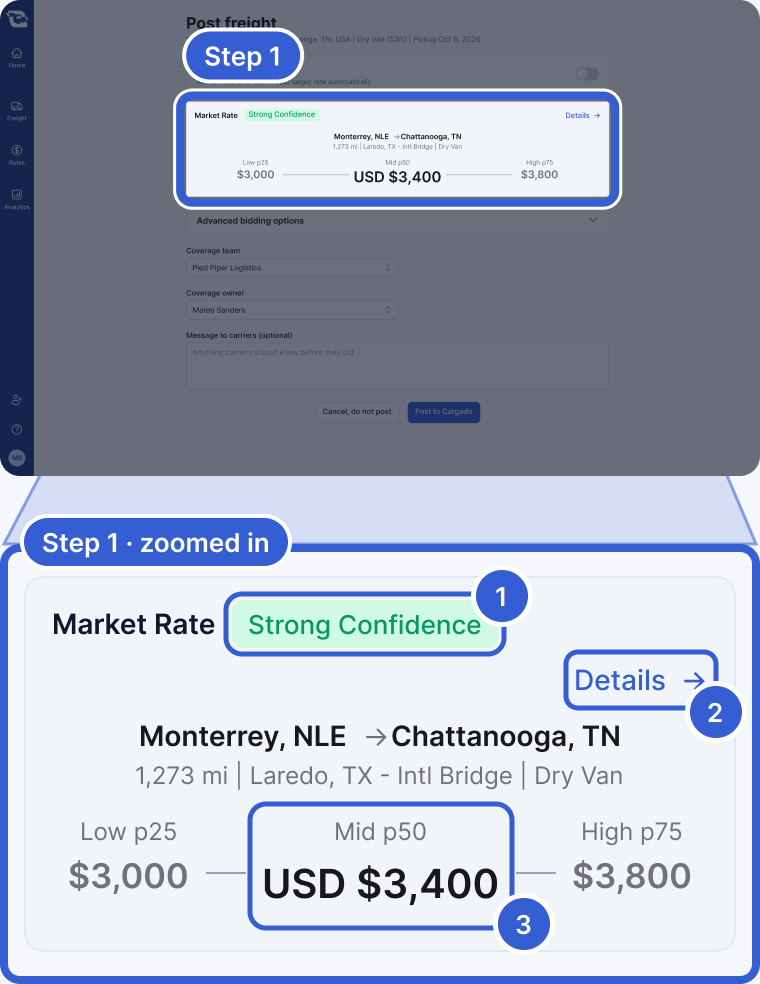
- Strong Confidence: how much uncertainty there is around the Mid. Hover it to see the margin of error when one is available.
- Details: opens this lookup's full result page in a new tab.
- Mid p50: the median of the carrier bids behind the lane. Start your target near it.
Tip: See Look up a market rate in the app, Price a bid file in Excel and Get market rates through the API for each way in detail.
Step 2: Read the band, not the number
A rate is a band, not a number. Three figures come back for a lane. On a live result they come from carrier bids on the marketplace; a result that shows the notice that simulated data is being used does not. Low: the 25th percentile of the carrier bids behind the lane. Mid: the median. High: the 75th percentile. Start your target near the Mid, and read the confidence label next to it. Strong Confidence, Medium Confidence or Lower Confidence describes the uncertainty around the Mid: how far the true median could sit from the one shown. It is a separate reading from the Low-to-High range, calculated per lane from the number of bids and how much they vary.
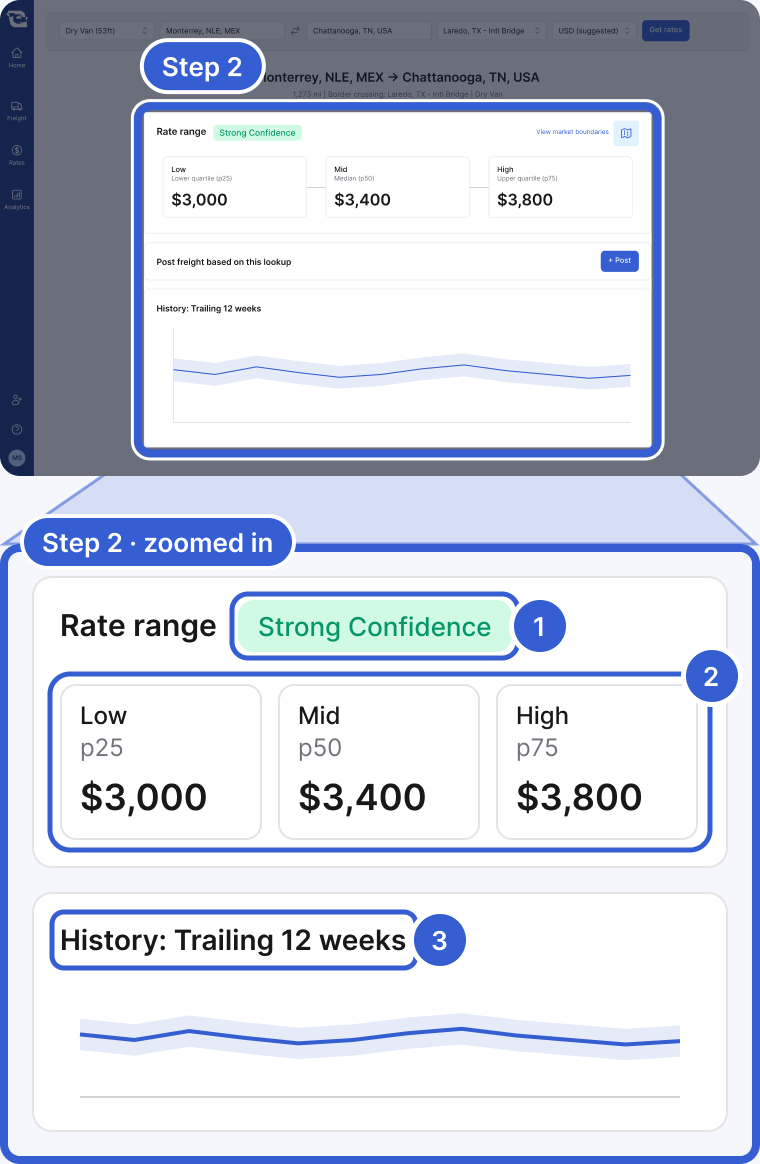
- Strong Confidence: the least uncertainty around the Mid. Medium and Lower mean more uncertainty; read the label before you quote.
- Low, Mid and High: the 25th, 50th and 75th percentiles of the carrier bids behind the lane.
- History: Trailing 12 weeks: the Mid as a line, with the Low-to-High band around it, over the last 12 weeks, fuel included. Weeks without an observation are bridged on the chart.
Important: It is a guide, not a guarantee. Quote inside the band and tell your customer what is behind it: a live band built from carrier bids on the marketplace beats a number with nothing behind it.
Tip: More in How to read a market rate.
Step 3: Price a whole RFP in Excel
The Excel add-in puts the same lookups in a spreadsheet. With the add-in installed, click Show Cargado on the Home tab and Log in with your Cargado account. Click Create sheets: the add-in adds a Cargado Mappings sheet and a Cargado Rates sheet. On Cargado Mappings, map what your RFP calls each trailer type and border crossing to Cargado's names. On Cargado Rates, fill in columns A to D (origin, destination, trailer type, crossing) and the sheet looks up the rates. You can also use the add-in's formulas in your own bid file, as in the figure: =CARGADO.RATE_HISTORY_P50(origin, destination, trailer type, crossing) returns the Mid for one lane. A lane with no usable rate history shows an error message in the cell instead of a rate.
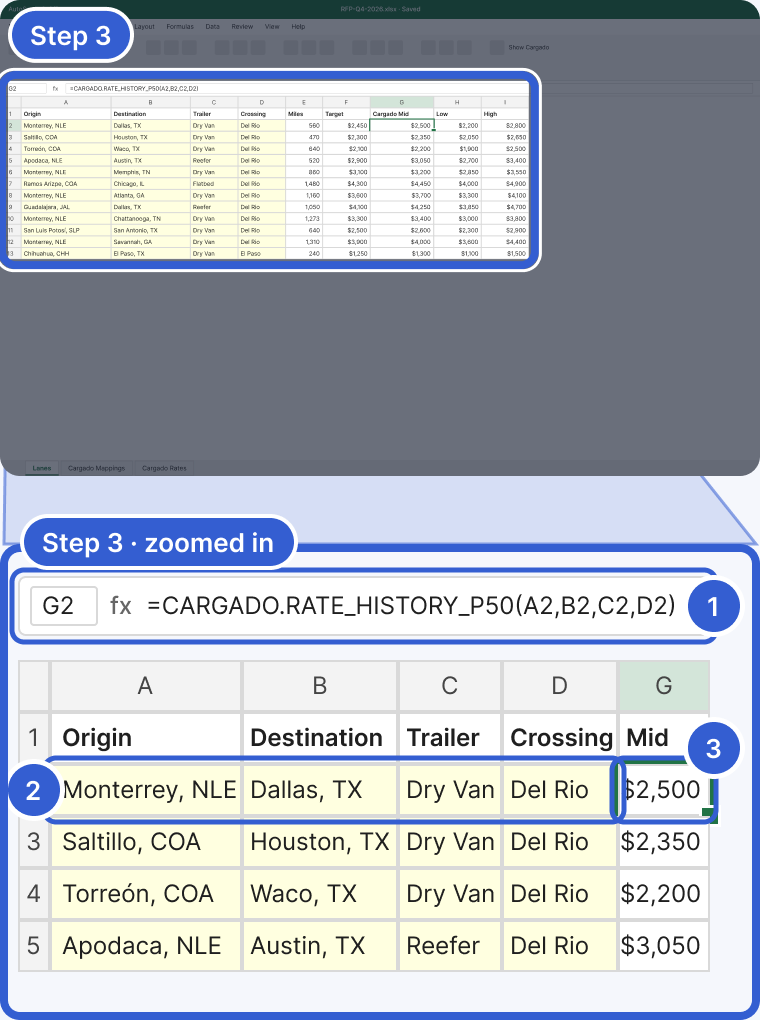
- The formula: its arguments are origin, destination, trailer type and crossing, in that order. A fifth argument, miles, is optional; Cargado calculates the distance when you leave it out.
- Your input cells: in your own sheet, the trailer type and the crossing must be values Cargado recognizes: the codes in the Cargado Mappings sheet's Cargado Trailer Type and Cargado Crossing columns, or names that match them, such as Dry Van or Eagle Pass. Not every alias you add to the mapping sheet works as a direct input; on the Cargado Rates sheet the mapping is done for you.
- The result: the Mid. Fill the formula down for every lane. The app shows rates with their currency (USD $ on the example card); in Excel, the add-in's CARGADO.RATE_CURRENCY_CODE formula returns a lane's currency.
Tip: Setup is in Install and use the Excel add-in.
Step 4: Post a lane that has no rate
Sometimes a lane comes back with no rate. That means Cargado could not return usable rate history for that lane. It does not mean no carriers run it. If you are still quoting it, click Post as a potential right on the no-data result (brokers only): it opens a new Potential Load with the lane filled in. If you own the freight, post it as a Load or a Lane and message the suggested carriers. Either way, the bids tell you what carriers are quoting for the lane now.
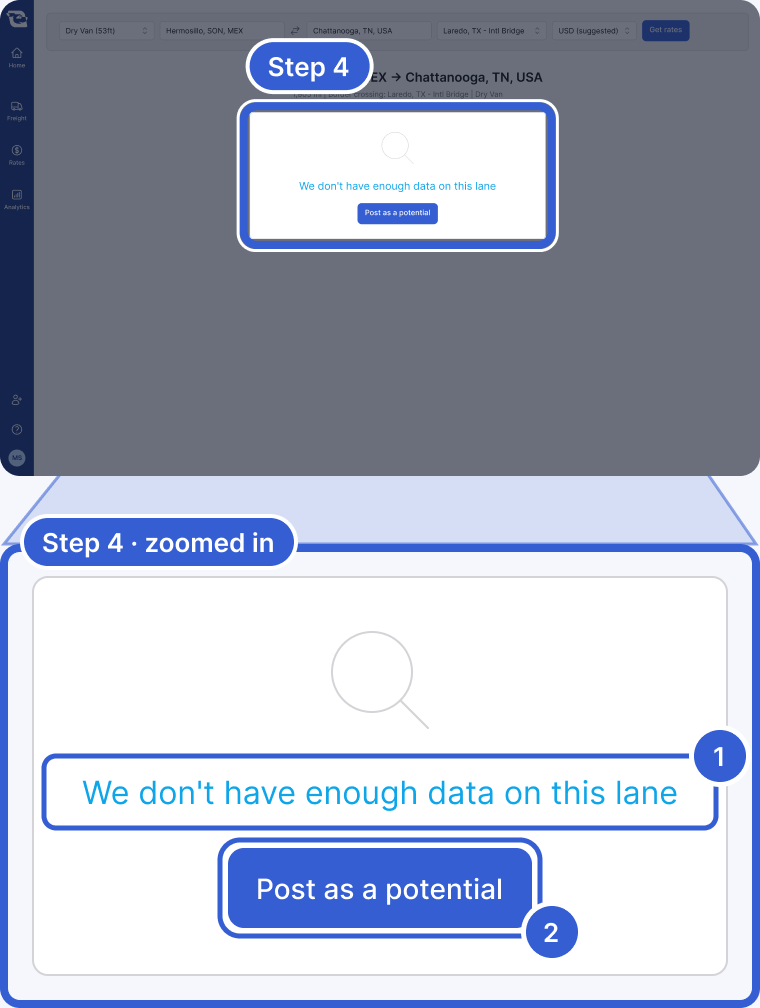
- We don't have enough data on this lane: no usable rate history came back for this lane. Check the trailer and the crossing first; a different trailer category or crossing is a different lane.
- Post as a potential: brokers only. Opens a new Potential Load with this lane filled in.
Tip: See Why is there no market rate for my lane?
Good to know
- Quoting before pricing: Look the lane up before you answer the customer, so the number you give has the band behind it.
- Treating the Mid as the answer: It is the median of a range, not a transaction price. Read the confidence next to it.
- Looking up RFP lanes one at a time: That is what the Excel add-in is for.
- Dropping a lane because it has no rate: No rate means no usable rate history for that lane, nothing more. Post it and find out.
- Next: Part 3 · Post it right.
Still stuck?
Email us and a person on our team will answer. Send the posting link or a screenshot if you have one.