
What does a posting tell me before I bid?
How to read a posting from top to bottom: the summary, stops and border crossing, equipment, load details, requirements and the company.
In 5 steps
- Read the summary
- Check the Stops
- Check the Equipment
- Check the load and the requirements
- Check the company
Step 1: Read the summary
Click a row on the Load board to open the posting. The top sums it up, and a map shows the route.
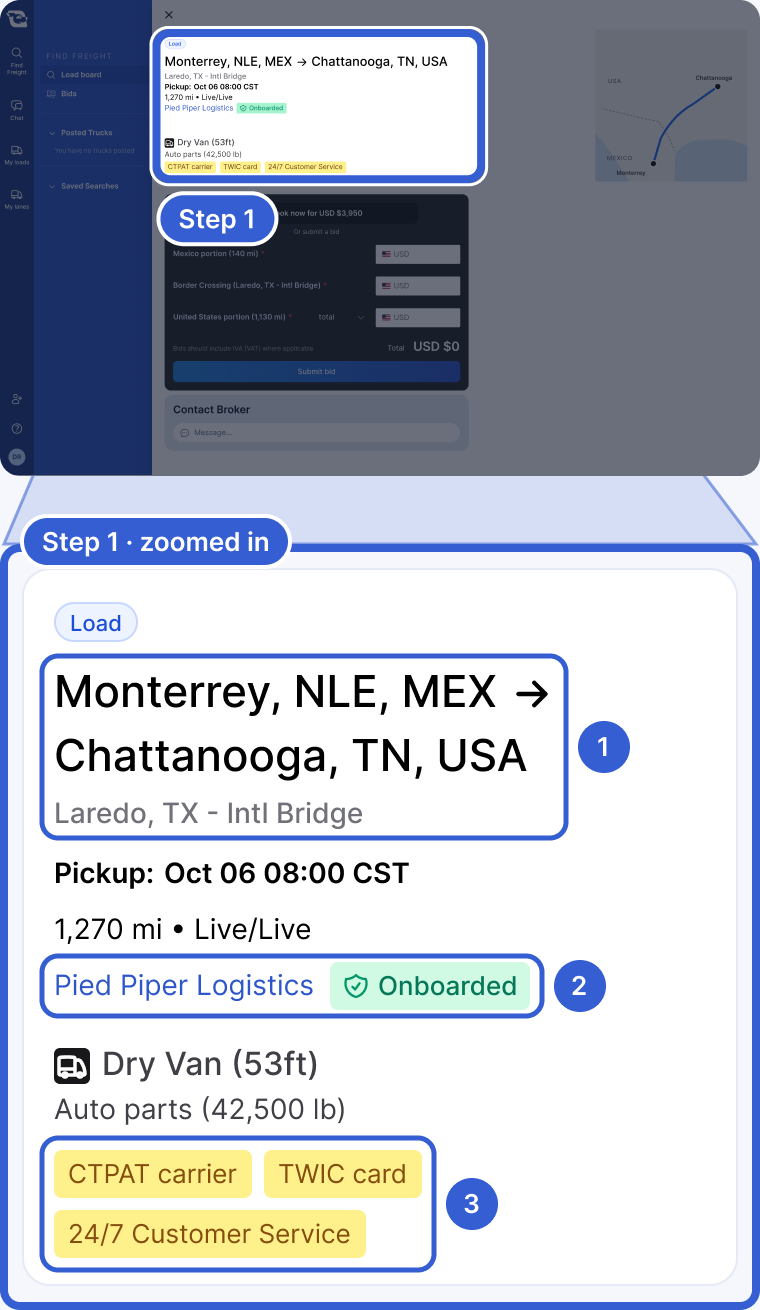
- The route and the border crossing. Under it are the pickup appointment on a Load, the distance, and whether each end is live or drop.
- The logistics company. Onboarded means it already has you set up in its own system. Need to onboard means you onboard with them before they can book you on their freight.
- Yellow tags: requirements to check before you bid.
Below the summary is the dark bid card. To learn how to bid, see how to bid on freight. Under the bid card, Contact Broker lets you ask the logistics company questions first.
Step 2: Check the Stops
Each stop is listed in order, with its location and how it is handled.
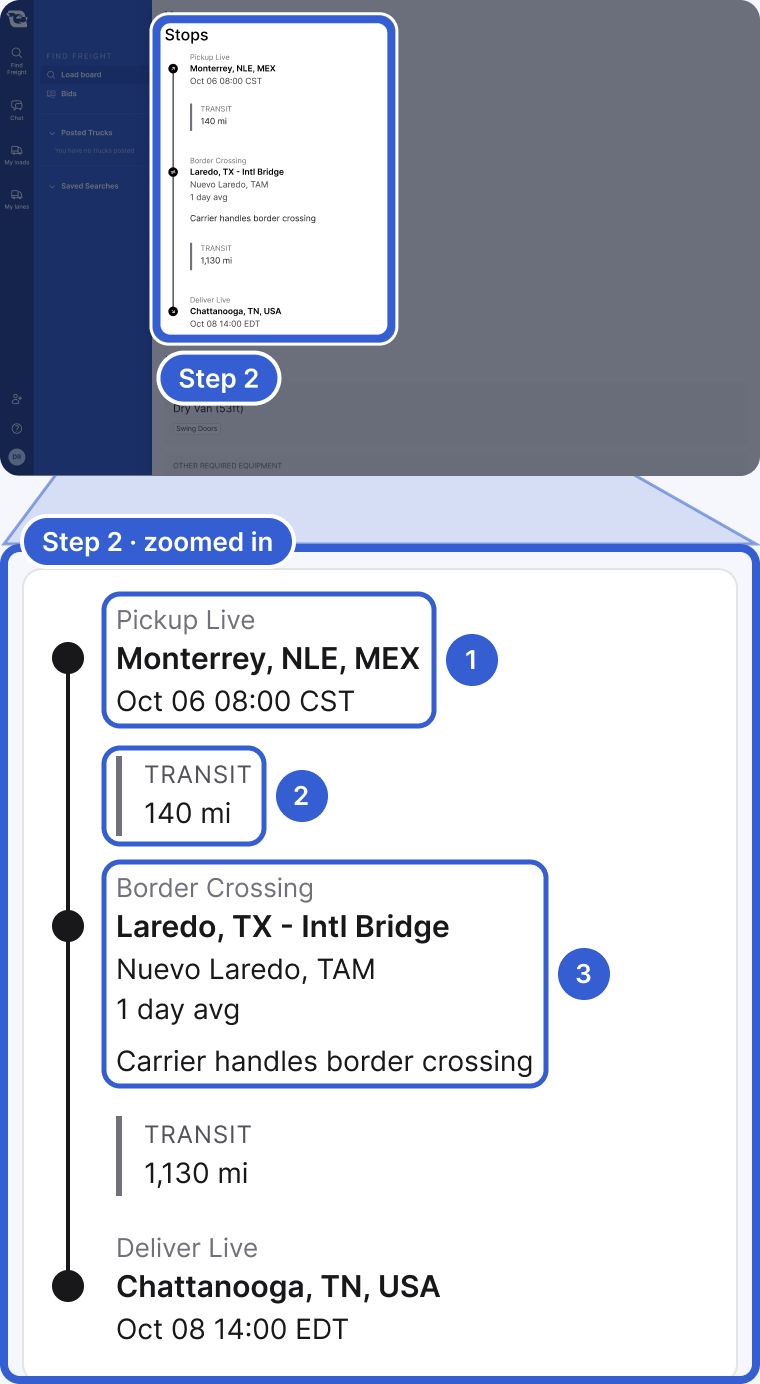
- A stop and how it is handled, such as Pickup Live. On a Load, it also shows the appointment. A Lane lists its stops without appointments.
- Transit: the distance of that leg.
- Border Crossing: the crossing, the average time to cross when it is known, and who crosses. Carrier handles border crossing means you take the freight across.
Step 3: Check the Equipment
This section says what you need to haul the load.
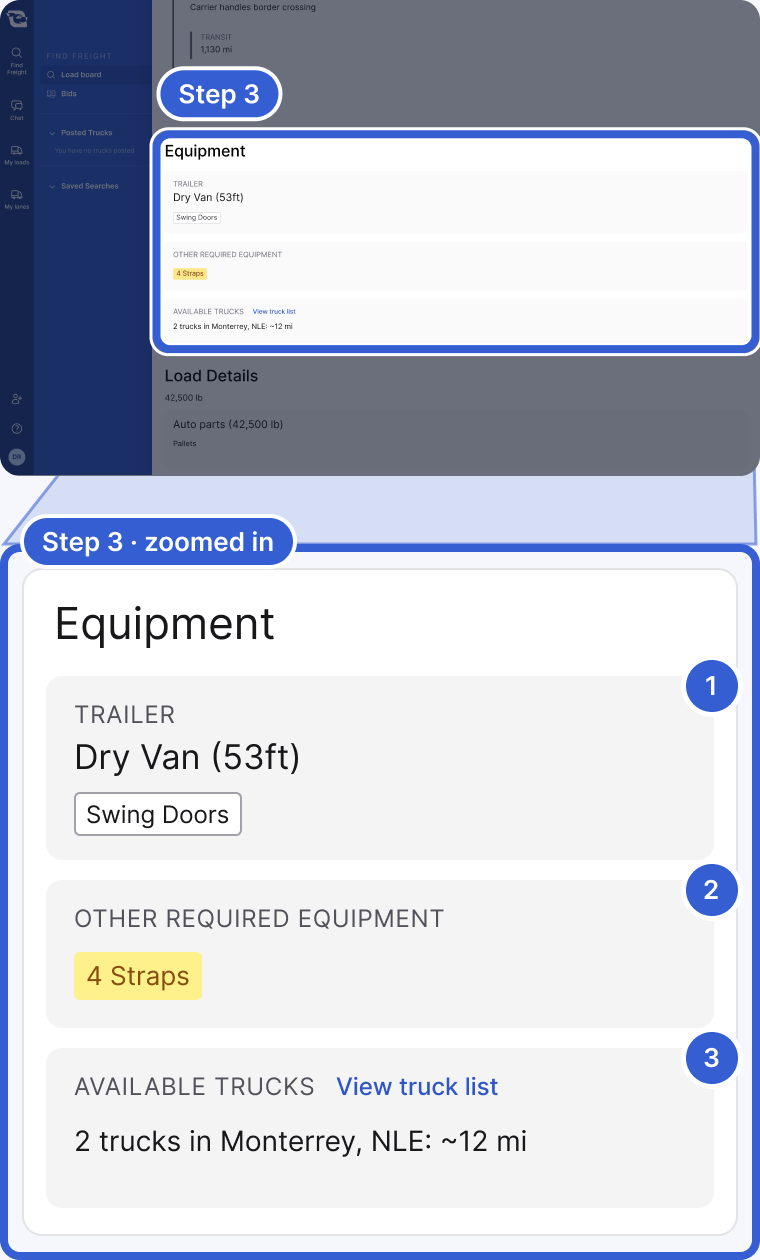
- Trailer: the trailer type and any details, such as door type, food grade or a lift gate.
- Other required equipment: extra gear the load needs, such as straps. If there is none, it says No other equipment required.
- Available trucks: on a Load, your posted trucks near this posting. View truck list opens your full list.
Step 4: Check the load and the requirements
Load Details gives the weight and the product. Carrier & Driver Requirements lists what the logistics company needs from you and your driver.
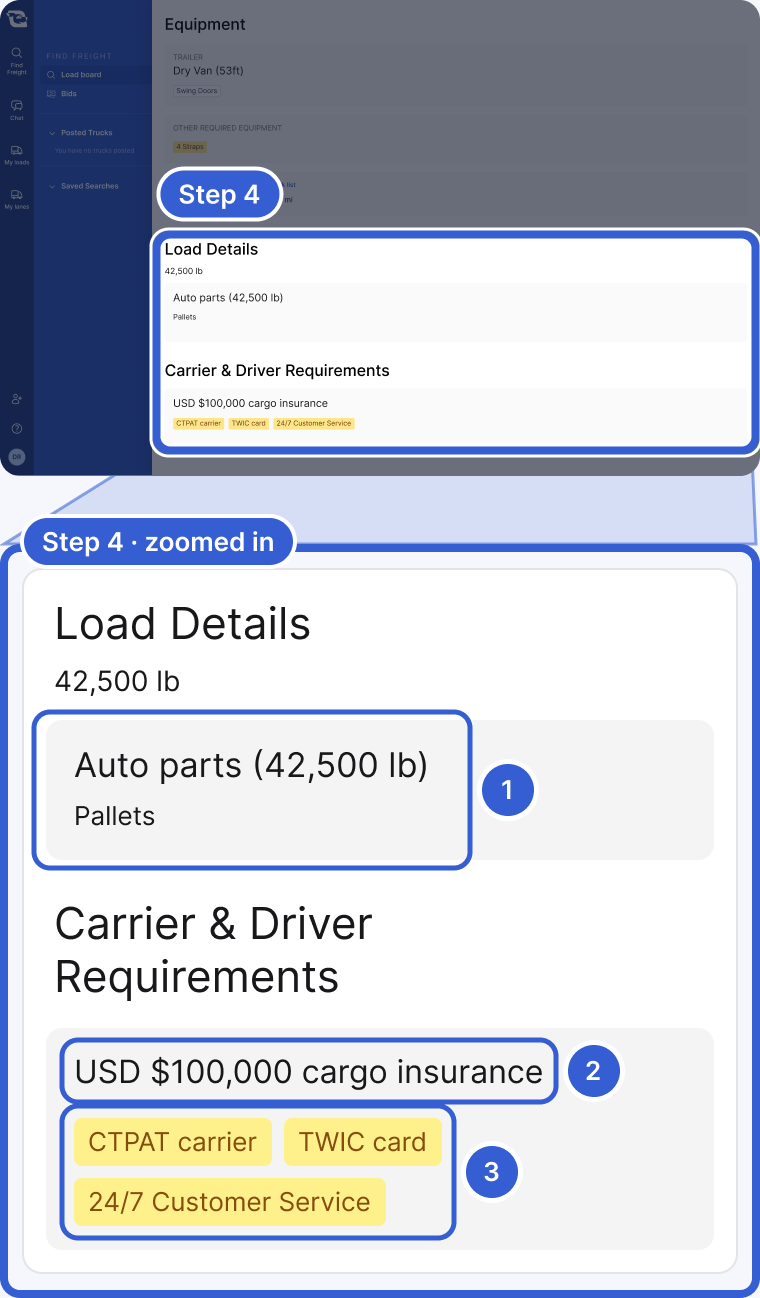
- The product and its weight, with details such as packaging.
- The minimum cargo insurance the logistics company asks for.
- Requirements such as CTPAT carrier, TWIC card, CDL driver or 24/7 Customer Service.
Tip: If you cannot bid on a posting, see why you cannot bid.
Step 5: Check the company
To see who you would work with, open your chat with the logistics company and click its name at the top of the chat. Its profile opens.
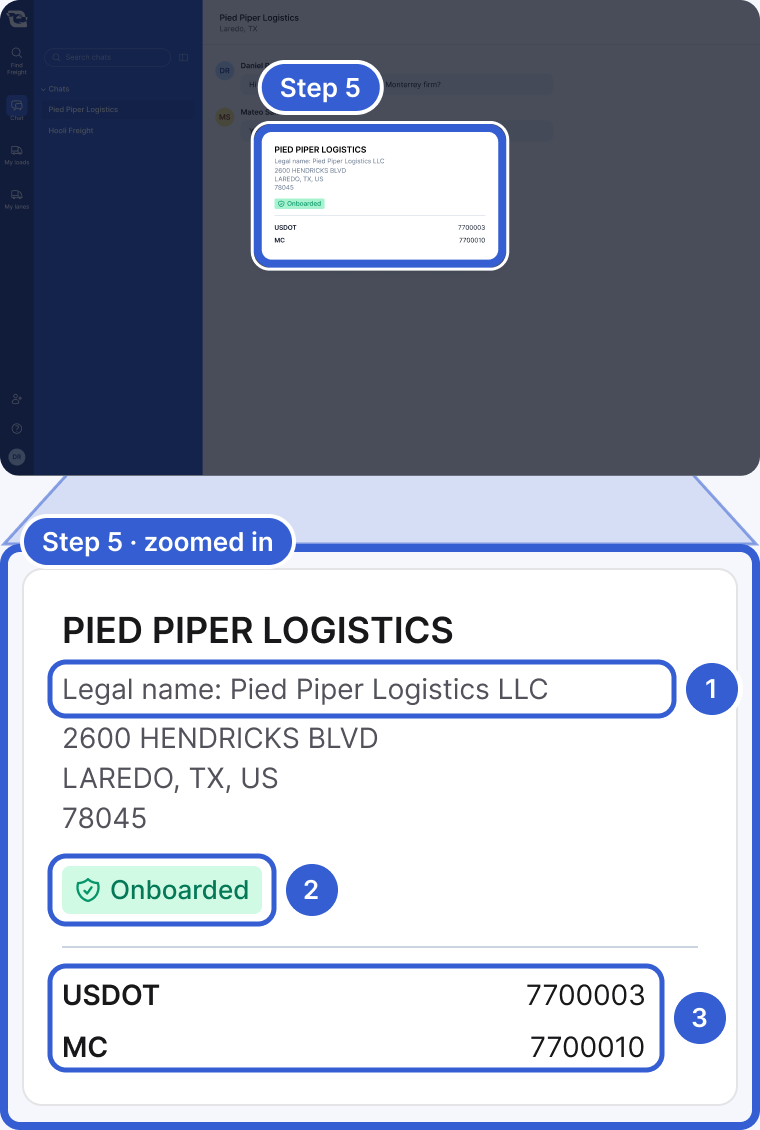
- Legal name: when one is on file. The registered address is under it.
- Onboarded or Need to onboard, when Cargado knows your status with that company.
- USDOT and MC numbers, when the company has them on file.
Tip: To start that chat before you bid, click Message... under Contact Broker on the posting, then write in the chat that opens.
Good to know
- Appointments: a pickup or delivery can be a date and time, a window, or First come, first served.
- Other stop types: besides live stops, you may see Drop Trailer.
- Pre-set transfer: on the Border Crossing stop, this means a crossing carrier is already assigned. It can come with notes such as No B1 drivers.
- Lanes: a Lane or Potential Lane starts with a Frequency section. It shows how many loads per period and the dates the project runs.
- Load Details: can include the packaging and, for a reefer, the temperature. Empty-trailer moves do not have this section.
- Onboarding: happens directly between you and the logistics company.
Still stuck?
Email us and a person on our team will answer. Send the posting link or a screenshot if you have one.