
Verify your USDOT number
How the one-time code works, who receives it, and what to do if you cannot reach the contact FMCSA has on file for your company.
If your company has a USDOT number, you can confirm you represent it with a one-time code. The code goes to the contact details FMCSA has on file for your company. This step is for carriers based in the United States, and for Mexican and Canadian carriers who answer Yes to Do you have a USDOT number?
The step is called Verify your carrier. It comes after your business details, or after your documents if your company is in Mexico or Canada. If you do not see it, either your work email matched your FMCSA email and you went straight to the invitation screen (see below), or your application went to our team for review.
Step 1: Check who gets the code
On Verify it's you, you see your company and the contact FMCSA has on file for your USDOT number. The code goes there. The code email tells the contact your name and email, and asks them to share the code only if they recognize you. If the contact is a coworker, tell them to expect it.

Step 2: Choose how to get the code
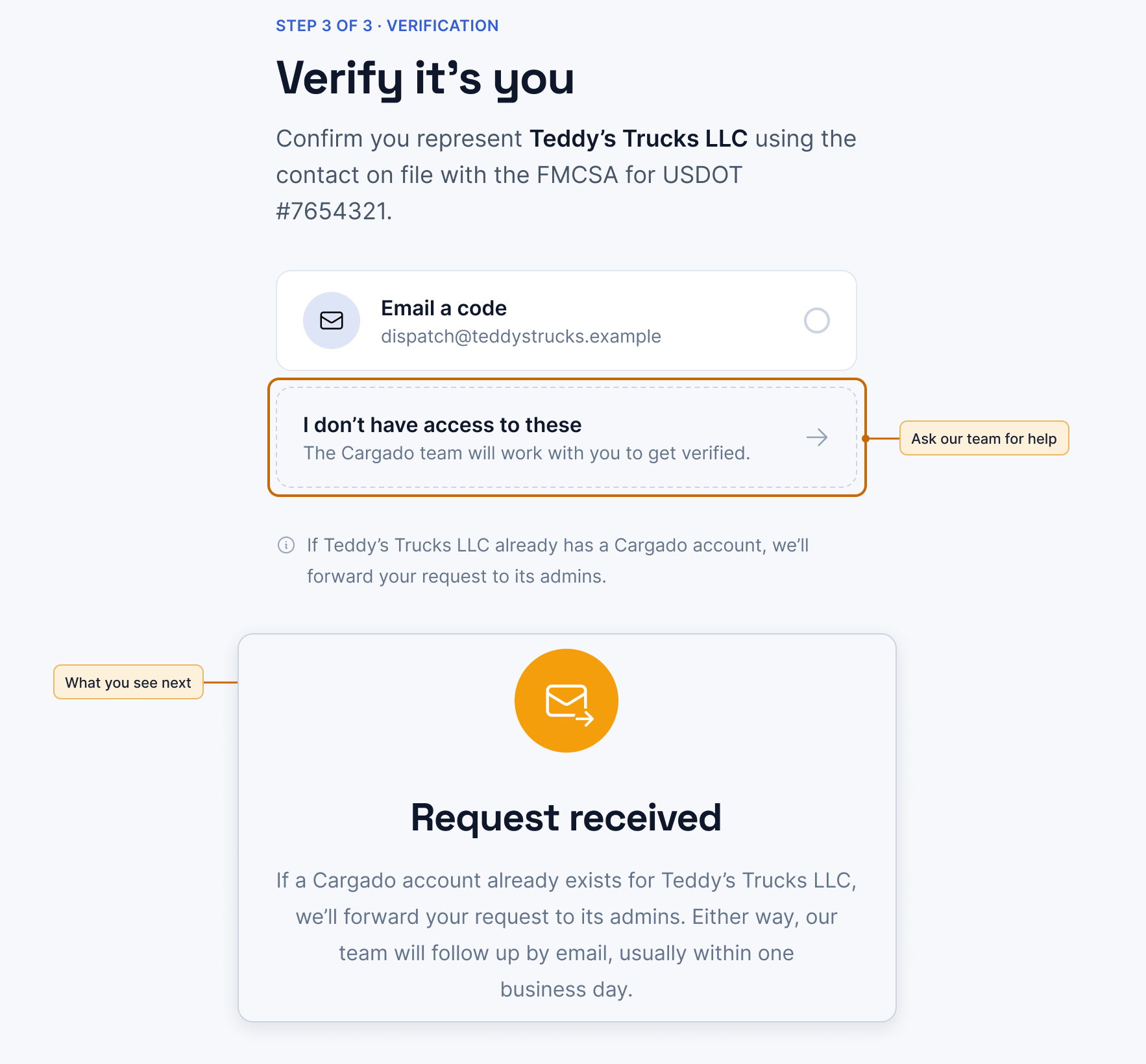
Choose one of the options on the screen, such as Email a code. The options depend on what FMCSA has on file. You may see only the email option; some companies may also see text message or phone call options.
Step 3: Enter the 6-digit code
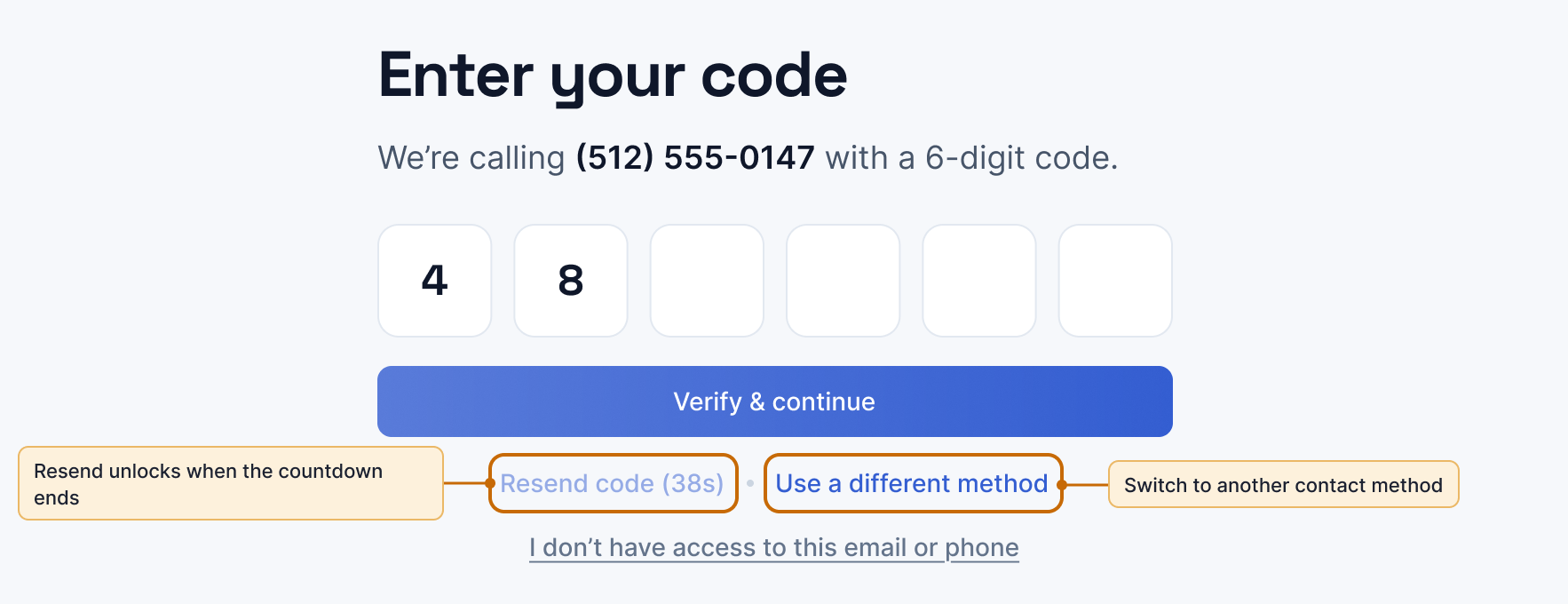
Type the code under Enter your code and choose Verify & continue.
- That code didn't match. Check the digits and try again. The message may say how many attempts are left.
- The code email says how long the code works. After that, request a new one: choose Resend code when its countdown ends.
- To switch to another option, choose Use a different method.
- Too many attempts, wait a moment and try again. Your code still works. Wait a moment, then enter it again.
- You've used all the attempts for this session. Start again to get a new code. Start over, and you get a new code.
When the code is right, you see You're verified, check your email. Check your email for an invitation. If it doesn't arrive, choose I didn't receive the invitation on that screen. If you already belong to your company's Cargado account, you get no invitation; you see You already have access and Log in. What comes next is in What happens after you apply.

If your work email is your FMCSA email
When the work email you entered matches the email FMCSA has on file exactly, you may skip the code and go straight to You're verified, check your email. Check that inbox for an invitation. If it doesn't arrive, choose I didn't receive the invitation.
If you can't reach the FMCSA contact
If the contact on file is out of date, or belongs to someone you cannot reach, choose I don't have access to these on the options screen, or I don't have access to this email or phone on the code screen. This asks our team for help, and you see Request received. If you need help, email carriers@cargado.com with your company name and USDOT number.
To change the contact FMCSA has on file, update your registration with FMCSA (form MCS-150). See Updating Your Registration or Authority on the FMCSA site.
When verification can't start
Before this step, the USDOT lookup can stop you if the number is not found, the authority is not active, the number has broker authority but no carrier authority, or the company is registered in another country, which includes a US-registered USDOT on a Mexican or Canadian application. See Your DOT, MC, RFC, NSC, CVOR and NIR numbers.
When verification starts, you may see one of these messages:
- We couldn't find this DOT number in the FMCSA registry. Start over and double-check it. Choose Start over.
- This carrier isn't currently authorized to operate, so we can't verify it online. Check your authority with FMCSA, then choose Start over.
- FMCSA doesn't have contact details on file for this carrier, so we can't verify you online. Submit your request and our team will review it. Choose Submit for review.
- Too many verification attempts. Wait a few minutes and try again. Wait, then choose Try again.

Still stuck?
Email us and a person on our team will answer. Send the posting link or a screenshot if you have one.