
Get an API key for your integration
How to get an API key when your system is not one of the TMSs Cargado integrates with, what the permissions mean, and how to keep the key safe.
In 3 steps
If your system is not one of the TMSs Cargado integrates with (see Connect your TMS), you can still connect to Cargado through the API. The Cargado team creates the key for you.
Step 1: Ask your Cargado contact for a key
Ask your Cargado contact for an API key. Tell them the integration's name and what it needs to do. The options are syncing loads, managing carrier relationships, managing teams, managing users, and looking up market rates. The key is created with only those permissions. One key can hold several of them.
Important: The full key is shown only once, when it is created, so have your secret store ready.
Step 2: Send the key as an api-key header
Keys start with cgk_. Do not rely on the rest of the prefix to tell a production key from a testing key: label each key yourself in your secret store. Send the key as an api-key header on every request, or as a bearer token in an Authorization header. Header names are not case-sensitive, so Api-Key works too.
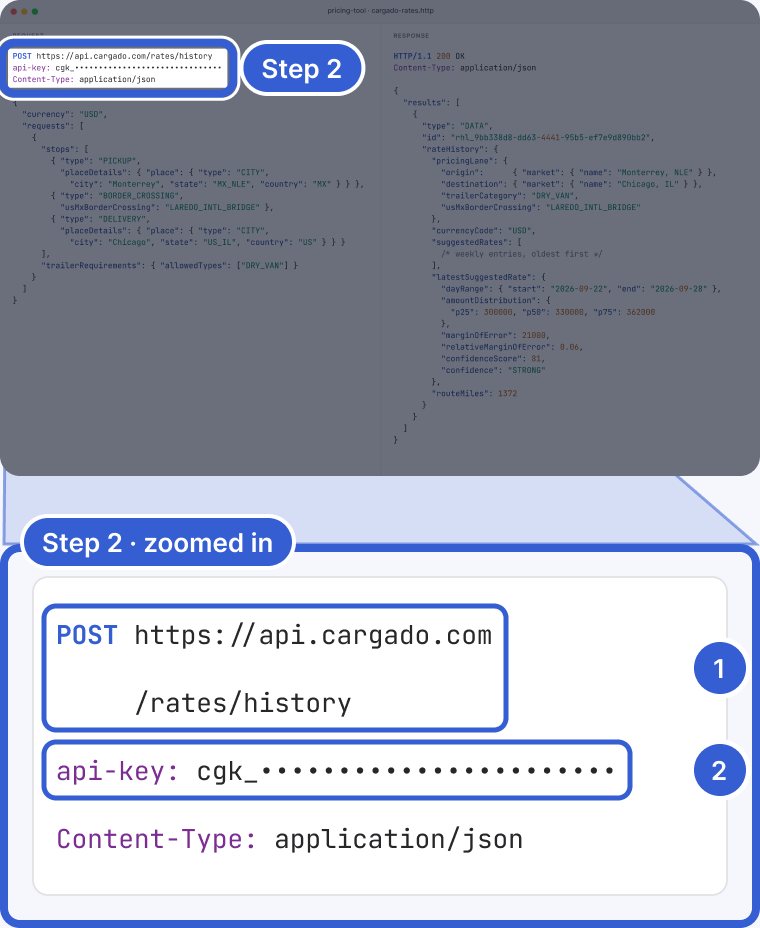
Example: the key is fictional and masked.
- POST https://api.cargado.com/rates/history: the request itself.
- api-key: your key, on every request. Shown masked here.
Step 3: Keep the key in a secret store
Put the key in your platform's own secret store. Not in a spreadsheet, a chat message or an email. If you think a key has leaked, tell the Cargado team right away. A key can be rotated: rotation issues a new key and keeps the old one working for seven days, so you can cut over without downtime. A key can also be revoked outright.
Tip: The Excel add-in does not need a key. Each person signs in with their own Cargado login. See Install and use the Excel add-in.
Good to know
- One key, two uses: a key can cover the Market Rates API and the rest of the API. What it can do depends on the permissions you ask for.
- Market Rates API: ask for "looking up market rates". Your system sends a lane and gets back Low, Mid and High, the same band you see in the app, with a confidence label and margin of error when Cargado has them. See Get market rates through the API.
- Weekly export: an Enterprise plan with the export turned on can also download a weekly file of market rates. See Download the weekly market rate export.
- The rest of the API: syncing loads from your system, managing carrier relationships, teams and users.
- Your plan: for brokers, market rate lookups made with a key count toward the plan's metered usage the same way as lookups in the app, subject to deduplication: repeat lookups of the same lane count once per data vintage, markets, trailer category and crossing, and a new data vintage counts again. Lookups by carrier accounts are not metered. See Plan limits, and what the usage warning emails mean.
- Amounts: rates come back in minor units of the currency: cents for USD and CAD, centavos for MXN. In USD, 330000 is $3,300.
- Reference: the endpoints are documented at docs.cargado.com.
Still stuck?
Email us and a person on our team will answer. Send the posting link or a screenshot if you have one.