
Price a bid file in Excel
Price a whole RFP with the Excel add-in: map your file's wording, point one row at the RFP, then copy it down to every lane.
https://cdn.prod.website-files.com/68f656dee991ae15a5cbb747/6abab33b34f79a22d4bade72_excel-rfp-how-to-1080p.mp4
https://cdn.prod.website-files.com/68f656dee991ae15a5cbb747/6abab665149da016ef2cf13c_excel-rfp-how-to-poster-endcard.jpg
https://cdn.prod.website-files.com/68f656dee991ae15a5cbb747/6abace7d54fbad6bdb323726_excel-rfp-how-to-1080p.en.vtt
In 6 steps
- Create the sheets with Create sheets
- Map your file's wording on Cargado Mappings
- Point row 3 of Cargado Rates at your RFP
- Copy row 3 down, one row per lane
- Read Recommended Crossing
- Fix a cell that shows a message
To price a whole RFP, tell Cargado what your file calls each trailer and crossing, point one row of the Cargado Rates sheet at your RFP tab, then copy that row down to every lane. This article assumes the add-in is installed and you are signed in. If not, start with Install and use the Excel add-in. The lanes and rates in the figures are examples, not market data.
Step 1: Create the sheets with Create sheets
Open the RFP in Excel. In the Cargado task pane, click Create sheets. Two sheets are added to your workbook, Cargado Mappings and Cargado Rates, and Excel switches to Cargado Rates.
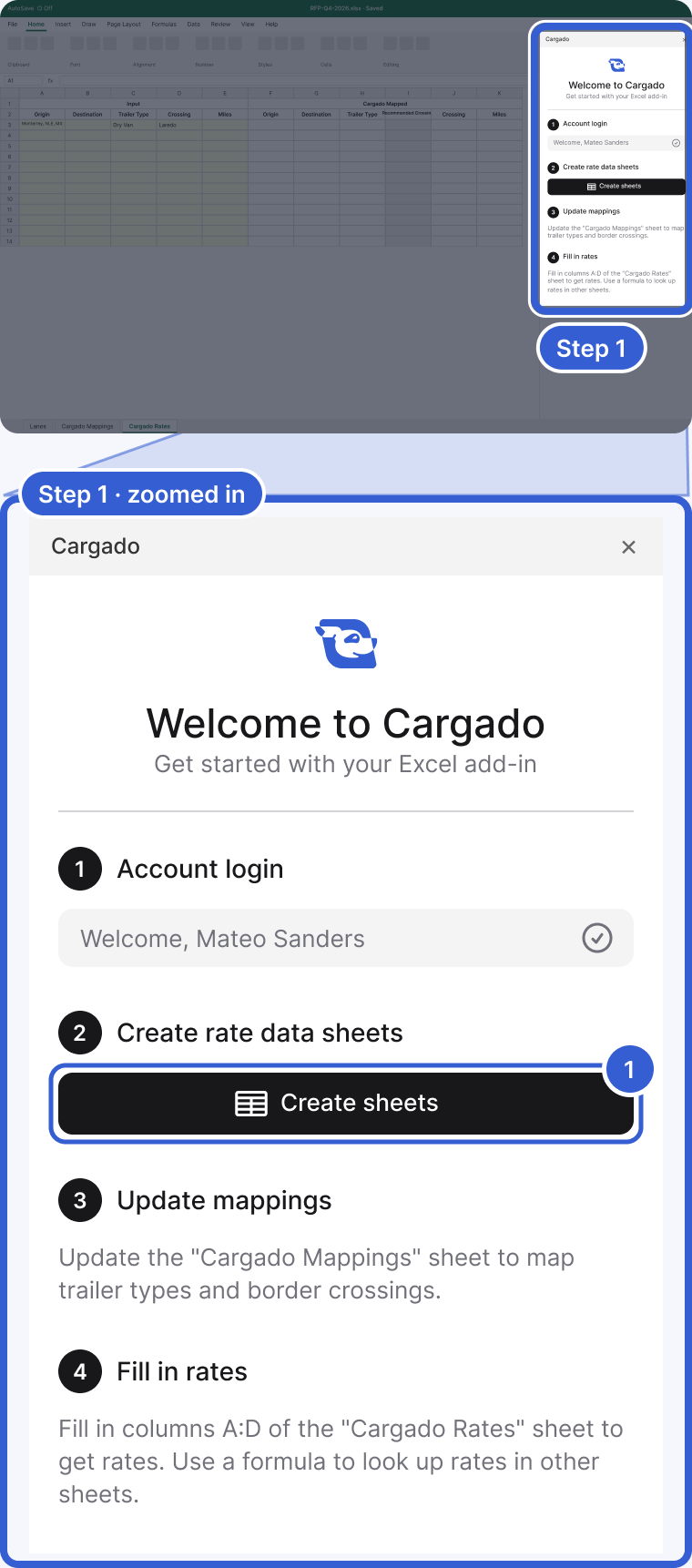
- Create sheets: adds Cargado Mappings and Cargado Rates to the open workbook. Your RFP tab is not touched. If the workbook already has both sheets, the pane says Sheets already exist, skipping creation. and nothing is overwritten.
Step 2: Map your file's wording on Cargado Mappings
Your file may not use Cargado's names. One file can say "53' Dry Van", "53ft Van" and "Dry Van 53'" for the same trailer. On Cargado Mappings, add a row for each word your file uses: the file's word in column A (Input Trailer Type) and the Cargado name in column B (Cargado Trailer Type), such as DRY_VAN. Crossings work the same way in columns D and E, such as LAREDO_INTL_BRIDGE. One row per variation.
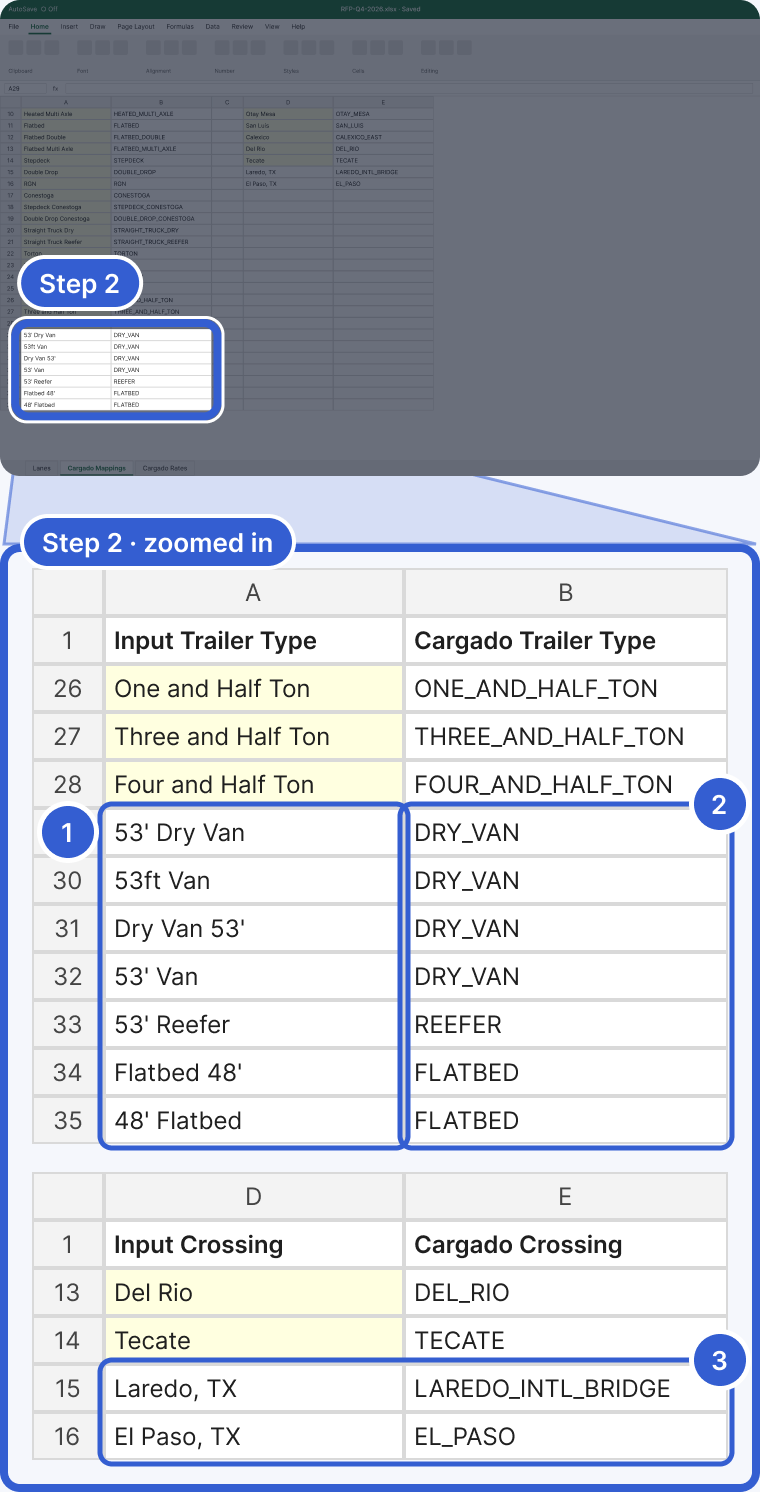
- Input Trailer Type, rows 29 to 35: the trailer words exactly as your file writes them, one per row, in column A.
- Cargado Trailer Type: the Cargado name for each, such as DRY_VAN, REEFER or FLATBED. Rows 2 to 28 are the defaults the add-in created, from Dry Van to Four and Half Ton; leave them.
- Input Crossing and Cargado Crossing, rows 15 and 16: the same idea for crossings, such as Laredo, TX to LAREDO_INTL_BRIDGE. Rows 2 to 14 are the default crossings, from Laredo to Tecate.
Step 3: Point row 3 of Cargado Rates at your RFP
On Cargado Rates, row 3 holds an example lane. Click cell A3 under Origin. Type =, click your RFP tab, click the first lane's origin cell and press Enter. Do the same in row 3 for Destination, Trailer Type and Crossing. Leave Miles blank and Cargado calculates the distance. Write places as city and state, the way the example row does.
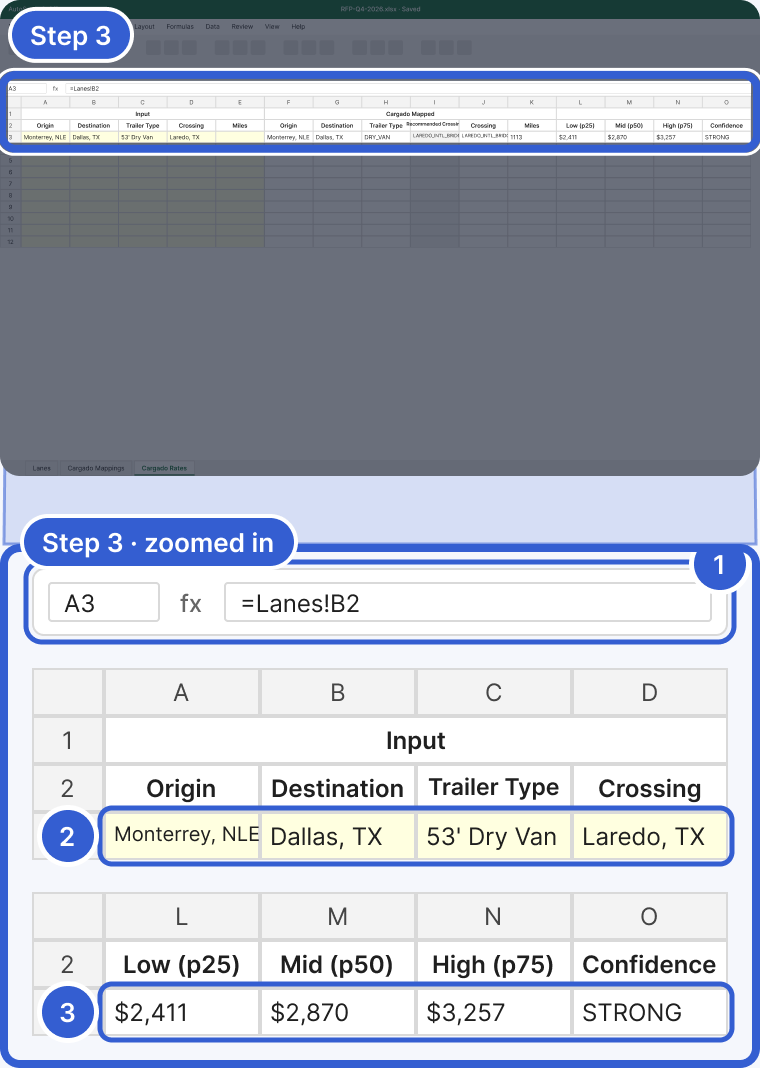
- The formula bar: A3 holds
=Lanes!B2, a reference to the first lane's origin on your RFP tab (here a tab called Lanes), not typed text. - Row 3, Origin to Crossing: the lane in your file's own words. The mappings from step 2 translate them.
- Row 3, Low (p25), Mid (p50), High (p75) and Confidence: the rate for that lane, further right on the same row, when Cargado has one. The amounts shown are examples.
Step 4: Copy row 3 down, one row per lane
Select Origin to Crossing on row 3 of Cargado Rates and copy it down to one row per lane, by dragging the fill handle or with copy and paste. Each row reads its own lane from the RFP, including its own crossing, and the mappings apply to every row. The sheet starts with 25 ready rows, 3 to 27. For more lanes, copy a whole ready row, from Origin through the last rate column, down past row 27: the formulas in the mapped and rate columns only exist in those 25 rows. Stop at your last lane.
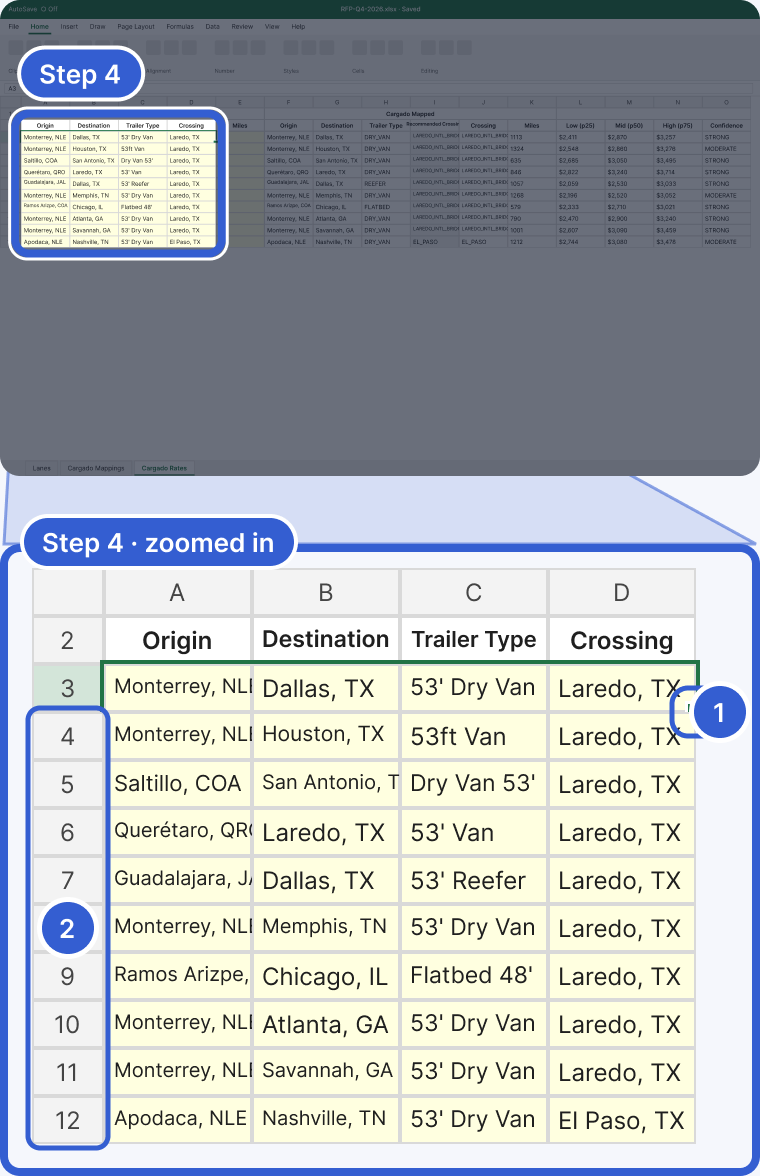
- The fill handle: the small square at the bottom right of the selection. Drag it down to your last lane.
- Rows 4 to 12: one lane per row, each reading its own cells on the RFP tab. A lane with a different crossing, such as El Paso, TX, is looked up through that crossing.
Step 5: Read Recommended Crossing
Recommended Crossing comes from Cargado's API. On a cross-border lane that has a recommendation, leave Crossing blank and Cargado looks the lane up through that crossing. To price a lane through a bridge you choose, give it a crossing that your mappings match.
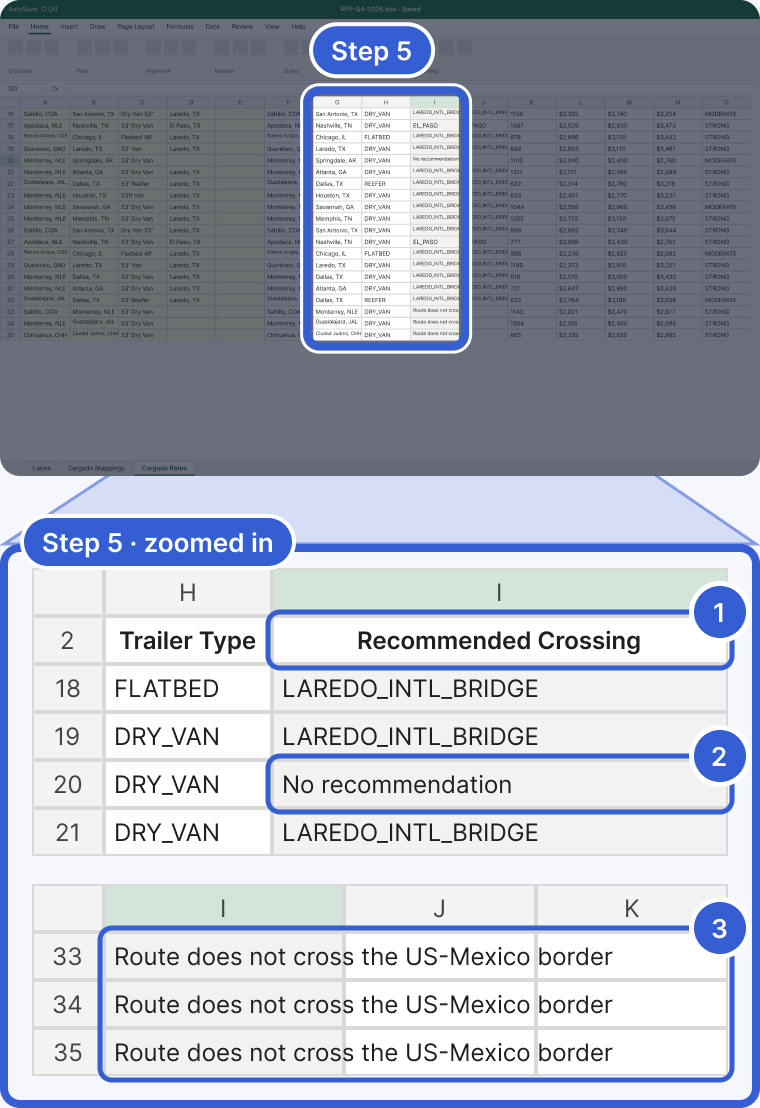
- Recommended Crossing: Cargado's pick for the lane. With Crossing blank, the lane is looked up through it.
- No recommendation: no crossing met Cargado's confidence threshold for that lane (here Monterrey, NLE to Springdale, AR, an example). Give it a crossing your mappings match.
- Lanes inside Mexico: leave the crossing blank. Recommended Crossing shows a message that the route does not cross the US-Mexico border. That is expected; the rate columns fill in only when Cargado has a rate for that lane.
Step 6: Fix a cell that shows a message
A message instead of a rate says why there is no rate. Messages about your input point at a cell to fix, and the Cargado Mapped columns show what Cargado read; other messages come from the lookup itself (see Good to know). The one to know first is Missing: trailerType: the file's trailer word is not on Cargado Mappings, so the mapped Trailer Type came back blank. Add the word in a new row with its Cargado name. The row recalculates like any other formula, and shows a rate when Cargado has one for that lane.
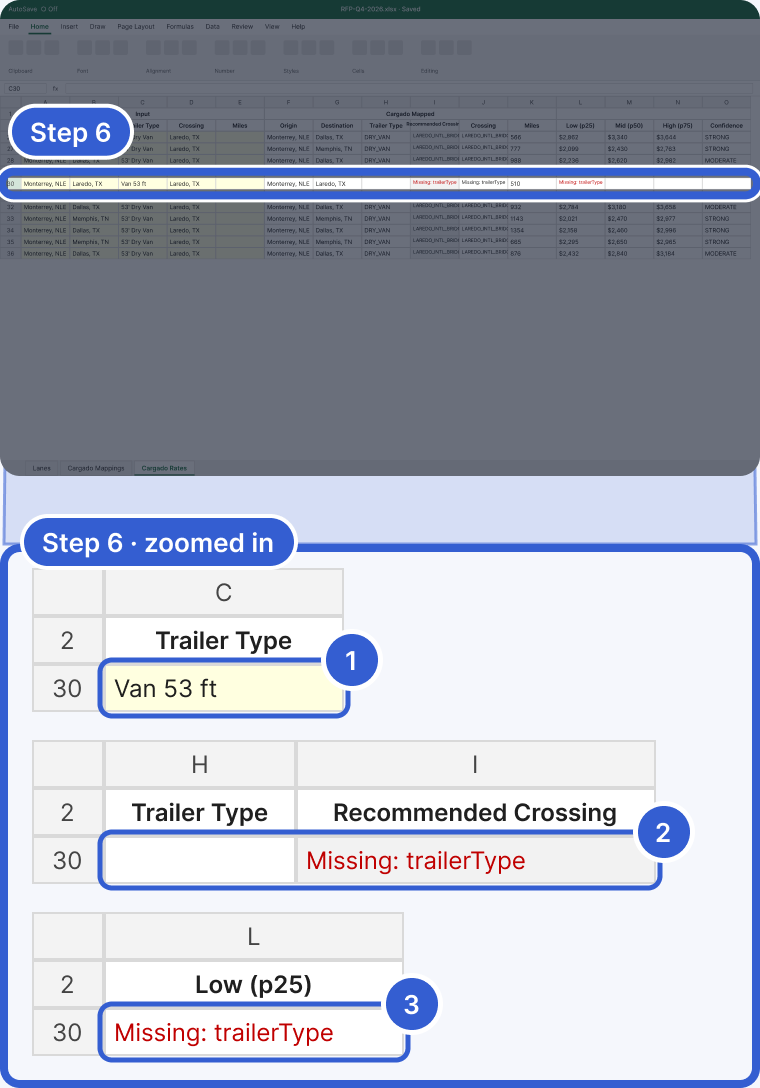
- Trailer Type in the Input columns: the file's word, here "Van 53 ft", which is not on Cargado Mappings.
- The mapped Trailer Type is blank and Recommended Crossing reads Missing: trailerType: that is what Cargado read, and why.
- Low (p25) and the other rate columns show the same message instead of a rate. Add "Van 53 ft" to Cargado Mappings as DRY_VAN and the row is looked up again.
Important: each lane that returns a rate is a market rate lookup and counts toward your plan, like a lookup in the app. A lookup counts once per combination of origin market, destination market, trailer category, crossing and rate data version: two lanes between the same markets can share one count, and the same lane counts again after the rate data is refreshed. See Plan limits, and what the usage warning emails mean.
Tip: For advanced use, you can call the functions straight from your own tab, for example =CARGADO.RATE_HISTORY_P50(A2, B2, C2, D2) with origin, destination, trailer and crossing in A to D. Use _P25 and _P75 for Low and High, and CARGADO.RATE_CONFIDENCE for the label. This path skips the mappings: the add-in turns what you type into a Cargado name by uppercasing it and replacing spaces and punctuation with underscores, so "Dry Van" works as a trailer and "53' Van" does not (Invalid trailerType), and the crossing must match a Cargado name such as LAREDO_INTL_BRIDGE (Invalid crossing otherwise). Missing: means origin, destination or trailer is blank.
Good to know
- The markets, per-mile and all-in rates: scroll right on Cargado Rates. The market columns show where Cargado priced each city: Origin Market, Origin Market Type, Destination Market and Destination Market Type. See How to read a market rate. Further right are Route Miles, Currency Code, Margin of Error, Confidence Score, the per-mile rates (Per Mile Low (p25), Per Mile Mid (p50), Per Mile High (p75)) and the all-in rates (All In Low (p25), All In Mid (p50), All In High (p75)).
- Sheets already exist, skipping creation: the workbook already has a sheet named Cargado Mappings or Cargado Rates, so nothing was created or overwritten. If both sheets are there and complete, carry on with step 2. If only one of them is there, rename or delete it and click Create sheets again.
- The mapped Crossing is blank and there is no message: a crossing word your mappings do not match leaves it blank, and the lane is looked up as if the crossing were blank. Check that the mapped Crossing column shows the bridge you expect.
- Missing: followed by origin or destination: that cell of the lane is blank.
- Invalid trailerType or Invalid crossing: a name in the Cargado Trailer Type or Cargado Crossing column is not one Cargado knows. Correct it on Cargado Mappings.
- Not logged in: sign in again from the task pane.
- Could not geocode stop: Cargado could not place the city, or the location service failed. Check the city and state and try again.
- No rates found for the given input: Cargado returned no rate for that lane. See Why is there no market rate for my lane?
Still stuck?
Email us and a person on our team will answer. Send the posting link or a screenshot if you have one.