
Why does my posting say Respond?
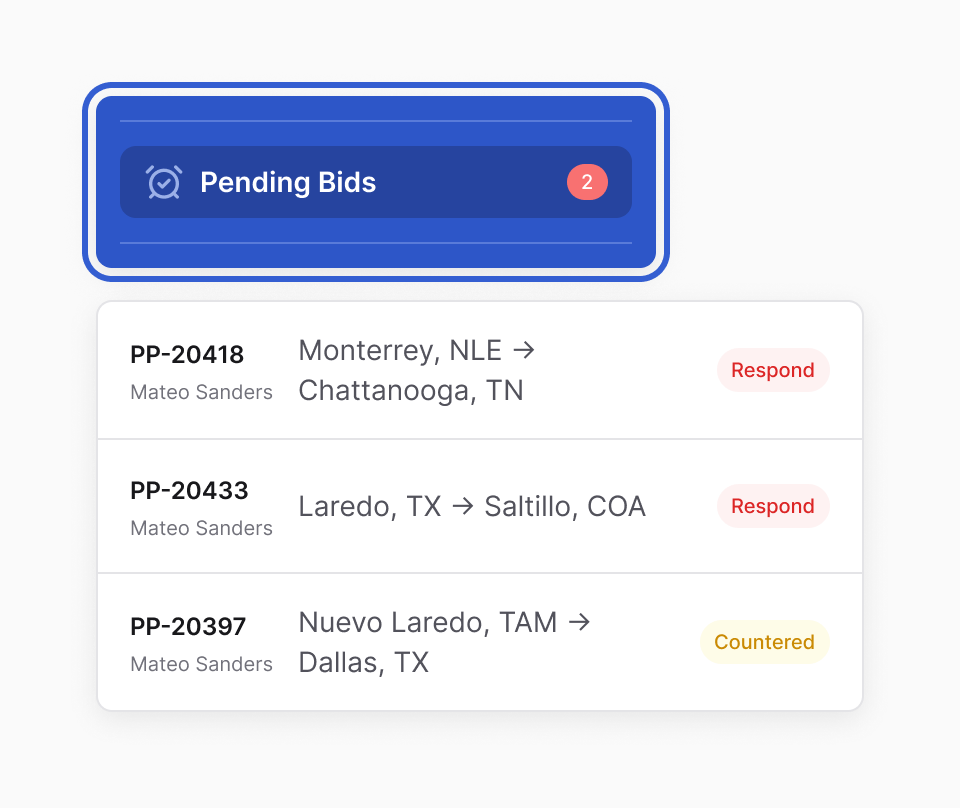
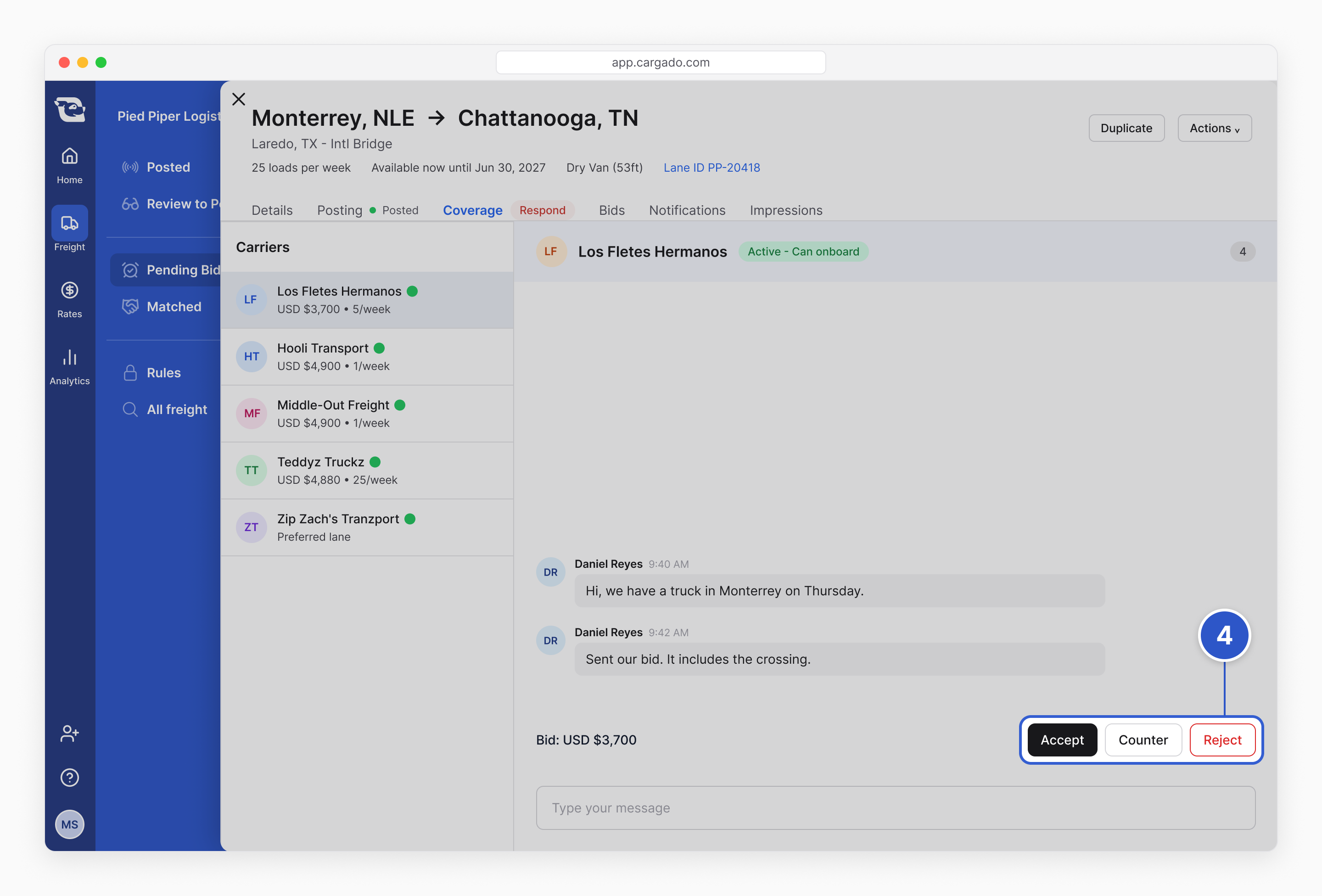
Respond means a carrier's bid is waiting for your answer. Find it in Pending Bids, join the chat, then accept, counter or reject.
https://cdn.prod.website-files.com/68f656dee991ae15a5cbb747/6abdf0c60e75c3a841d265f2_help-pending-bids-en-v2-1080p.mp4
https://cdn.prod.website-files.com/68f656dee991ae15a5cbb747/6abdf0c6645dd39477661c79_help-pending-bids-en-v2-hero.jpg
https://cdn.prod.website-files.com/68f656dee991ae15a5cbb747/6abdf0c69d5d1efa1feaf32c_help-pending-bids-en-v2.en.vtt
Respond means a carrier has bid on your posting and nobody on your team has answered yet. It goes away when someone accepts, counters or rejects that bid. A chat message alone does not clear it.
At a glance
- Open Freight, then Pending Bids.
- Open the posting and choose Join chat if you are not in it yet.
- Choose Accept, Counter or Reject.
Step 1: Find the bids waiting on you
Open the Freight tab and choose Pending Bids in the left menu. The number next to it counts your own postings that have a bid nobody has answered yet. It stays the same when you change the view below.
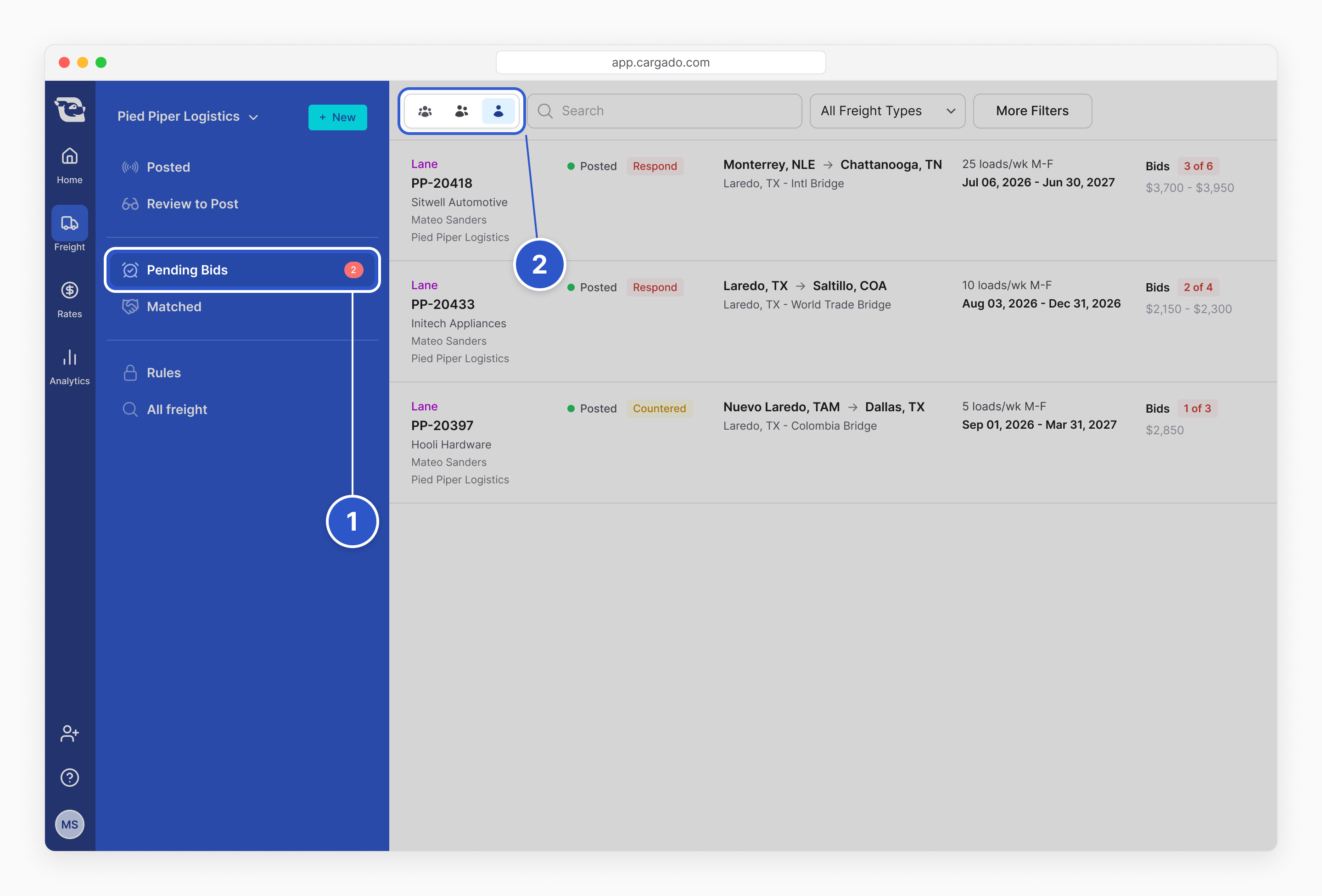
At first you only see freight you cover. To see more, use the switch at the top left of the list. Point at each icon to see its name:
- Covered By Anyone: every posting in your company.
- Covered By Your Teams: freight covered by anyone on your teams.
- Covered By You: your own freight. This is where the list starts.
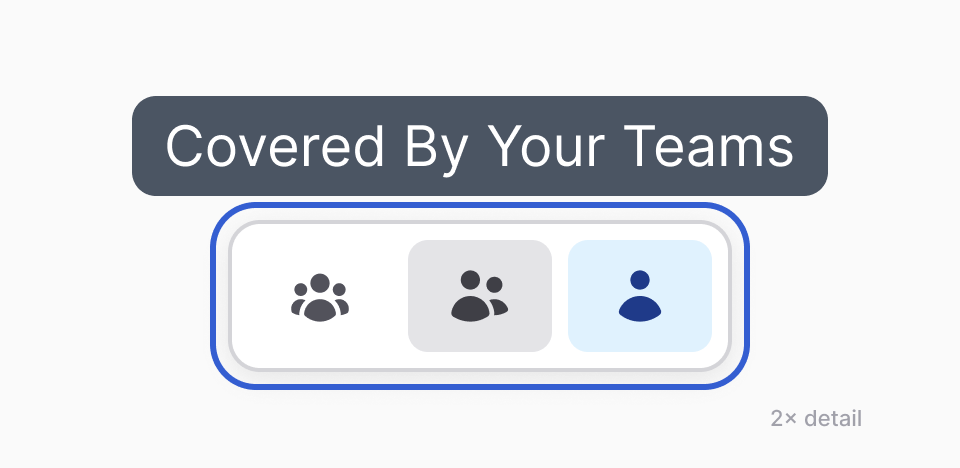
Tip: A manager can switch to Covered By Your Teams to see every bid the team still owes an answer on.
Step 2: Open the posting and join the chat
Click the posting. Its chat with the carrier opens on the right.
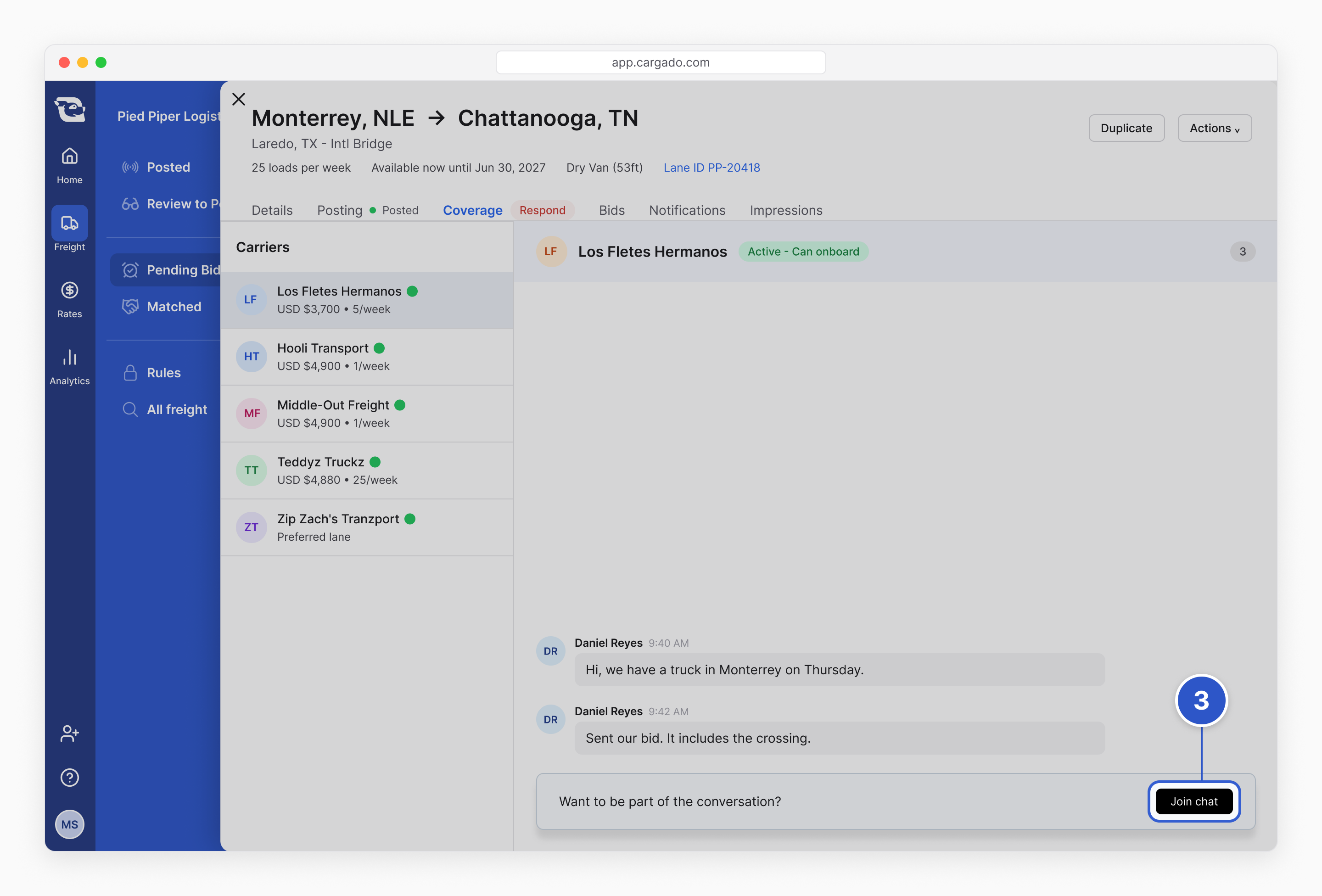
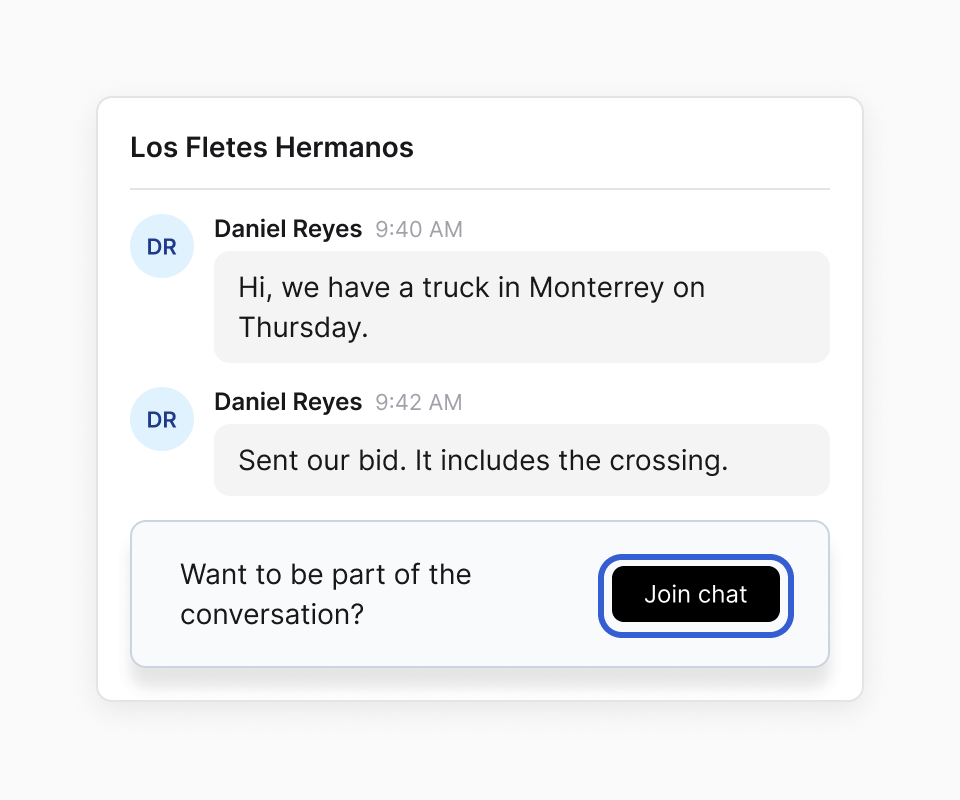
You are in the chat from the start if you own coverage on the posting, or if you are on its coverage team and the team adds everyone to its chats. Otherwise, choose Join chat at the bottom. That includes the person who posted it when someone else owns coverage. The Accept, Counter and Reject buttons appear once you join, and so does the message box.
Step 3: Accept, counter or reject
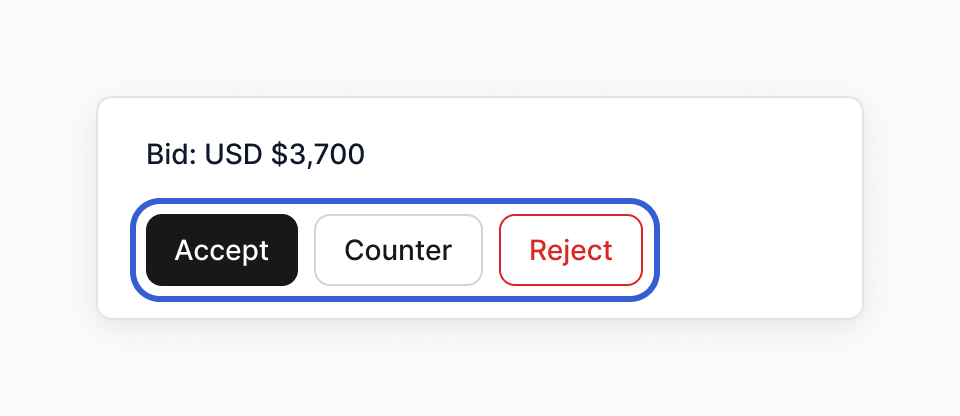
- Accept: you book the carrier at their rate. A Load comes off the board and its other bids close. A Lane stays posted for your next carrier. Both teams get the match email, and you assign the carrier in your TMS as usual.
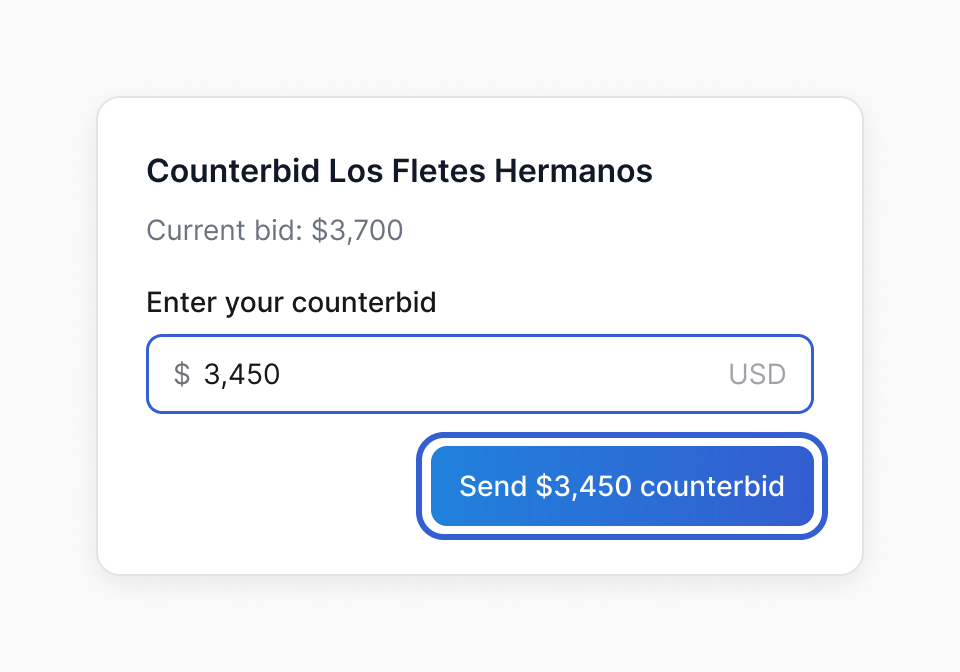
- Counter: enter a lower rate and choose Send … counterbid. The button shows your rate. Your counter must be below the carrier's bid.
- Reject: the carrier learns it is not a fit and can bid again. You cannot undo a reject.
Tip: Rejecting does not include a note. To tell the carrier why, send a line in the chat as well.
Step 4: Check that Respond cleared
Once no bid on the posting is waiting for an answer, Respond goes away.
- After a counter, the status reads Countered and the posting stays in Pending Bids until the carrier answers.
- If the carrier turns down your counter, their original bid is open again and Respond comes back.
- If the carrier withdraws the bid, or you take the posting down, the bid closes on its own.
Important: Replying in the chat does not clear Respond. Only an answer to the bid does.
Keep team managers in every chat
You can have team managers added to every new chat on the team's freight, so they can answer bids without joining first.
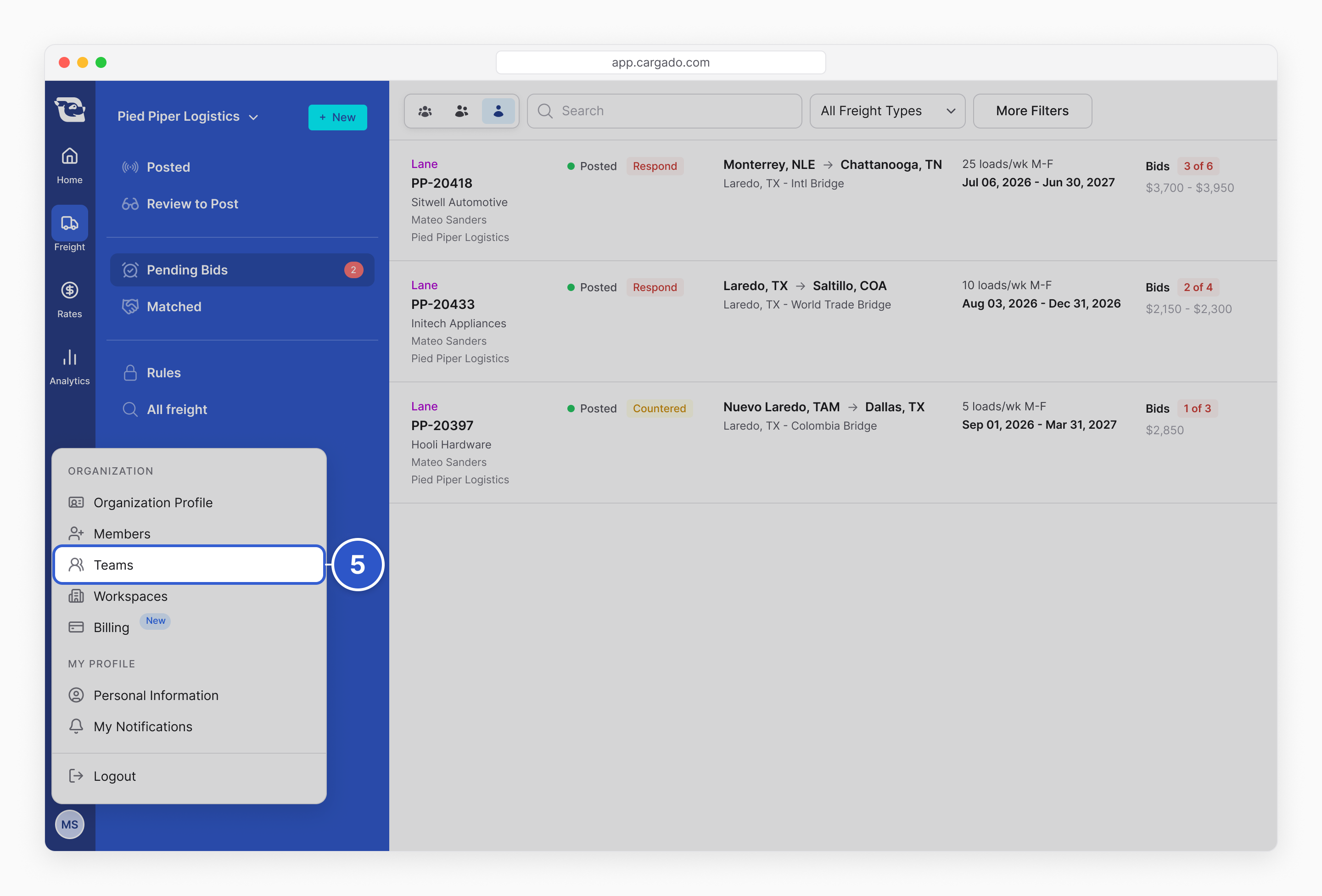
- Open your profile menu and choose Teams.
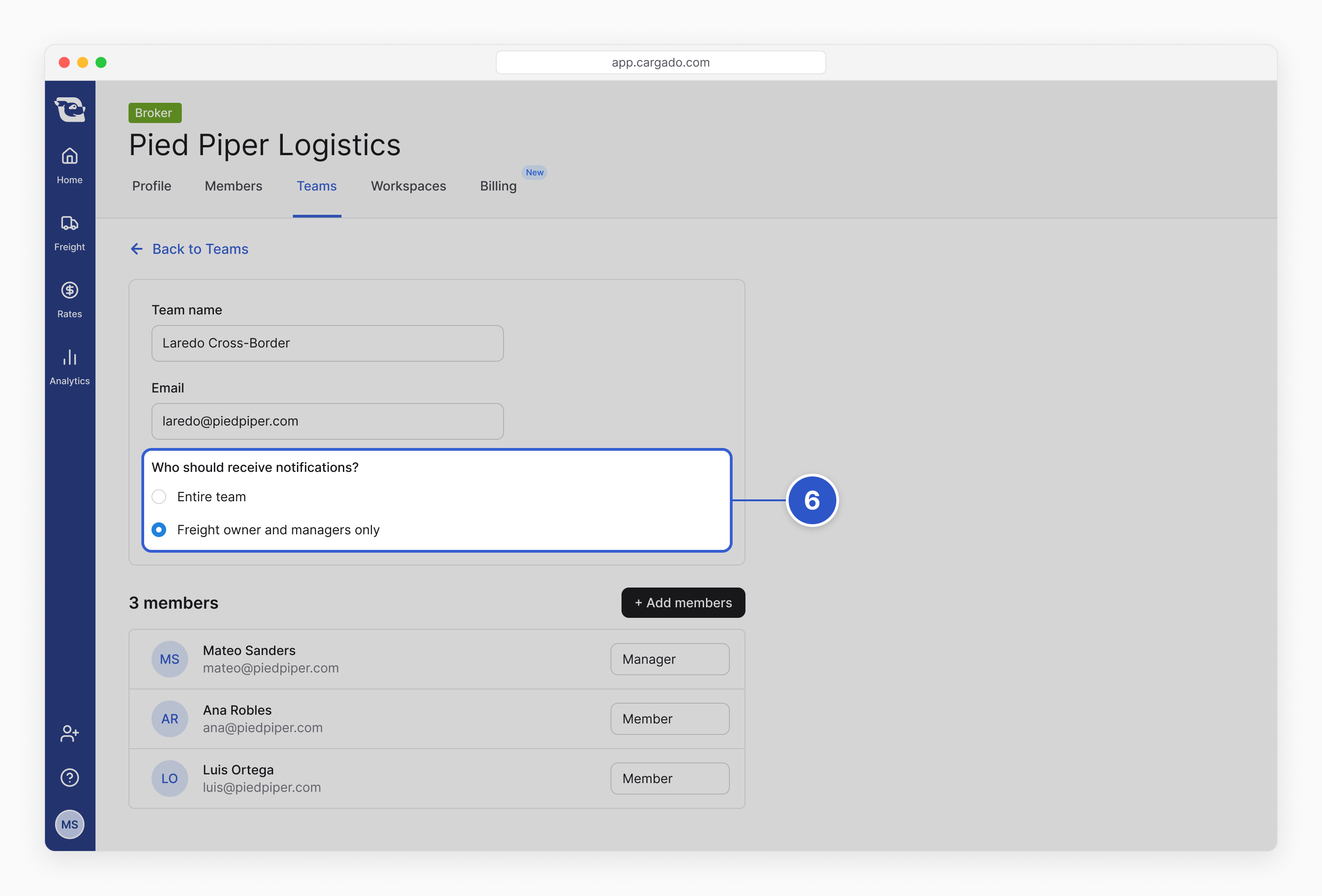
- Open the team.
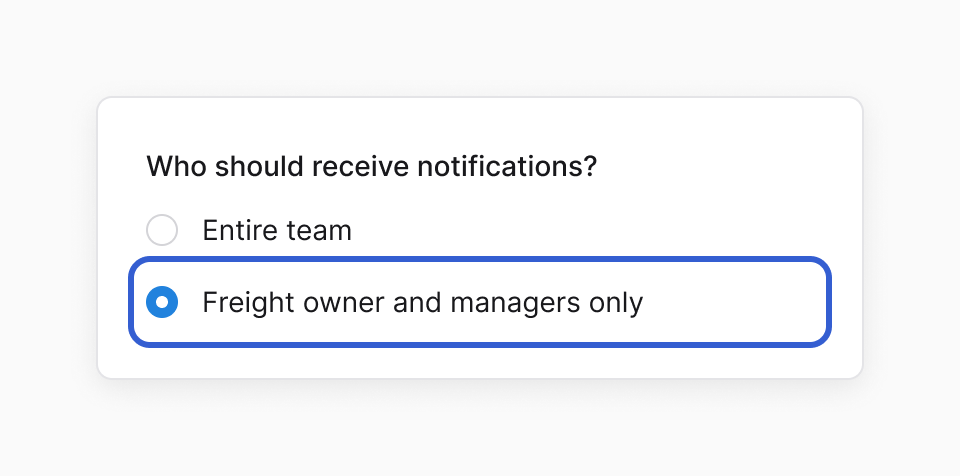
- Under Who should receive notifications?, choose Freight owner and managers only. Entire team adds every team member instead.
The setting applies to chats that start after you save it. A company admin can change it on any team. Other members can change it only on teams they created.
Still stuck?
Email us and a person on our team will answer. Send the posting link or a screenshot if you have one.