
How do I add people from my company?
Invite coworkers by email from Members, pick their role, and add them to a chat. Adding people costs nothing and has no seat limit.
In 3 steps
Step 1: Open Members
On a computer, click the person icon with a plus sign in the left menu. It opens Members with the invite form ready.
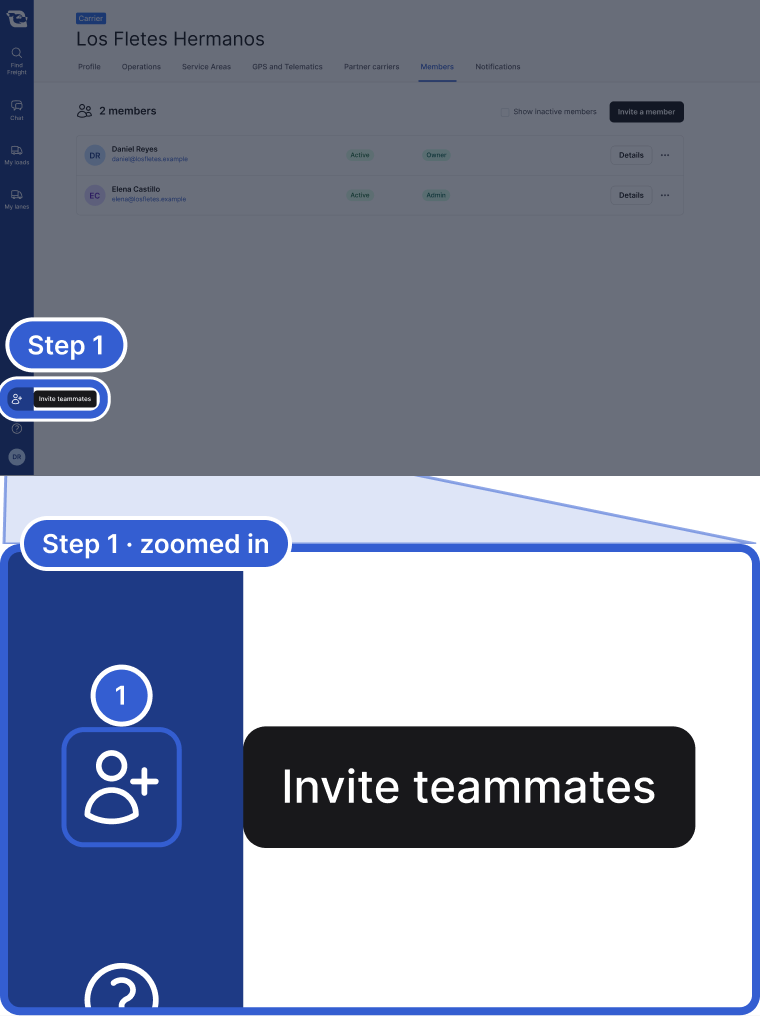
- Invite teammates opens Members with the invite form.
You can also click your initials, then Members under Organization, and click Invite a member.
Step 2: Fill in the invite
In Invite a member, fill in First Name, Last Name and Email. Phone Number and Title are optional. Click Invite Member. Each person gets an email invitation.
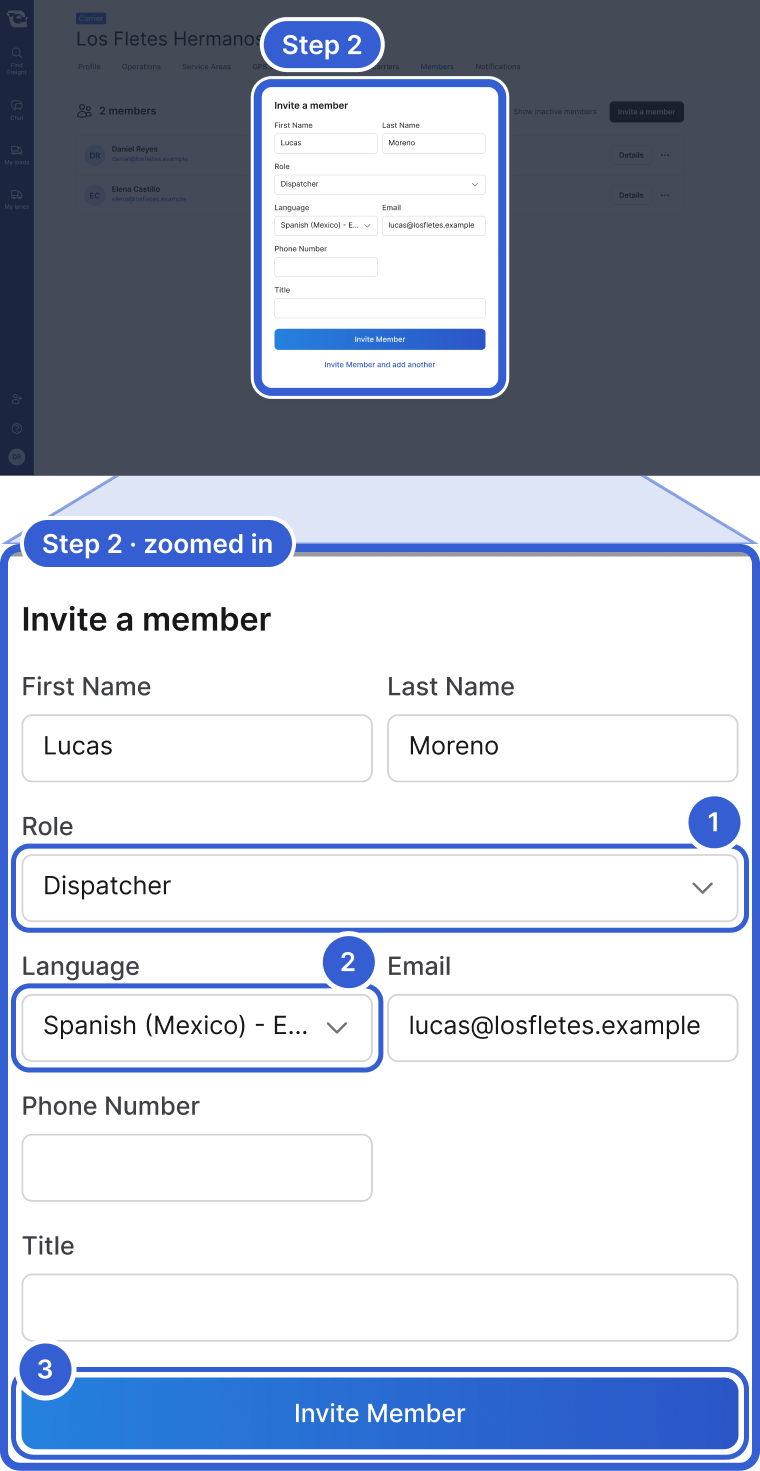
- Role: what the person can do. See Step 3.
- Language: the invitation's language, and a new person's account language.
- Invite Member sends the invitation by email.
Important: Invite only people who work for your company. The form does not check this for you.
Step 3: Choose the right role
Open Role and pick one.
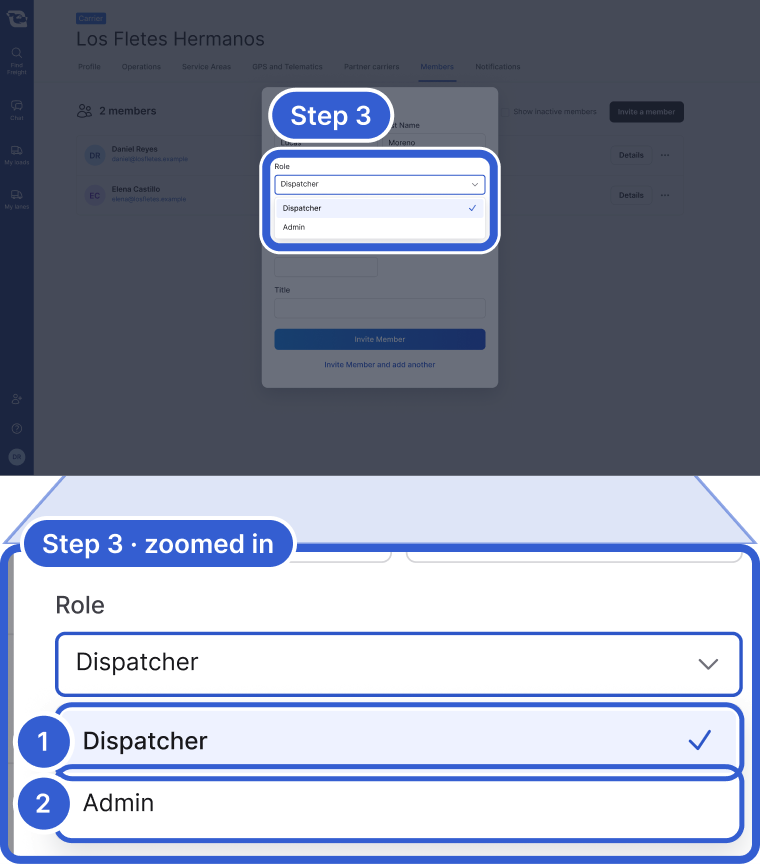
- Dispatcher, the default: bid, post trucks, edit the profile, invite Dispatchers.
- Admin: everything a Dispatcher does, plus making other people Admins.
Add a teammate to a chat
You can bring a coworker into a conversation with a logistics company. Open the chat and click the member pictures at the top.
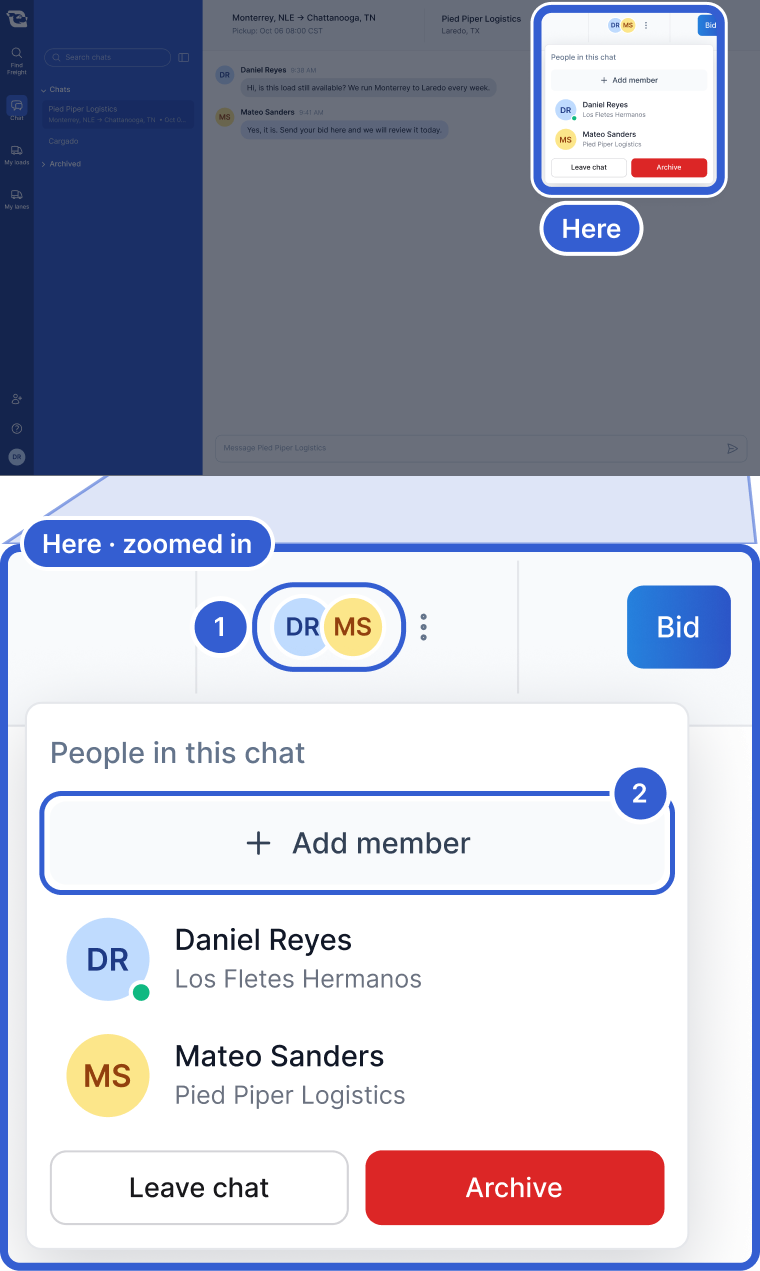
- Member pictures. On a narrow screen, a people icon with a count.
- Add member: search, select the person, click Add Participants.
Note: Only people already in your company show up in the search. To add someone new, invite them on Members first.
Good to know
- Cost: adding people costs nothing, and there is no limit on how many.
- Owner: one person, not a choice in the invite form. The Owner can pass it on with Make owner.
- Changing roles: Admins and the Owner can change a role later on Members. A Dispatcher cannot make anyone an Admin.
- Missed invitation: open the menu on that person's row and click Resend invite.
- Several in a row: click Invite Member and add another.
- No invite option? Your role cannot invite people. Ask an Admin on your team.
- Add member missing in a chat? It shows only in a chat you are in that is not archived.
Still stuck?
Email us and a person on our team will answer. Send the posting link or a screenshot if you have one.