
How do I read the load board?
What the Load board shows, what each part of a row means, and how a Load, a Lane and a Potential posting differ.
In 4 steps
Step 1: Open the Load board
In Find Freight, choose Load board in the blue sidebar. The board lists postings that fit your company profile and your freight preferences. Each row is one posting.
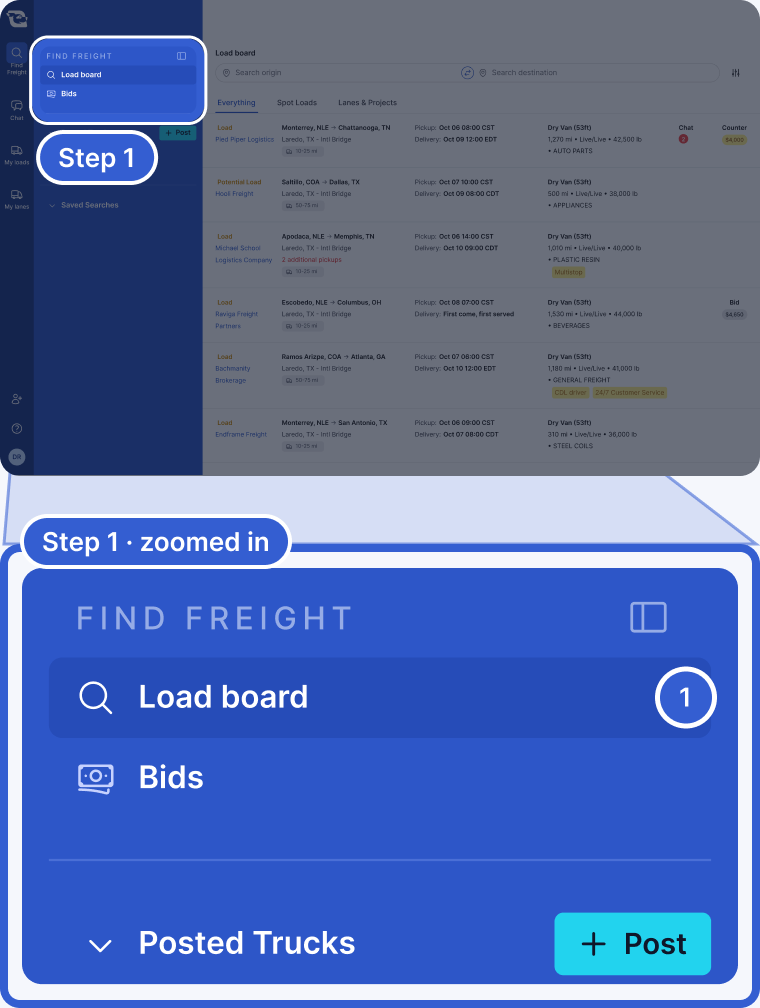
- Load board: your preferences come from the trailers, service areas and border crossings in your profile. You confirm them on your first visit. To change them, use the sliders icon next to the search bar.
Step 2: Check the posting type
Every row starts with one of four types: Load, Lane, Potential Load or Potential Lane. Check it first.
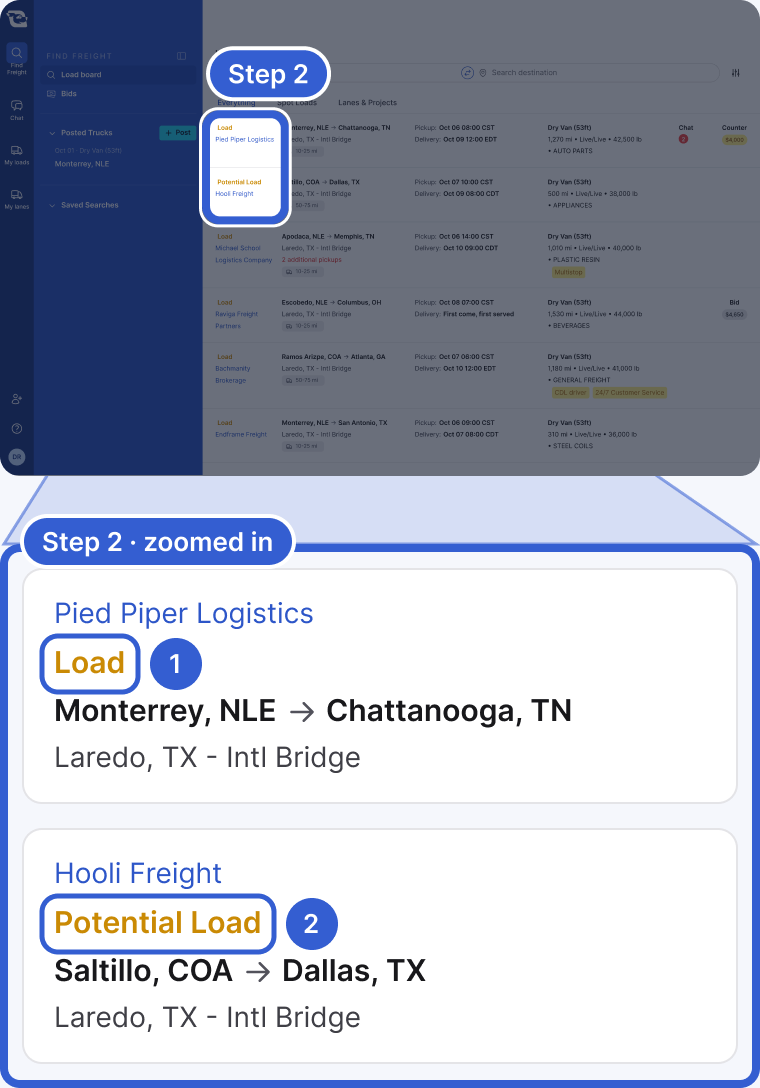
- Load: one shipment, with its own pickup and delivery.
- Potential Load: the logistics company has not won this business yet. It posts to collect rates and capacity from carriers, then uses them to quote its customer.
A Lane is a project. You bid on a volume of shipments over a date range, for example 5 to 15 loads a week. A Potential Lane is a project the logistics company has not won yet.
Important: A Potential posting is not a guaranteed load. After you bid, the logistics company reviews your rate. If it selects your rate, it uses your bid to negotiate with its customer.
Step 3: Read the row
There are no column headers. On a computer, a row reads left to right. On a phone, it stacks like this, with the company and your activity on top.
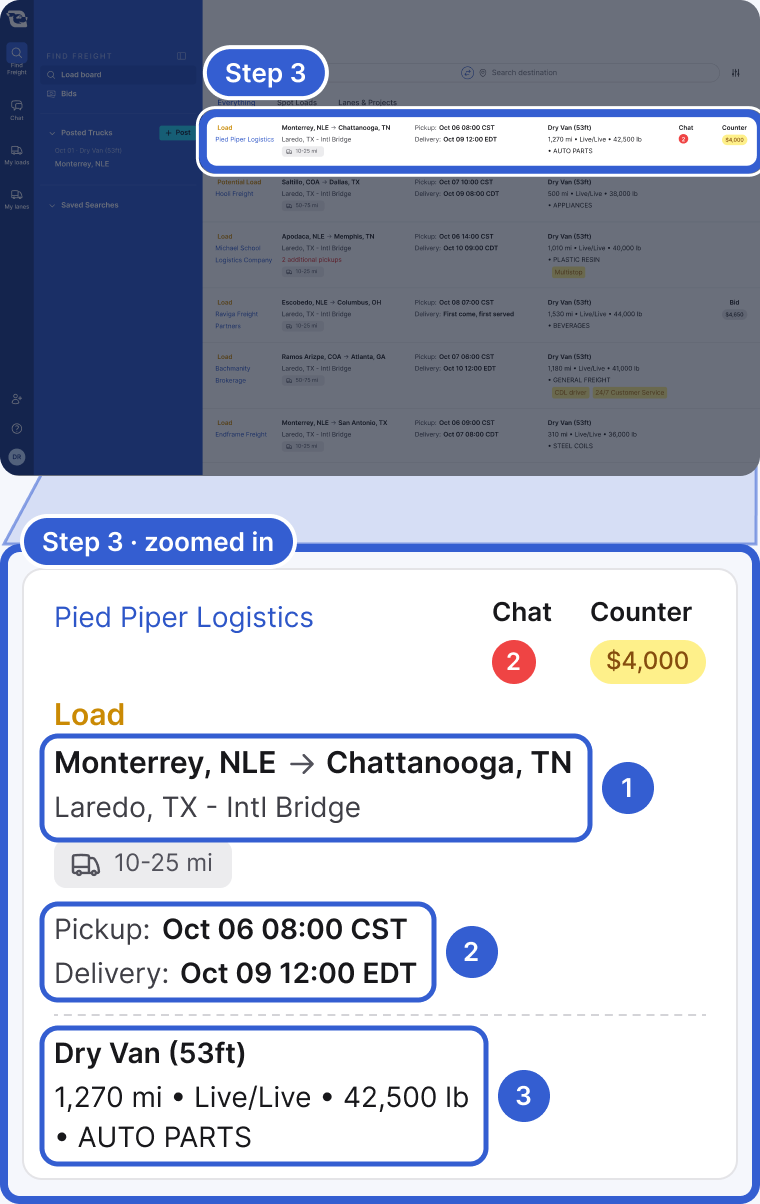
- The route: origin and destination. On a cross-border posting, the second line names the border crossing. On a domestic posting it is blank.
- The pickup and delivery appointments. Each can be a date and time, a window, or First come, first served. A Lane shows its volume and date range here instead.
- The summary: trailer type, distance, live or drop at each end, weight and the product. Partial loads skip live or drop. Empty-trailer moves skip weight and product.
Step 4: Check your activity
Each row also shows your chats and bids on that posting.
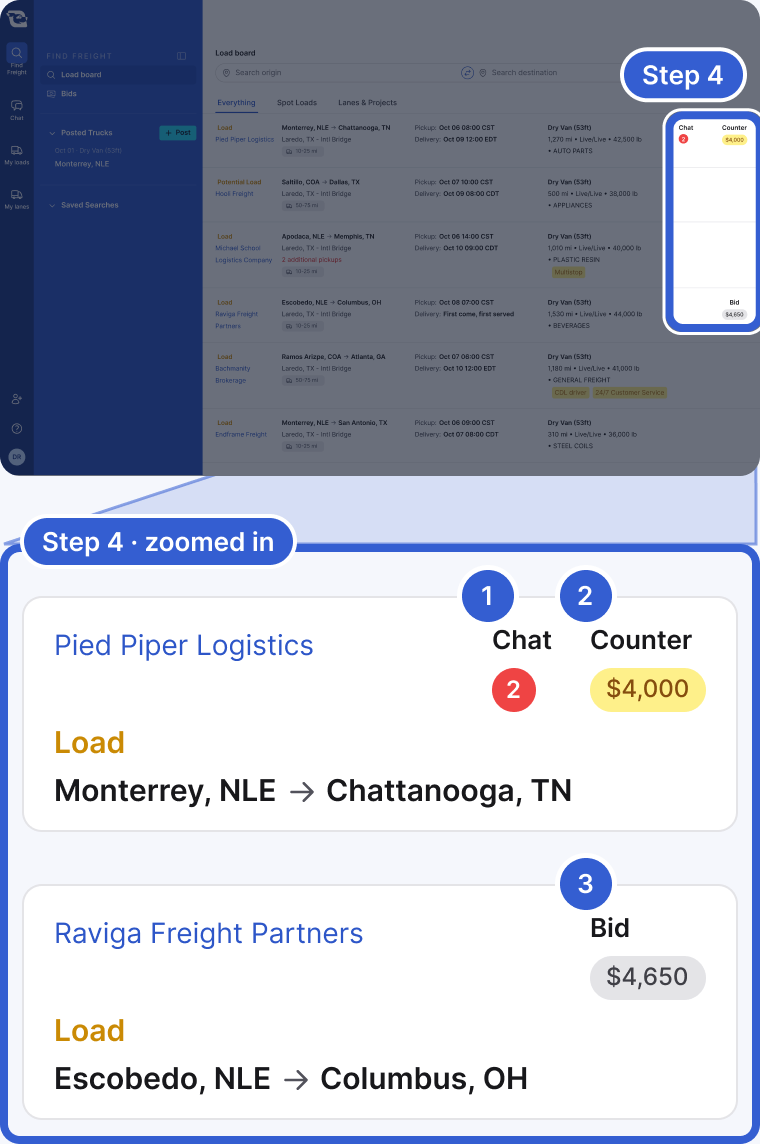
- Chat with a red number: how many of your chats about that posting have unread messages.
- Counter with an amount in yellow: the logistics company sent a counteroffer, and it is your turn. See how to answer a counteroffer.
- Bid with your amount in gray: your bid is open and waiting on the logistics company. You also see this after a counteroffer is withdrawn or turned down.
Click a row to open it. See what a posting tells you before you bid.
Good to know
- Wider sections: when the matching postings run out, the board keeps going. Expanded results: widens the match to your company's service areas and profile. All freight: comes last. It stays within the countries you serve but includes any trailer type and any border crossing.
- Tabs: Everything, Spot Loads and Lanes & Projects narrow the main results, but not the wider sections. To filter by hazmat, trailer, crossing and more, see how to filter the freight you see.
- Truck and distance: a small truck with a distance range, such as 10-25 mi, means the pickup is near one of your posted trucks. Point at it to see which truck.
- Red text: a note such as "2 additional pickups" means the posting has more than one stop. The row also gets a Multistop tag.
- Yellow tags: special requirements, such as Hazmat, Overweight, CTPAT carrier, CDL driver and 24/7 Customer Service.
- Accepted and Rejected: Accepted with the amount in green means your rate was accepted. Rejected with the amount in red means your bid was not taken. The X removes it from your active bids.
Still stuck?
Email us and a person on our team will answer. Send the posting link or a screenshot if you have one.