
How does chat with a logistics company work?
Start a chat from any posting, before or after you bid. No phone numbers are posted.
In 3 steps
Step 1: Start a chat from a posting
Open a posting from the Load board. You do not need to bid first.

- Message... under Contact Broker: opens your chat with that logistics company. Type and send your message there.
Ask about the load, the lane or how to onboard with them. If you already bid, the same bar opens the same chat, and your bid shows up in it.
Tip: The bid card has no message field. To add a note to your bid, such as where your empty truck is, send it in the chat.
Step 2: Find your chats
Click Chat in the left menu. A red number or a red dot on it means you have unread messages.
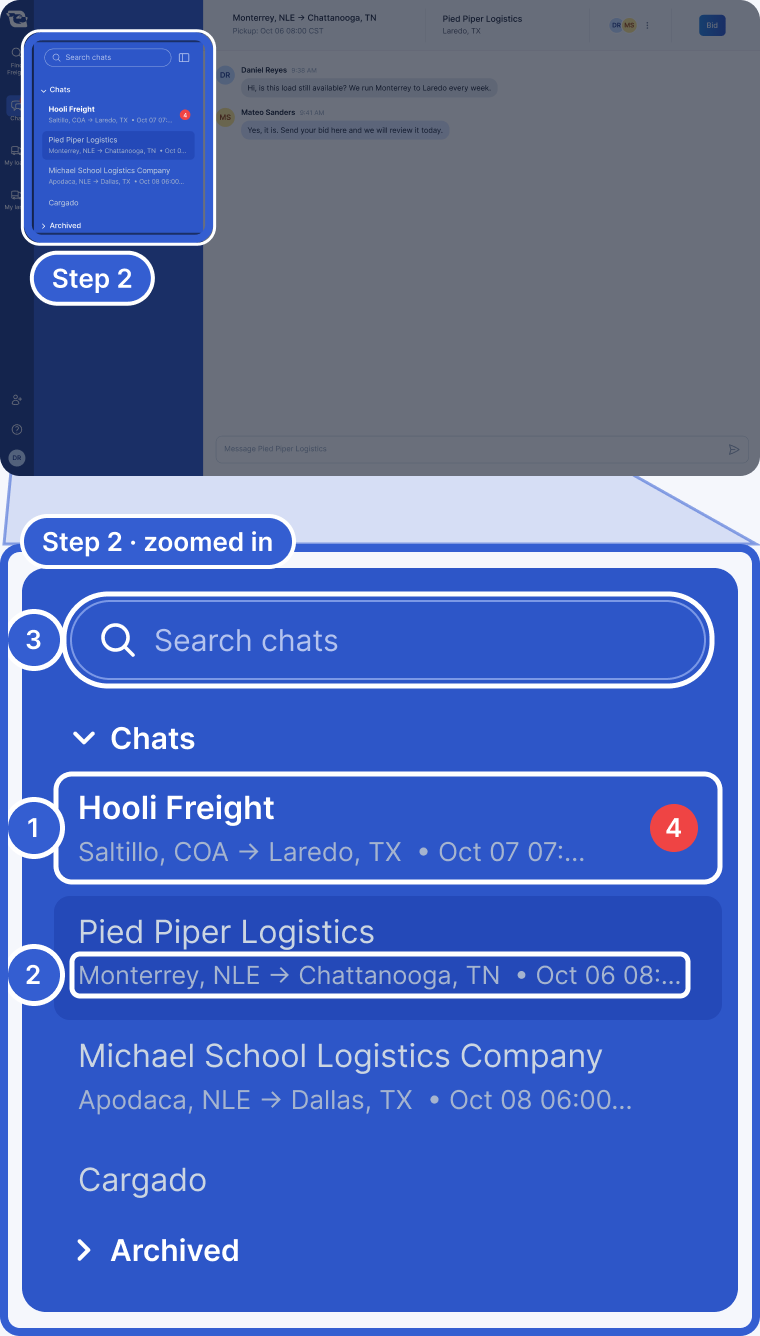
- A chat with unread messages shows in bold. Some also show a red count.
- Each chat about freight shows the logistics company's name and a one-line summary of the posting.
- Search chats: find a chat. Chats you archive move to Archived.
Inside a chat, click the route at the top to open the posting. Click the company name to see its profile, with its legal name and address.
Step 3: Add teammates
Open the member list in the chat header.
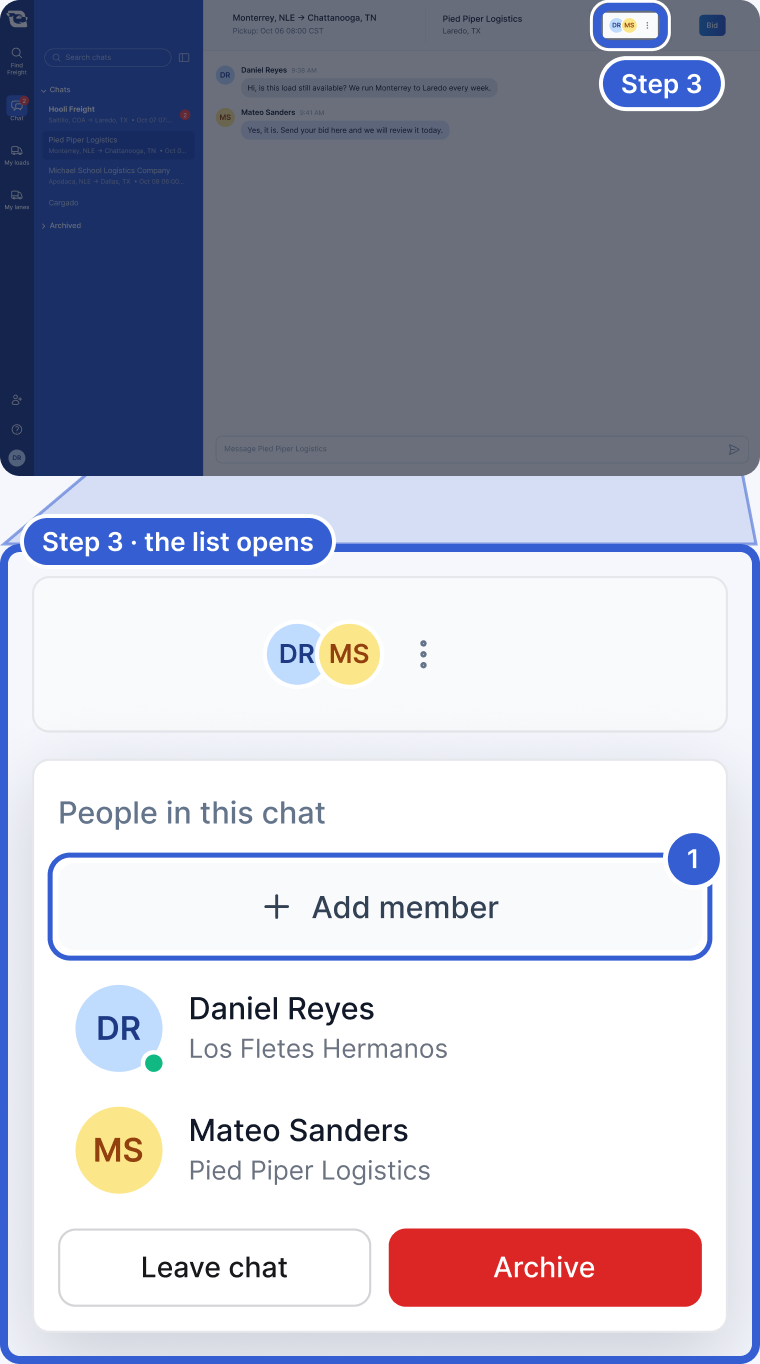
- Add member: search by name, email or phone number. You can add people who are already members of your company on Cargado.
You see Add member only when your company has at least one other member on Cargado. To add someone new, a person who manages your company's members first invites them with Invite teammates.
When phone numbers and emails unlock
Until a rate on the posting is accepted, Cargado blocks messages with phone numbers, email addresses or other outside contact details. A blocked message shows a red warning triangle next to it. Click the triangle to open Message Blocked.

- Edit Message: take the contact details out.
- Delete: delete the message.
The block lifts for that chat after a rate is accepted: when the logistics company accepts your bid, when you book with Book now, or when you accept their counteroffer. From then on you can share phone numbers and emails.
Good to know
- Translations: messages can be translated. Use Show original and Show translated to switch.
- Company profile: if that logistics company has a record of you as a carrier, the profile also shows Onboarded or Need to onboard.
- Won the freight? If the posting is closed and you won it, the route at the top of the chat opens your matched freight. See I won the freight. What happens now?
- Blocked by mistake? Contact Cargado support.
- Secure your account: if you have not turned on multi-factor authentication, a yellow note above the message box says Brokers can see your account isn't secured. Click Enable multi-factor authentication to set it up.
Still stuck?
Email us and a person on our team will answer. Send the posting link or a screenshot if you have one.